Annotation
Description: Added a vector annotation feature. When enabled, it automatically displays annotations such as length, area, and radius for points, lines, polygons, and other vector objects. Point layers support switching between XYZ and Text display, allowing custom text annotations. Supports exporting annotations as CSV or PDF files, with the generated file opening automatically.
Note: Annotations must be enabled before drawing vector objects for the annotation information to be displayed and saved. If annotations are not enabled, vector objects will not have annotation information.
Steps
1. Enable Annotation
Check the Annotation option on the vector editing page, as shown below:

Enable Annotation
2. Point Object Annotation
After enabling annotations, when you draw point objects, the coordinate values of the points are displayed by default, as shown below:
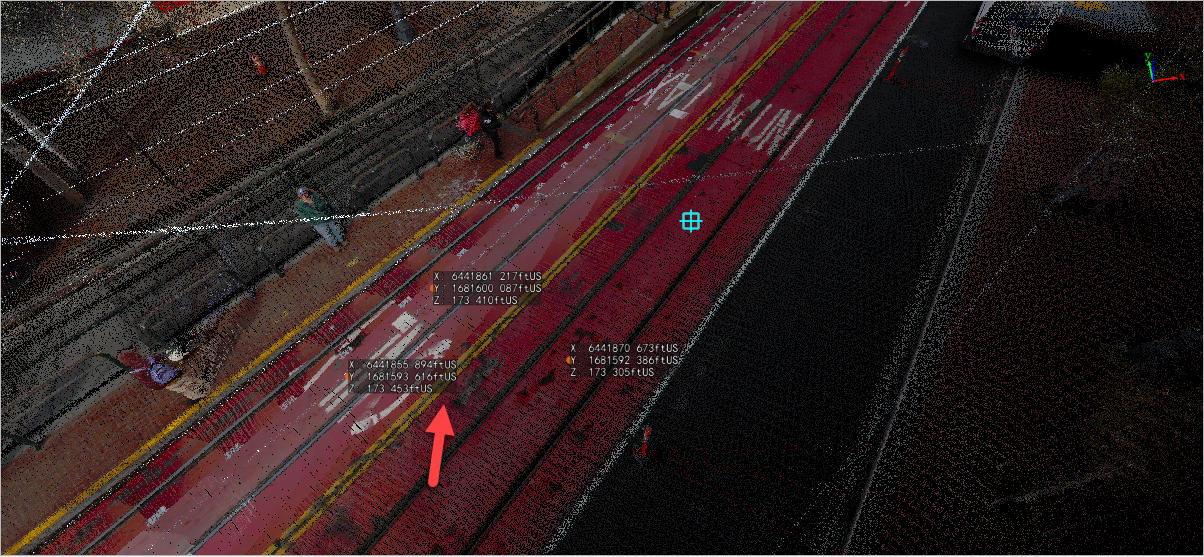
Default Point Annotation
In addition to the default Xyz annotation, point objects can also display custom text. Open the attribute table of the corresponding point layer, and click the Xyz/Text button in the right-click menu, as shown:
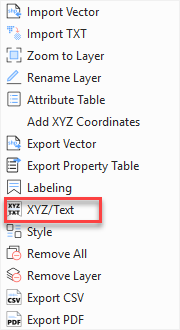
Switch to Text Display
A point_label field will appear in the point layer attribute table. After editing this field, the text in the field will be displayed in the annotation label:
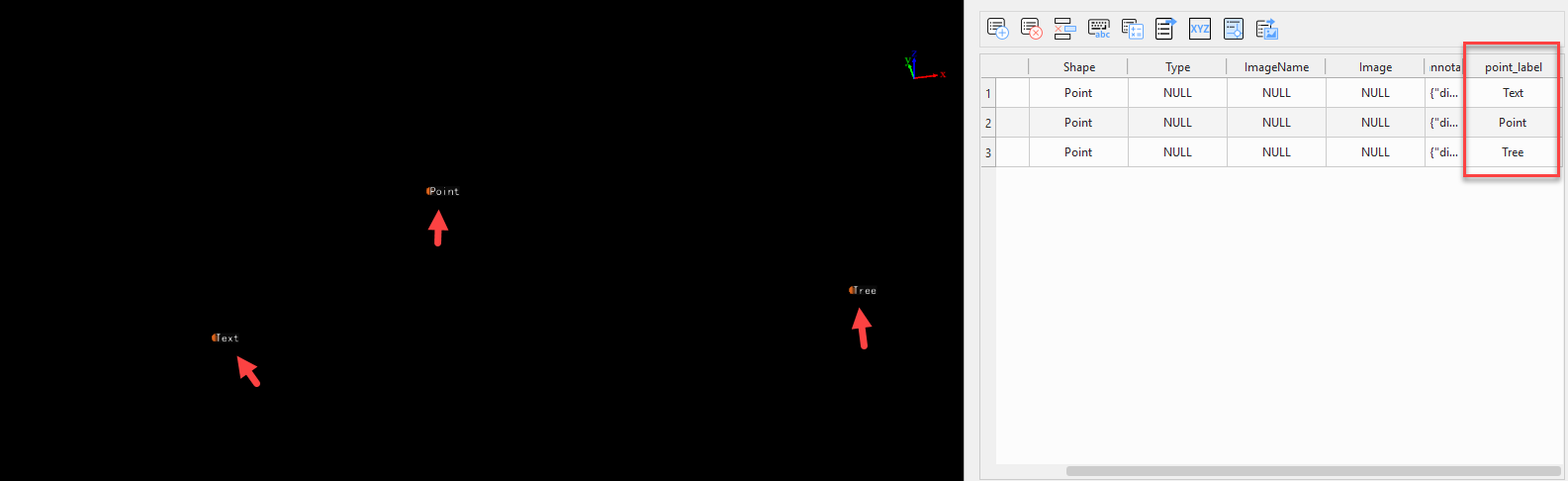
Text Point Annotation
3. Line Object Annotation
For line objects, the length of each segment and the total length are displayed. For arcs, B-splines, and Bezier curves, the arc length is displayed, as shown:
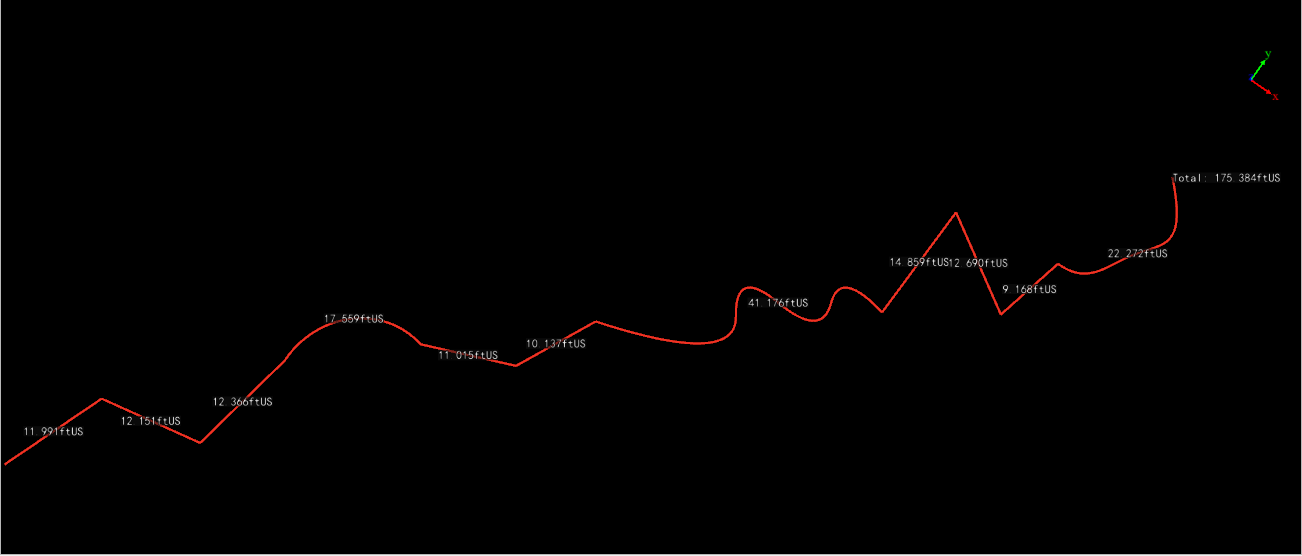
Line Annotation
4. Polygon and Other Object Annotations
For polygon objects, edge lengths and area are displayed; for arcs and circles, the radius is displayed; for box objects, the length, width, and height are displayed, as shown:
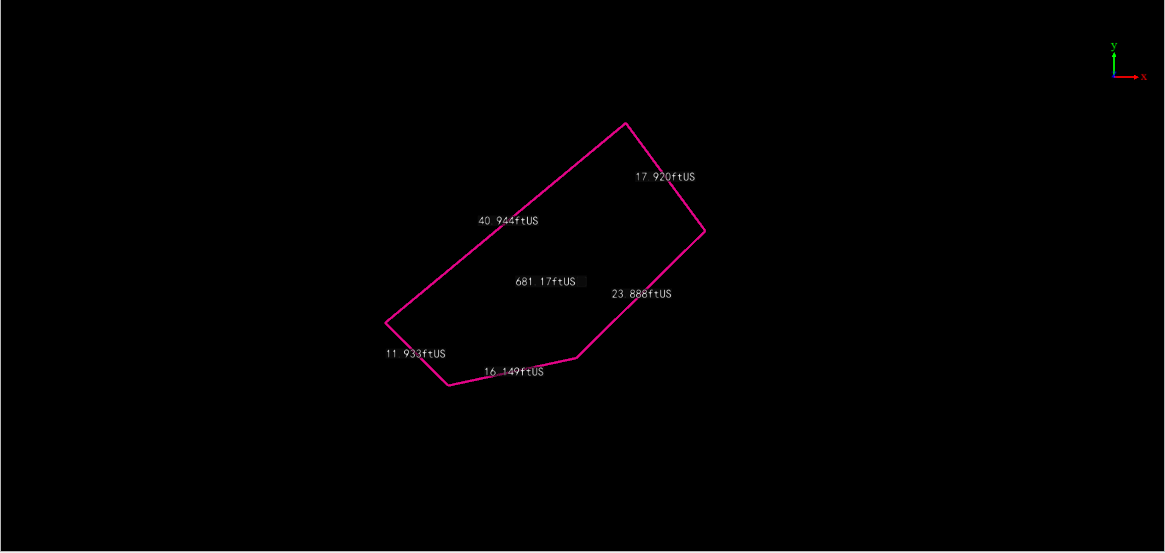
Polygon Annotation
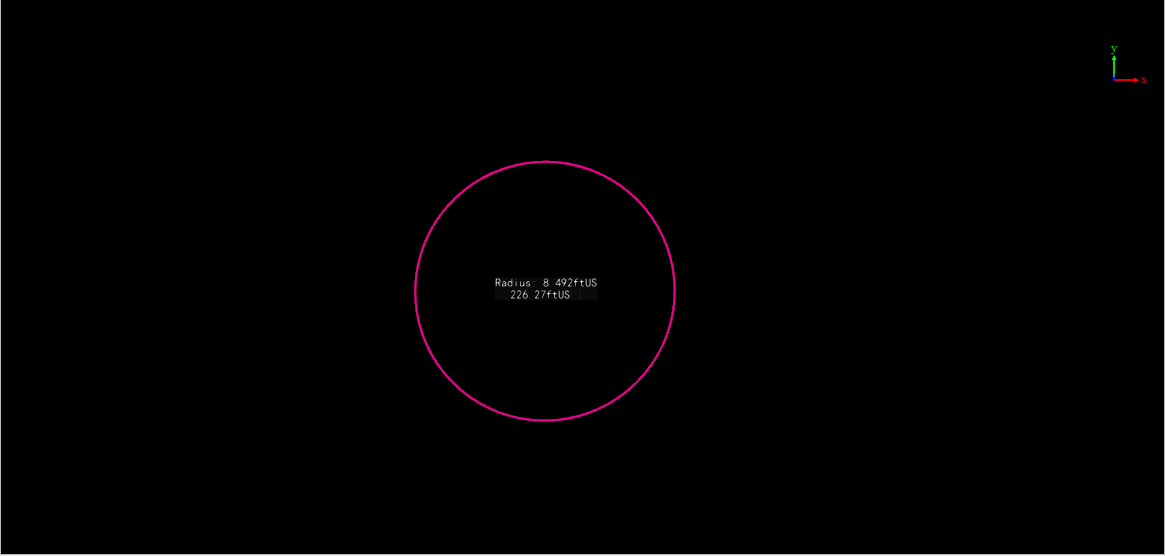
Circle Annotation
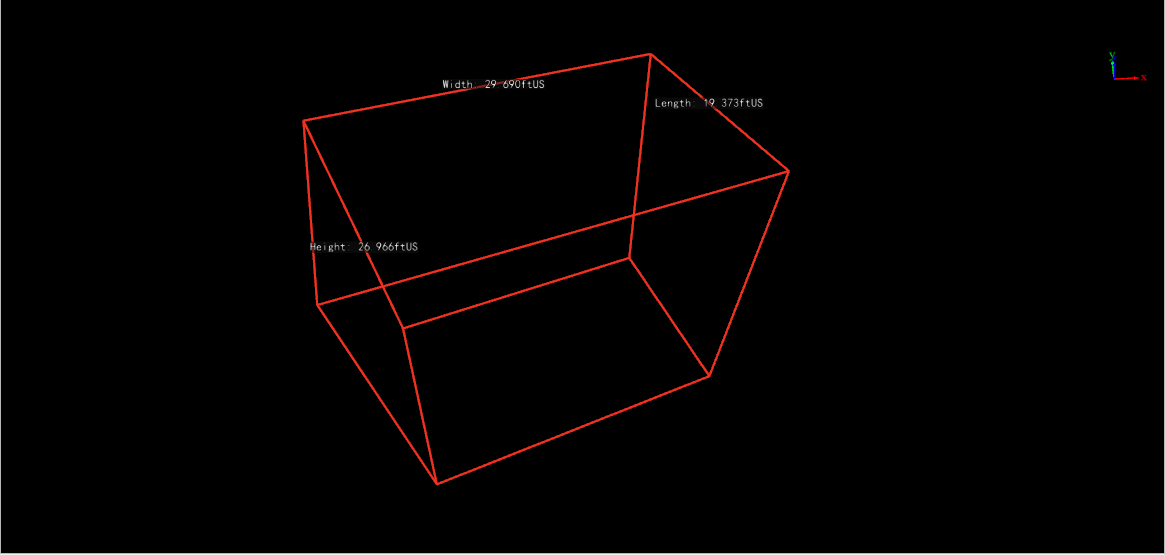
Box Annotation
Annotations, like vector objects, can be displayed in the profile window, panorama window, and planar camera window.
5. Export Report
After drawing is complete, you can export PDF and CSV reports. You can right-click the vector root node to export reports for all layers, or right-click a single layer to export its report. The exported report will open automatically.