Camera Roaming
Steps
- Click Camera Roaming
 to open the Camera Roaming timeline.
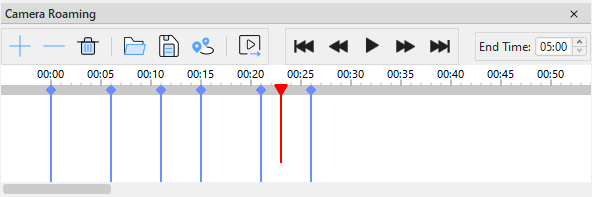
Adjust the camera position, viewing direction, and viewing angle in the 3D view. Move the timeline pointer to the time at which you want to record the camera state, and then click Add Time Frame to add the current camera state to the timeline.
Continue adjusting the camera state in the 3D view and add time frames at other positions on the timeline. Diamond markers on the timeline represent added time frames. A continuous camera roaming sequence is generated between adjacent time frames.
Set the roaming End Time as needed, and use the playback controls in the middle of the timeline to preview the roaming effect.
Check the time frames and the roaming effect. To make changes, delete specific time frames or clear all time frames and configure them again.
After configuring the roaming path, save the time frames for future use, or click Export Video to export the camera roaming sequence as a video file.
Time Frame Tools
The toolbar on the left side of the timeline contains the following tools:
- Add Time Frame: Adds a time frame at the current position on the timeline and records the current camera position, orientation, and viewing angle in the 3D view.
- Delete Time Frame: Deletes the currently selected time frame.
- Clear Time Frames: Deletes all time frames from the timeline.
- Load Time Frames: Loads a saved time frame file and restores the Camera Roaming timeline.
- Save Time Frames: Saves the time frames on the current timeline to a file for future editing or use.
- Import Trajectory: Imports an existing trajectory and generates a camera roaming path from it.
- Export Video: Exports a roaming video according to the current timeline and time frame settings.
Timeline and Playback Controls
- Timeline Pointer: The red pointer indicates the current time. Move the pointer along the timeline to view the camera state at the corresponding time.
- Time Frame Marker: Diamond markers on the timeline represent time frames.
- End Time: Sets the total duration of the camera roaming sequence. Time frames must be placed within the end time.
- Go to Start: Moves the current time to the start of the timeline.
- Step Backward: Moves the current time backward.
- Play: Previews the camera roaming sequence from the current time.
- Step Forward: Moves the current time forward.
- Go to End: Moves the current time to the end of the timeline.
Export Video
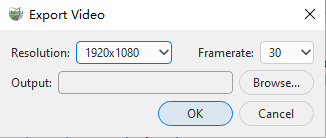
Click Export Video to open the Export Video dialog box.
Parameters
- Resolution: Sets the dimensions of the output video, for example,
1920x1080. A higher resolution produces a clearer video but usually increases the processing time and file size. - Framerate: Sets the number of frames output per second. A higher framerate produces smoother playback but may increase the processing time and file size.
- Output: Sets the path for saving the video file. Click Browse... to select the output location and file name.
After configuring the settings, click OK to start exporting the video. Click Cancel to close the dialog box without exporting.
Before exporting a video, preview the entire roaming sequence to verify that the time frame order, camera viewing angles, and end time meet your requirements.