Classify Selection
Function Description: Add class information to Gaussian splats.
Steps
- Click Classify Selection
 to activate the function. The Class Settings side panel appears.
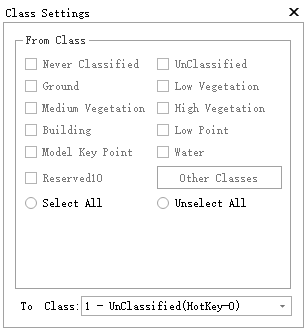
Parameter Description:
- From Class: The source class to be classified.
To Class: The target class.
Activate any selection tool on the Gaussian window toolbar.

Button Description:
 Profile: Open the profile window and operate in the profile view.
 Polygon: Select a polygonal area.
 Rectangle: Select a rectangular area.
 Sphere: Select a spherical area.
 Circle: Select a circular area.
 Line Above: Select the area above a line.
 Line Below: Select the area below a line.
 Plane: Select a planar area.
<!--
Plane: Select a planar area.
<!-- Plane Above: Select Gaussian splats above a plane defined by at least three points.
 Plane Below: Select Gaussian splats below a plane defined by at least three points.
- Within Plane: Select Gaussian splats within a plane defined by at least three points.
-->
 Subtract: Remove the specified region from the current selection. Use this together with another selection tool.
 Cancel: Clear the selection.
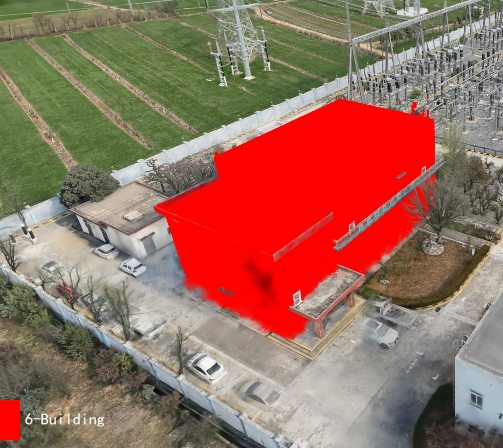
After selecting the Gaussian data and setting the source and target classes, click
 Save and wait for the data to be saved.
- Click
 Exit to leave the function.