Contact Technical Support
Use the built-in log packaging and issue-reporting commands whenever possible. Before submitting, record the error code, complete original message, occurrence time, and reproduction steps.
When LiDAR360MLS Is Still Responsive
- Do not close LiDAR360MLS or repeatedly rerun the failed task. Keeping the current session helps preserve logs for the failure time.
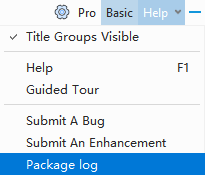
- Open the Help menu and select Package Log.
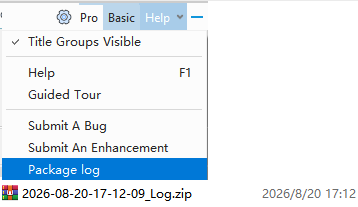
- Wait for the log-package folder to open and select the newest
_Log.zipwhose time matches the failure.
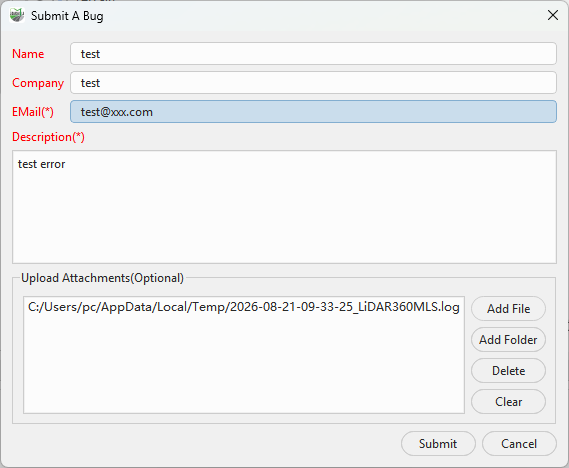
- Select Submit A Bug from the Help menu. Describe the problem, use Add File to attach the
_Log.zip, and submit the report. Package Log does not upload the ZIP automatically.
Gaussian or General Reconstruction Failures
The reconstruction page shows the current processing step, log output, and overall progress. For a Gaussian reconstruction failure, stall, or unexpected exit, use the page-level Package Log command first. It compresses the Gaussian reconstruction logs for the current project. Open Log Folder displays the reconstruction records for that project. See COLMAP Data Gaussian Reconstruction Workflow and LiGrip Data Gaussian Reconstruction Workflow for the localized interface and workflow.
If the page asks for an output directory, set the directory for the current task and package the logs again. Attach the resulting ZIP in Submit A Bug.
After a Crash
- In the Notice window, describe the last steps performed before the crash.
- Select Send to submit the crash dump, crash-time logs, and system information. You do not need to locate the
.dmpfile manually. - If sending fails or Cancel was selected, restart LiDAR360MLS, use Package Log and Submit A Bug, and include the approximate crash time and last actions.
Minimum Support Materials
- The four-digit error code and complete original message.
- Occurrence time, full software version, feature name, and actual reproduction steps.
- The inputs, output, and key parameters used for this failure; a complete parameter-window screenshot is acceptable for UI tools.
- The
_Log.zipthat matches the failure time; use the reconstruction-page package for reconstruction issues. - A minimal reproducible dataset only when support requests it, with the project and related files kept in their relative folder structure.
Reproduction Template
Occurrence time:
Project/data type:
Error code and complete message:
Reproduction steps:
1. Start LiDAR360MLS and open the ... project.
2. Select the ... data/layer and open the ... feature.
3. Set input ..., output ..., and key parameters ....
4. Select Run; the error appears during ....
Actual result:
Expected result:
Reproduction frequency:
Attachments: parameter screenshot, ..._Log.zip, minimal data sample
If No Log Package Is Created
Confirm the active project and, for reconstruction, the output directory. Sort the automatically opened folder by modification time and look for the newest _Log.zip. If no ZIP is created, do not repeatedly run a task that may modify the project. Use Submit A Bug to send the current application log, error screenshot, occurrence time, parameters, and steps, and state that no ZIP was created after packaging.
Privacy and Data Security
Review every attachment before submission. Logs may contain project names, file names, user directories, and local paths; a crash dump may contain process memory. Never submit passwords, license keys, access tokens, private keys, or unrelated account information. Do not edit original logs or crash dumps. If data is restricted by confidentiality, surveying, or privacy requirements, submit logs and redacted screenshots first and explain that the data cannot be shared directly.