AI Floor Plan Workflow
Note: For accurate FloorPlan DeepLearning results, the input point cloud should be aligned horizontally and vertically as closely as possible. If the point cloud is noticeably tilted, use Azimuth Correction to adjust its orientation first.
Steps
- On the AI Floor Plan page, select the functions to include in the current workflow.

Workflow function selection
The workflow provides four optional functions:
- FloorPlan DeepLearning: Uses a deep learning algorithm to automatically extract floor plan elements such as walls, doors, and windows from the input point cloud. It automatically creates a floor plan layer, bounding box layer, and annotation layer, and generates the corresponding vectors. The floor plan layer stores wall, door, and window vectors; the bounding box layer stores their bounding box vectors; and the annotation layer stores floor plan annotations generated by subsequent operations. Use Drawing Settings to adjust the styles of the generated vectors and annotations.
- Auto Anno: Uses vectors in the floor plan and bounding box layers to generate length annotations, door semantic annotations, and window annotations in a specified annotation layer. See Auto Anno for details.
- Export Annotation Report: Generates a report from floor plan vectors and annotations according to drafting standards. See Export Annotation Report for details.
- DXF: Exports the floor plan vectors to a DXF file. See Export DXF for details.
Each function can be selected or cleared independently. Only selected functions are included in the current run, and the parameter dialog displays pages only for those functions.
- After selecting the functions, click Run on the Ribbon. The azimuth correction prompt appears.
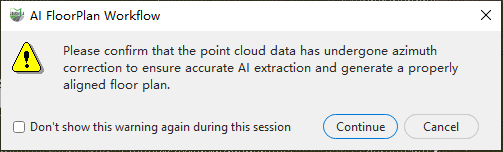
Azimuth correction prompt
- If azimuth correction has not yet been performed, click Cancel, correct the point cloud orientation, and then run the workflow again.
- If azimuth correction is complete, or the point cloud is already aligned horizontally and vertically, click Continue.
After selecting Do not show this warning again during this session, the prompt will not appear again when Run is clicked during the current software session. It is displayed again after the software is restarted.
Click Continue to open the parameter dialog. Configure the basic workflow parameters and the parameters for the preceding functions.
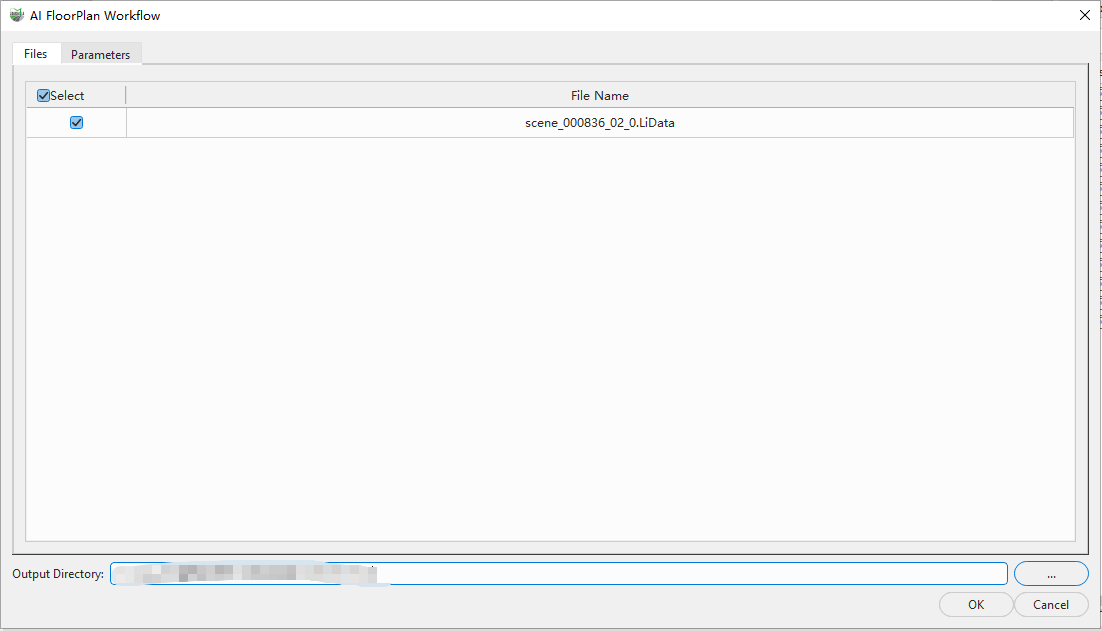
Input point cloud settings
- Open the Parameters tab and configure the remaining selected functions.
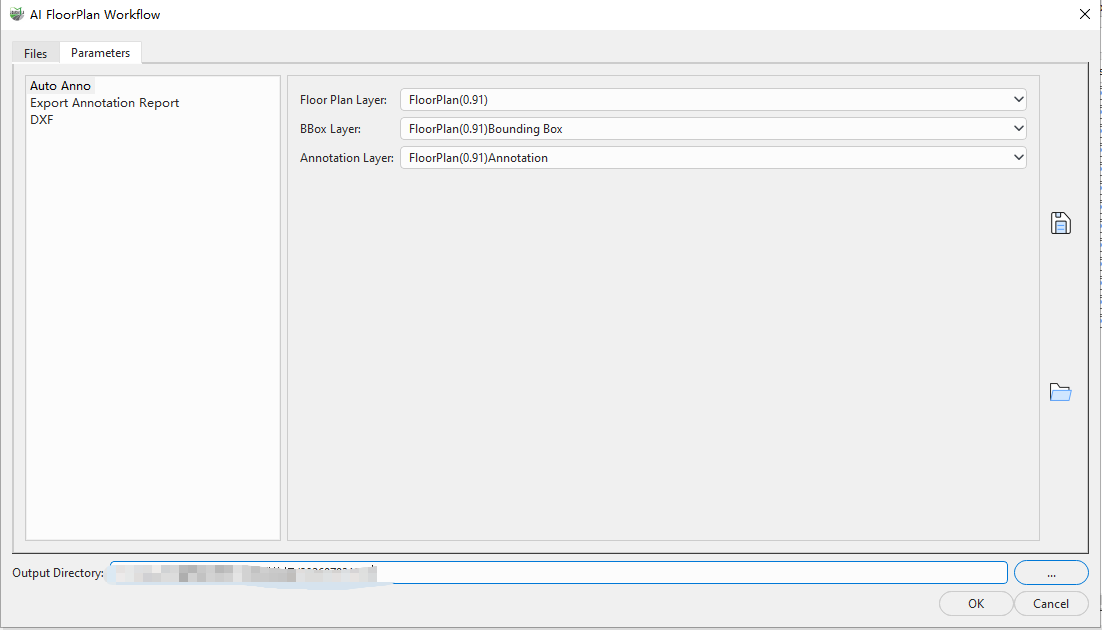
Subsequent function parameter settings
Select a function on the left and configure its parameters on the right. The parameter area lists all functions selected on the Ribbon. For detailed parameter descriptions, refer to the function pages linked in Step 1.
- After confirming all settings, click OK. The software automatically runs all selected processing steps without requiring each function to be started manually.
When selecting multiple functions, make sure that the output of each preceding function meets the input requirements of subsequent functions. For example, Auto Anno, Export Annotation Report, and DXF require existing floor plan vectors, or FloorPlan DeepLearning must also be selected to generate them.