Project Tree Layer Management
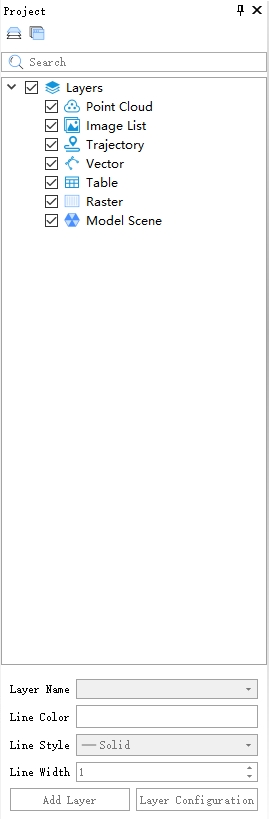
Steps
By checking or unchecking the checkboxes of tree nodes, you can control the display or hiding of the current data and all child nodes' data (if any). The right-click menu of a data node provides options for querying, displaying, analyzing, exporting, removing, and etc. Different types of data (such as point clouds, trajectories, vectors, etc.) have different right-click menus.
The Project window is open by default. If the window is closed, you can reopen it by checking the "Project" checkbox in the "Display" tab, as shown in the image below:

- Layer right mouse button:
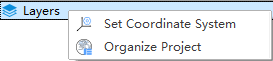
If the data loading is not complete (displaying 'Loading...'), the corresponding right-click menu will be temporarily unavailable.
Function Description:
- Set Coordinate: Used to modify the coordinate system of the current project (including point cloud, vector).

Note: If a point cloud exists for the project, it is required that the coordinate units of the newly selected coordinate system must be consistent with the previous one; if the point cloud is empty, it is allowed to be modified to any projected coordinate system.Define Projection in the Reference Point Cloud Tool Module.
- Organize Project: Used to copy all original files such as point clouds, trajectories, image list, etc. under the current project to the selected new folder and generate a new project file.
The layers can be categorized into several parts based on their data sources: