Third-Person Perspective (TPP)
Function Description: Enabling this mode allows immersive data exploration from a third-person perspective.
Prerequisites
- Before using Third-Person Perspective, an initial position must be set. For details, see Initial Position. The initial position determines where roaming starts and where the character returns after an abnormal fall.
- Third-person roaming currently supports only one Gaussian file at a time.
Steps
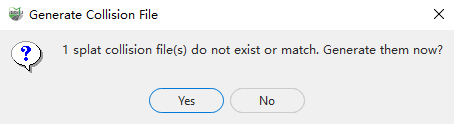
Click Third-Person  . If no collision file exists, or if the existing collision file does not match the current Gaussian file, the software prompts you to generate one. If you choose to generate it, the GS window switches to Third-Person Perspective after generation is complete. If you choose not to generate it, you can still enter this perspective, but collision detection will not take effect.
After entering Third-Person Perspective, use the following mouse and keyboard controls:
| Shortcut | Description |
|---|---|
| Mouse Wheel | Controls vertical movement: scroll forward to move up and backward to move down |
| Left Mouse Button | Controls view rotation and vertical tilt |
| W | Move forward |
| A | Move left |
| S | Move backward |
| D | Move right |
| Z | Rotate left |
| C | Rotate right |
| Space | Jump |
Note:
- After this perspective is enabled, only immersive roaming is available. Editing functions such as measurement, selection, and cutting cannot be used.
- Without a matching collision file, collision detection does not take effect and the character can pass through the model.
- Moving into an open area without a valid collision surface may cause the character to fall. If the fall exceeds a certain distance, the character automatically returns to the initial position.
Description
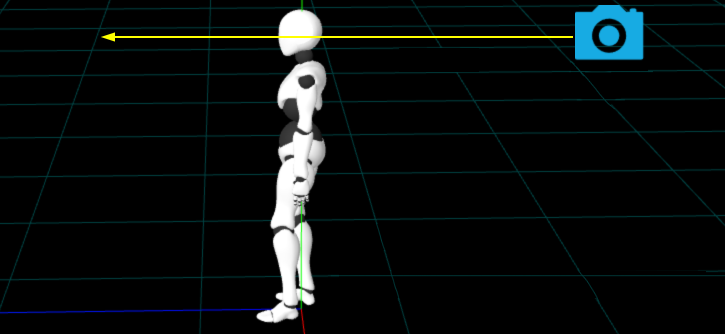
- Third-person roaming: As shown below, when the view faces forward, the camera is positioned behind the model for data roaming and inspection.
Third-Person Perspective