Transform
Steps
- Select the Gaussian model to process in the 3D view, then click
 Transform to open the Transform dialog box.
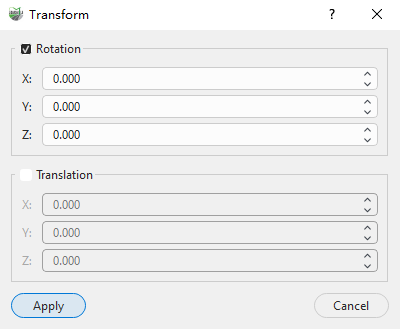
Check Rotation and/or Translation as needed. Only checked transformation types are applied.
Set the rotation parameters by entering the model's rotation angles around the X, Y, and Z axes. Leave an axis at
0.000if no rotation is required around it.Set the translation parameters by entering the model's translation distances along the X, Y, and Z axes. Leave an axis at
0.000if no translation is required along it.Check the settings and click Apply to transform the selected Gaussian model and display the result in the 3D view. Click Cancel to close the dialog and discard the current settings.
This function directly affects the Gaussian model currently selected in the 3D view. After applying the transformation, view the model's changed position and orientation in the 3D view.
Parameters
Rotation
After checking Rotation, set the model's rotation around each coordinate axis:
- X: Rotation angle around the X-axis.
- Y: Rotation angle around the Y-axis.
- Z: Rotation angle around the Z-axis.
Translation
After checking Translation, set the model's translation along each coordinate axis:
- X: Translation distance along the X-axis.
- Y: Translation distance along the Y-axis.
- Z: Translation distance along the Z-axis.
Rotation and translation can be performed separately or together. A transformation type that is not checked is not applied.
Transform changes the actual coordinates and spatial orientation of the Gaussian splats. To write or modify only the coordinate reference system information, use Define Projection.