Object Editor
Function Description: Add label information to Gaussian splats.
Steps
- Click Object Editor
 to activate the function. The Label Settings side panel appears.
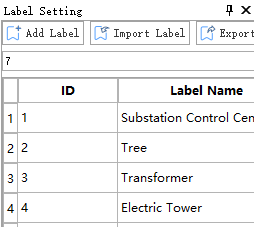
Configure object labels.
- Add Label: Add a label to the list. Double-click a cell in the Label Name column to edit its name.
- Clear Labels: Clear the label information in the project and the Gaussian attributes in the Gaussian file.
- Reload Labels: Read label information from the Gaussian file and add it to the current list. Existing label information in the list is not deleted.
- Export Labels: Export the label information in the list to a CSV file.
- Import Labels: Import label information from an external CSV file into the list.
Label configuration is project-specific. Labels must be configured manually or imported for a new project.
Click an item in the label list. Its ID appears in the ID input box. You can also enter an ID manually.
Right-click an item in the list and select Delete to delete the current label and clear its corresponding attributes from the Gaussian file.
Activate any selection tool on the Gaussian window toolbar.

Button Description:
 Profile: Open the profile window and operate in the profile view.
 Polygon: Select a polygonal area.
 Rectangle: Select a rectangular area.
 Sphere: Select a spherical area.
 Circle: Select a circular area.
 Line Above: Select the area above a line.
 Line Below: Select the area below a line.
 Plane: Select a planar area.
 Subtract: Remove the specified region from the current selection. Use this together with another selection tool.
 Cancel: Clear the selection.
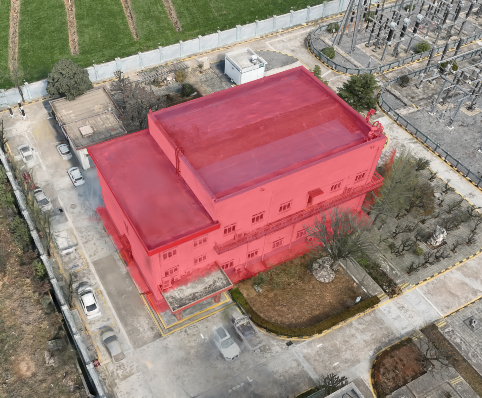
After selecting the Gaussian data, click
 Save and wait for processing to complete.
- Click
 Exit to leave the function.