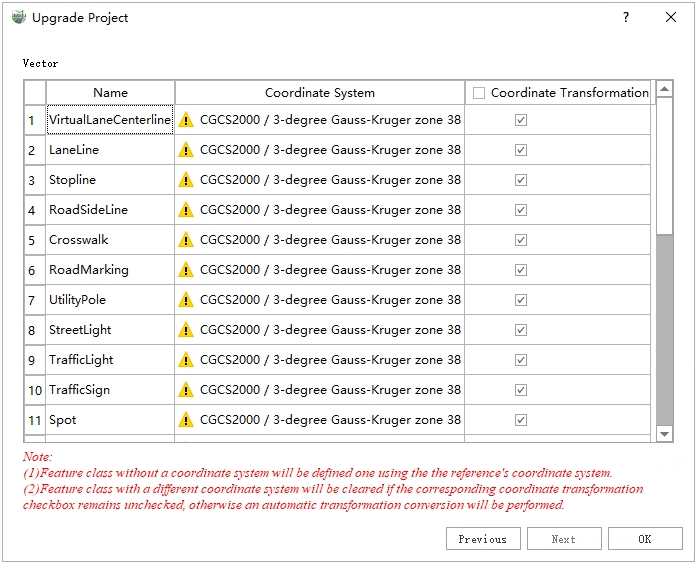
Open Mapping Project
The software supports opening projects of the following types: *.LiMMP, *.Listreet, *.LiGeo, *.Liscan, and *.mmprj.
Steps
- Open Project: Displays recently opened projects in a "card with thumbnail" format. Double-click a project card to open it. For specific operations, please refer to Open Georeference Project.
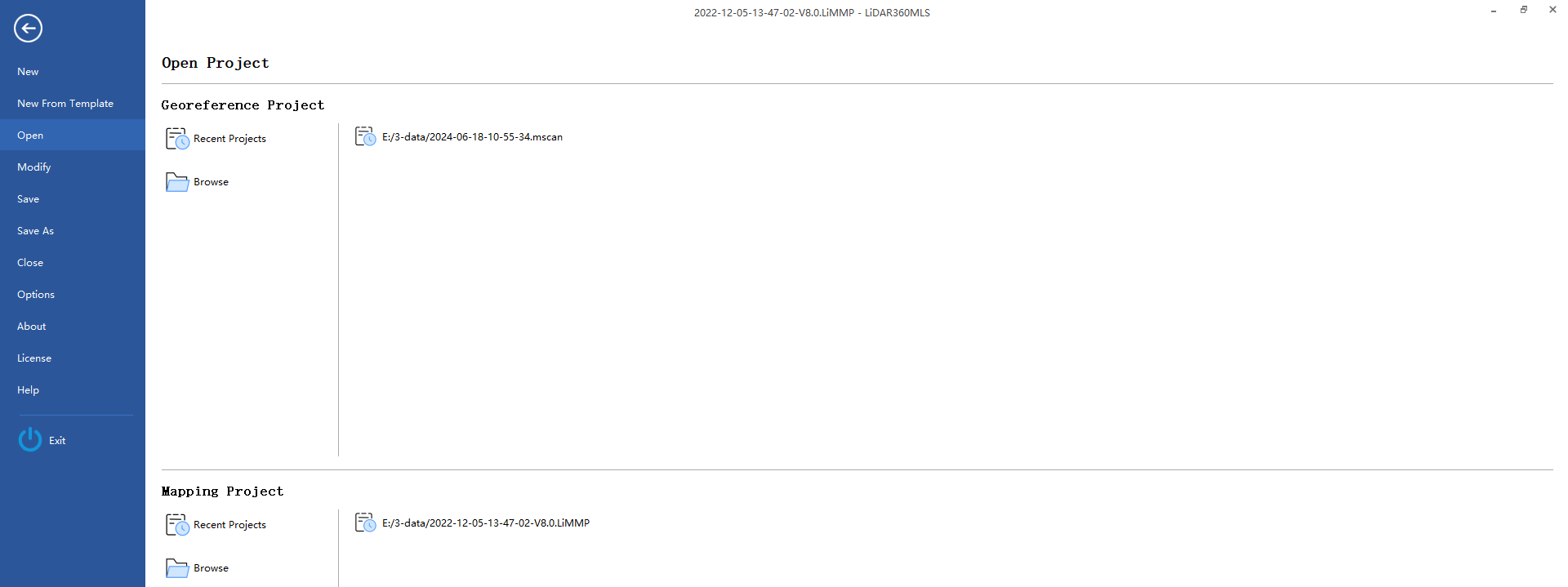
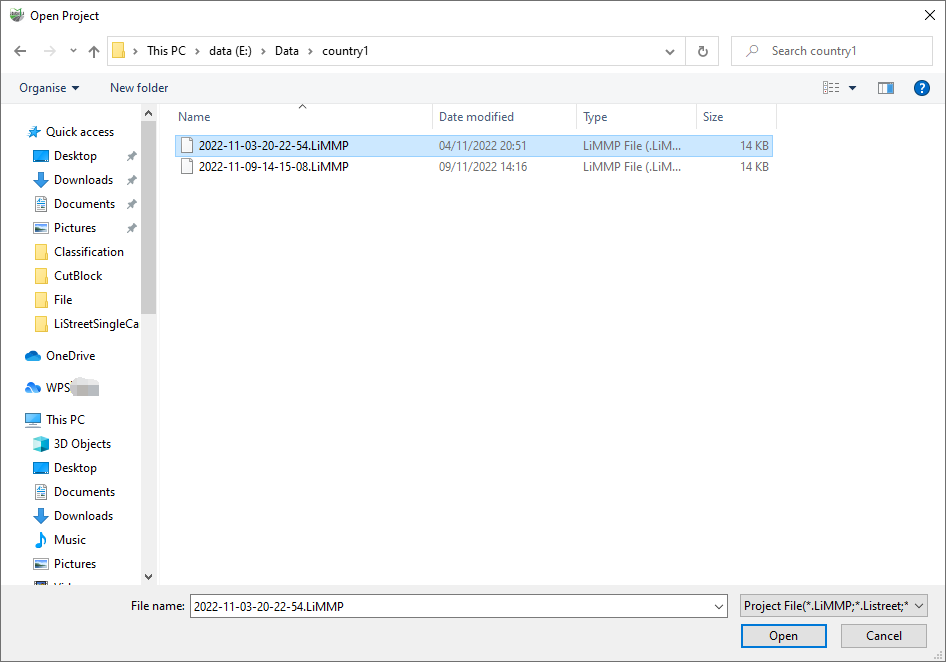
- Browse: Open a project located in a specific directory.
Project Upgrade
Generally, when opening a project created in a lower version, the system will automatically upgrade it to the latest version supported by the current software. The upgraded project file will usually include a version number suffix (e.g., AAA-V8.0.limmp) to distinguish it and avoid directly modifying the original project file.
The software will display an upgrade dialog box requiring manual user intervention in the following specific scenario:
(1) The original project contains point clouds with different coordinate systems, and the database is not empty.
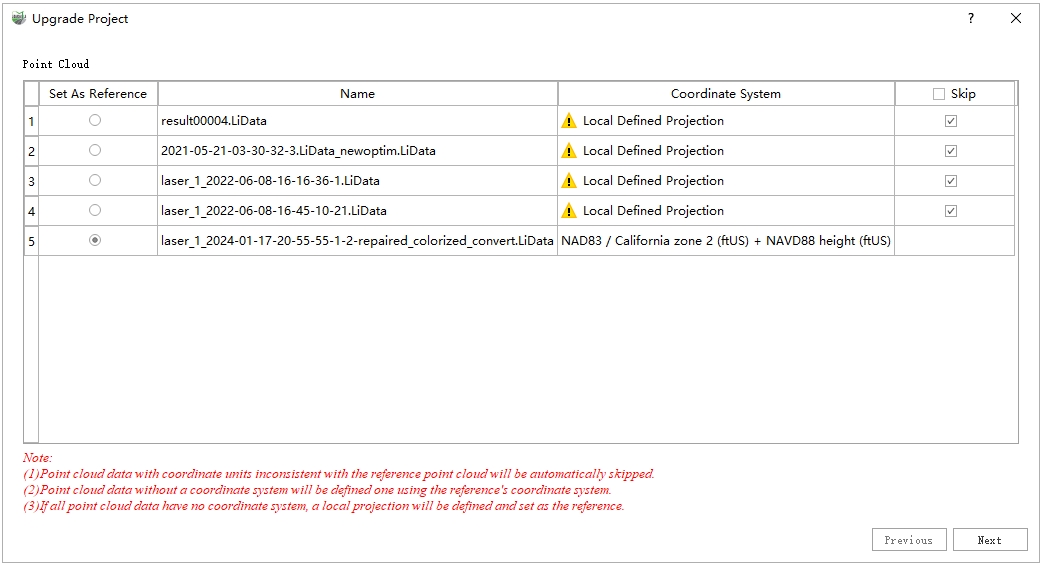
The dialog box is shown below:
Steps
- Select Reference Point Cloud
Click the button on the far left to specify the reference point cloud (i.e., set the coordinate system for the project). Point clouds with coordinate units inconsistent with the selected reference will be automatically marked with an exclamation mark, and the corresponding Skip checkbox will be checked, indicating they will not be loaded subsequently.
After configuration, click Next to enter the vector settings interface.
- Vector Coordinate Conversion Settings