Point Cloud Format Conversion
Convert to ASCII
1.Click Convert to ASCII  button
2.Usage:Click Point Cloud Conversion -> Convert to ASCII
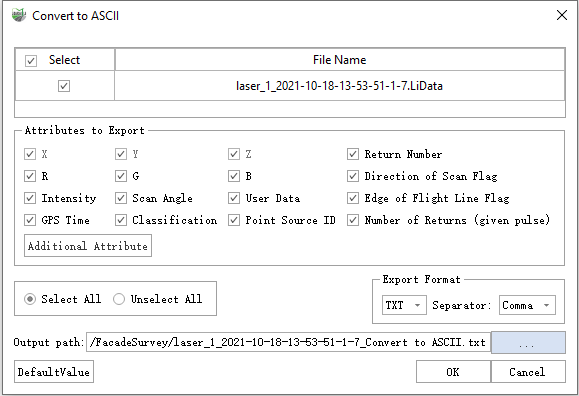
Parameter Settings
- Input Data: Choose the LiData file(s) you need to export. The input file can be a single-point cloud data file or multiple data files.
- Exported Attributes: Supports basic attribute types and additional attributes.
- Export Format: The software supports txt and CSV suffix formats, and the separators support commas, spaces, and TABs.
- Output Path: The output folder path. The new file will be generated after the function is executed.
Convert to Las
1.Click Convert to Las  button
2.Usage: Click Point Cloud Conversion -> Convert to Las
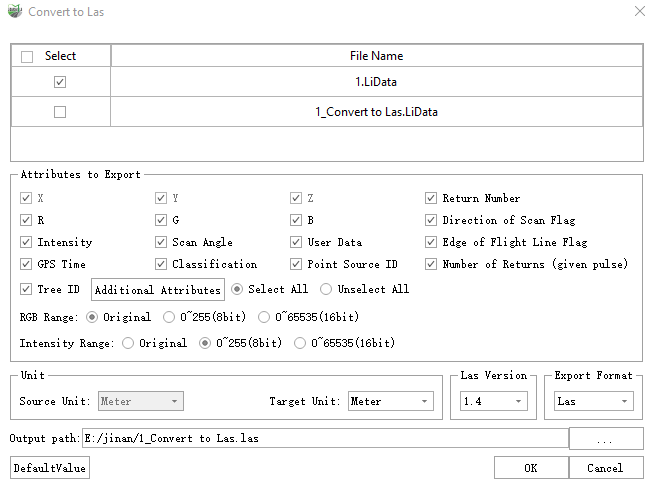
The conversion to Laz format follows the same procedure.
Parameter Settings
- Input Data: Choose the LiData file(s) you need to export. The input file can be a single-point cloud data file or multiple data files.
- Exported Attributes: Supports all Las attribute types and additional attributes.
- Color Range: There are three RGB ranges to choose from.
- None: Output according to the original RGB range of the selected file.
- 0~255 (8-bit): Map the RGB range to 0~255 for output. If the color range of the user-selected file is 0~1 or 0~65535, it can be mapped to 0~255 for output.
- 0~65535 (16-bit): Map the RGB range to 0~65535 for output. If the color range of the user-selected file is 0~1 or 0~255, it can be mapped to 0~65535 for output.
- Intensity Range: There are three intensity ranges to choose from.
- None: Output according to the original intensity range of the selected file.
- 0~255 (8-bit): Map the intensity range to 0~255 for output. If the intensity range of the user-selected file is 0~1 or 0~65535, it can be mapped to 0~255 for output.
- 0~65535 (16-bit): Map the intensity range to 0~65535 for output. If the intensity range of the user-selected file is 0~1 or 0~255, it can be mapped to 0~65535 for output.
- Source Unit: The unit of the LiData file to be exported and cannot be modified.
- Target Unit: The unit for exporting to Las data.The default unit is consistent with LiData and You can choose meters, decimeters, centimeters, millimeters, feet, and inches.
- Las Version (default value 1.2): The version to export as LAS, supports 1.2~1.4, referencing LiData format. When converting from a higher version to a lower one, attribute fields that exceed the range will be zeroed out.
- Output Path: The output folder path. The new file will be generated after the function is executed.
Convert to COPC
1.Click Convert to COPC button
2.Usage: Click Point Cloud Conversion -> Convert to COPC
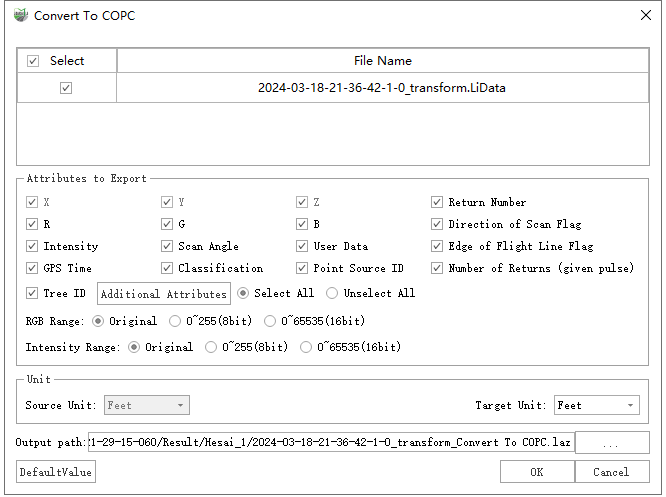
Parameter Settings
- Input Data: Choose the LiData file(s) you need to export. The input file can be a single-point cloud data file or multiple data files.
- Exported Attributes: Supports all Las attribute types and additional attributes.
- Color Range: There are three RGB ranges to choose from.
- None: Output according to the original RGB range of the selected file.
- 0~255 (8-bit): Map the RGB range to 0~255 for output. If the color range of the user-selected file is 0~1 or 0~65535, it can be mapped to 0~255 for output.
- 0~65535 (16-bit): Map the RGB range to 0~65535 for output. If the color range of the user-selected file is 0~1 or 0~255, it can be mapped to 0~65535 for output.
- Intensity Range: There are three intensity ranges to choose from.
- None: Output according to the original intensity range of the selected file.
- 0~255 (8-bit): Map the intensity range to 0~255 for output. If the intensity range of the user-selected file is 0~1 or 0~65535, it can be mapped to 0~255 for output.
- 0~65535 (16-bit): Map the intensity range to 0~65535 for output. If the intensity range of the user-selected file is 0~1 or 0~255, it can be mapped to 0~65535 for output.
- Source Unit: The unit of the LiData file to be exported and cannot be modified.
- Target Unit: The unit for exporting to Las data.The default unit is consistent with LiData and You can choose meters, decimeters, centimeters, millimeters, feet, and inches.
- Output Path: The output folder path. The new file will be generated after the function is executed.
Convert to Unstructred E57
1.Click Convert to Unstructred E57  button
2.Usage:Click Point Cloud Conversion -> Convert to Unstructred E57
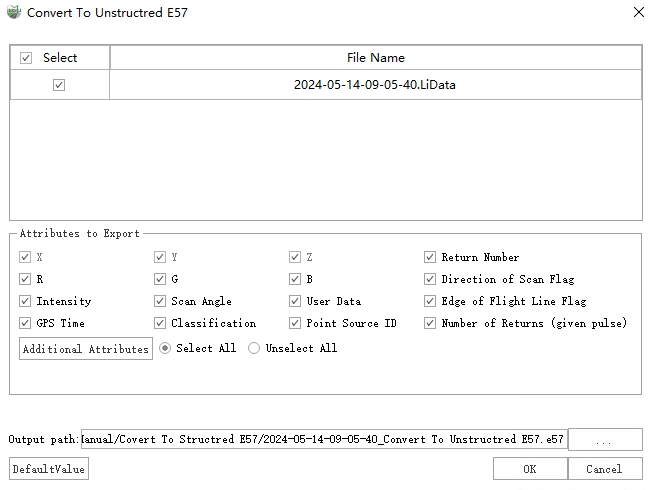
Parameter Settings
- Input Data: Choose the LiData file(s) you need to export. The input file can be a single-point cloud data file or multiple data files.
- Exported Attributes: Supports basic attribute types and additional attributes.
- Output Path: The output folder path. The new file will be generated after the function is executed.
Convert to Structred E57
1.Click Convert to Structured E57  button
2.Usage: Click Point Cloud Conversion->Convert to Structured E57
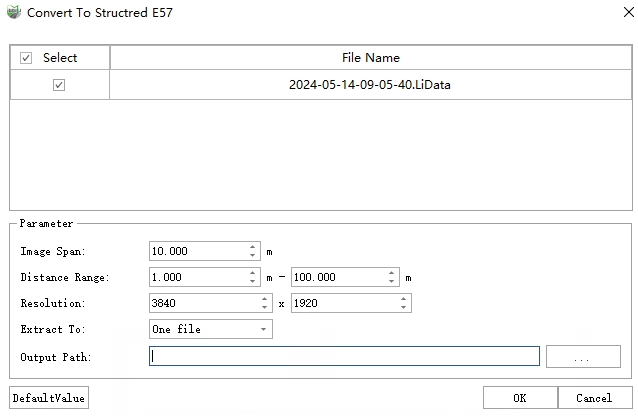
Parameter Settings
- Input Data: Choose the LiData file(s) you need to export. The input file can be a single-point cloud data file or multiple data files.
- Image Span: It is used for equal interval thinning of the images in imglist to avoid overcrowding of stations.
- Distance Range: For each station, only points that are within the distance range from the station participate in the generation of the site cloud.
- Resolution: The resolution of the generated survey site cloud is the image resolution in imglist by default, which can be manually modified, and the aspect ratio is locked to 1:2.
- Extract To: This option represents two export modes.
- One file: All stations are imported into an E57 file.
- Multi files: Each station is imported into a separate E57 file.
- Output Path: Depending on the selection mode of Extract To, different paths are selected here.
- One file: Select the full path to export the E57 file.
- Multi files: Select the export folder.
Convert to Ply
1.Click Convert to Ply  button
2.Usage: Click Point Cloud Conversion -> Convert to Ply
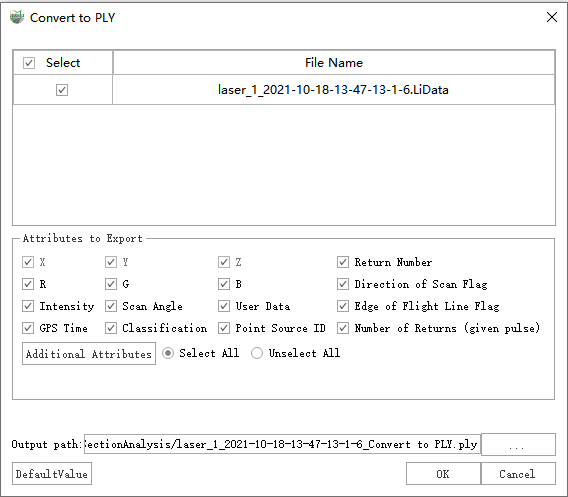
Parameter Settings
- Input Data: Choose the LiData file(s) you need to export. The input file can be a single-point cloud data file or multiple data files.
- Exported Attributes: Supports basic attribute types and additional attributes.
- Output Path: The output folder path. The new file will be generated after the function is executed.
Convert to TIFF
1.Click Convert to TIFF button
2.Usage: Click Point Cloud Conversion -> Convert to TIFF
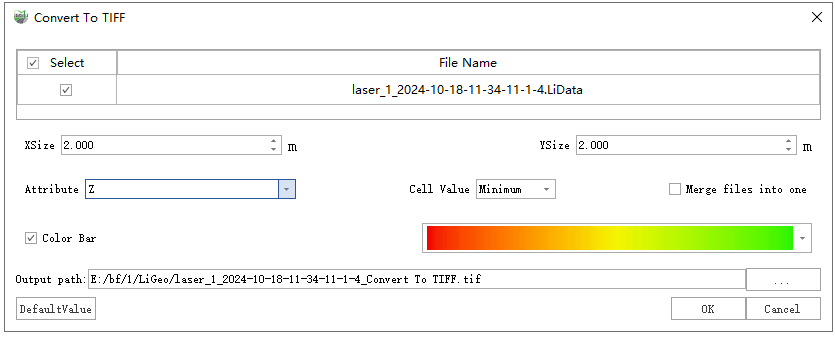
Parameter Settings
- Input Data: The input file can be a single point cloud data file or multiple data files. File Format: *.LiData
- XSize (m, default value is "2"): The X pixel resolution of the output raster.
- YSize (m, default value is "2"): The Y pixel resolution of the output raster.
- Attribute (default is "Z"): Select the point attribute used to calculate the raster cell value.
- Z (default): Generate the raster data using the Z value of the point cloud data.
- Intensity: Generate raster data using the intensity values of the point cloud data.
- Scan angle: Generate raster data using the scan angle of point cloud data.
- Return number: Generate raster data using the return number of the point cloud data.
- Number of returns of given pulse: Raster data is generated using the number of returns of given pulse of the point cloud data.
- Cell value: Choose how to fill raster pixel values.
- Minimum (default): Use the smallest attribute value as the value of a raster cell.
- Average: Use the average of attribute values of all points within a raster cell as its value.
- Maximum: Use the largest attribute value as the value of a raster cell.
- Merge files into one: Users can set merging all raster into one data file. If not checked, each point cloud data will be generated into a separate raster file.
- Output path: Path of output folder. After the function is executed, the converted new file is generated.
Convert LiData to LiData
1.Click Convert LiData to LiData button
2.Usage:Click Point Cloud Conversion -> Convert LiData to LiData
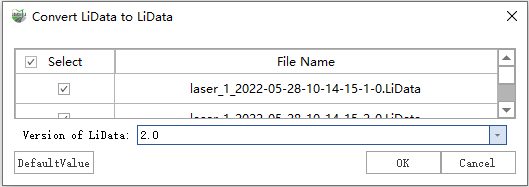
Parameter Settings
- Input Data: Choose the LiData file(s) you need to export. The input file can be a single-point cloud data file or multiple data files.
- LiData Version: Supported versions.
Convert Las to LiData
1.Click Convert Las to LiData button
2.Usage:Click Point Cloud Conversion -> Convert Las to LiData
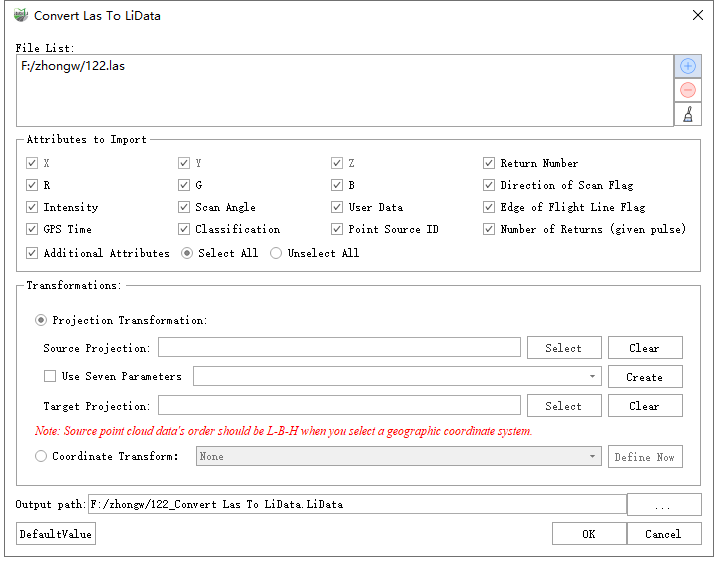
Parameter Settings
- File List: Import the file that needs to be converted. The file formats currently supported are : .las,
.laz. Users need to click
 to select the point cloud data; users can select one or more file(s) in the
existing list and click
to select the point cloud data; users can select one or more file(s) in the
existing list and click  to delete them from the list; users can click
  to remove all files in the list.
 - Attributes to Export: Users can select the attributes that need to be exported. All Las attributes are supported.
- Output Path: Path of the output folder. After the conversion is executed, the converted new file(s) will be generated.