Open Georeference Project
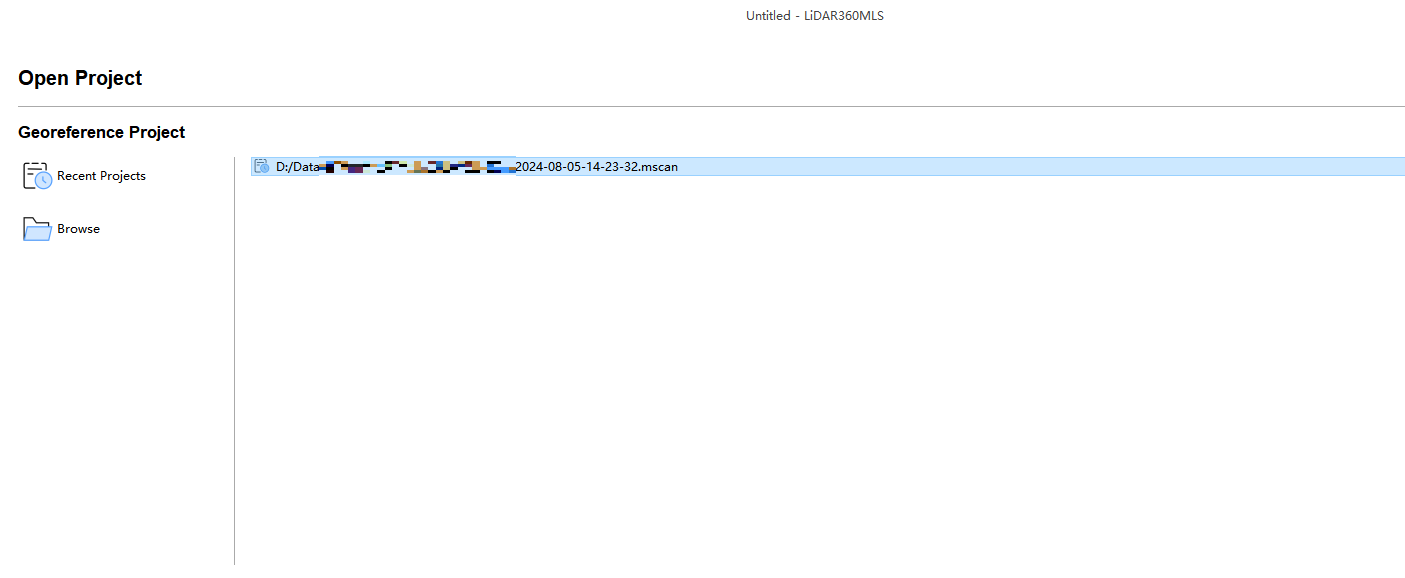
The software supports opening projects of the following types: *.mscan, *.liscan, *.ligeo, *.mmprj, and *.live.
Steps
Open Project: Displays recently opened projects in a "card with thumbnail" format. Double-click a project card to open it.
Card Structure:
Left: Project Thumbnail (provides a visual preview of the project's associated data.Note: The thumbnail updates automatically upon saving the project).
Right (From top to bottom):
- Project Name;
- Project Type Tag (e.g., specific types like "Mobile" or "SLAM"; older projects without specific type records will display a generic "Georeference" tag, which automatically updates to the actual type upon opening);
- Full Project Path (paths that are too long are automatically truncated with "...", hover over the path to view the full address);
- Last Updated Time (precise to the second, facilitating easy identification of the most recently modified projects).
Card Operations (Dropdown menu "..." in the top right corner):
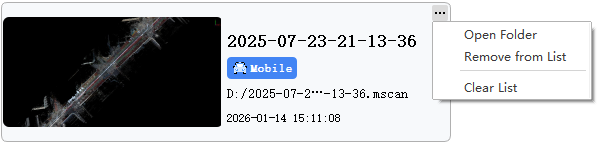
Open Folder: Quickly locate the local storage directory of the project file for easier file management.
Remove from List: Remove the current project from the recently opened list. This does not delete the local file.
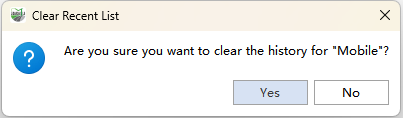
Clear List: Clear all recent project records of the current type (e.g., clearing the "Mobile" type list only removes Mobile projects; SLAM projects remain unaffected). A confirmation dialog will appear to prevent accidental deletion.
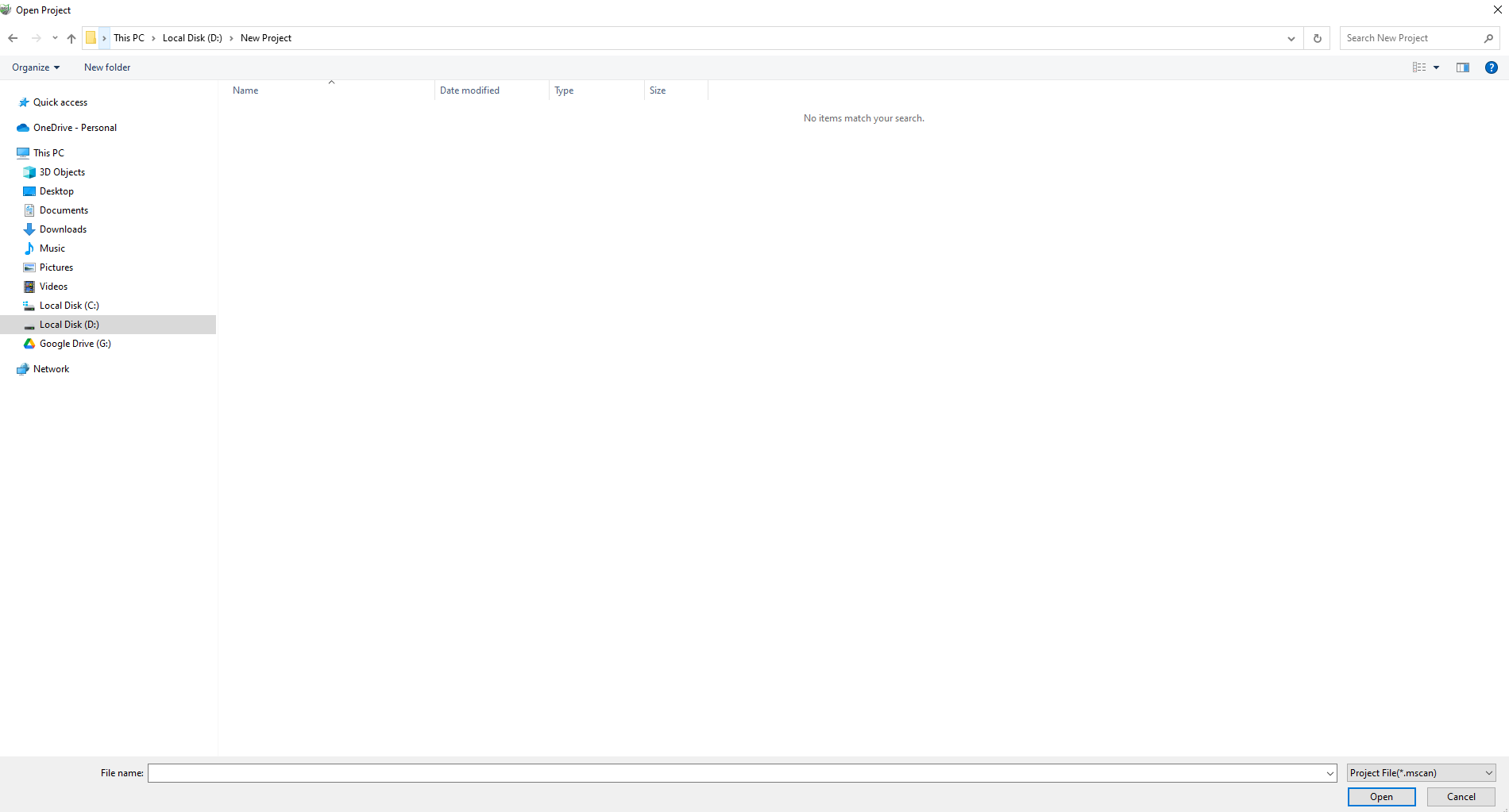
Browse: Open a project from a specified directory. *.mscan format files will open directly, while other format files will be automatically converted to *.mscan files before opening.
Project Repair
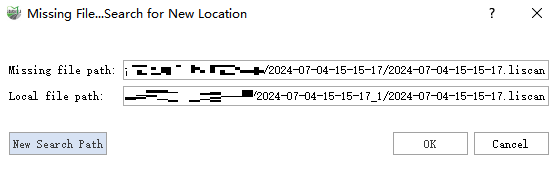
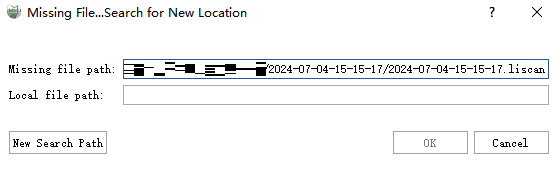
Generally, when project files are copied or moved and then reopened, the data paths recorded internally may become invalid. In this scenario, a Project Repair dialog box will appear requiring manual user intervention.
The dialog box is shown below:
Steps
- Select Search Path
Click the Select Search Path button (leftmost icon) to specify the new local directory of the missing files. The dialog will automatically search for files with the same name within that path. After configuration, click OK, and the software will automatically execute the repair. The project will open automatically upon completion. The found file paths will be displayed in the "Local File Path" column, as shown below: