Measurement
Steps
1.Select one or more rows in the attribute table (hold Ctrl for multiple selection) and click Calculate Tree Parameters . Calculation results are displayed in the table in real time. Use Settings to choose which parameters participate in the calculation.
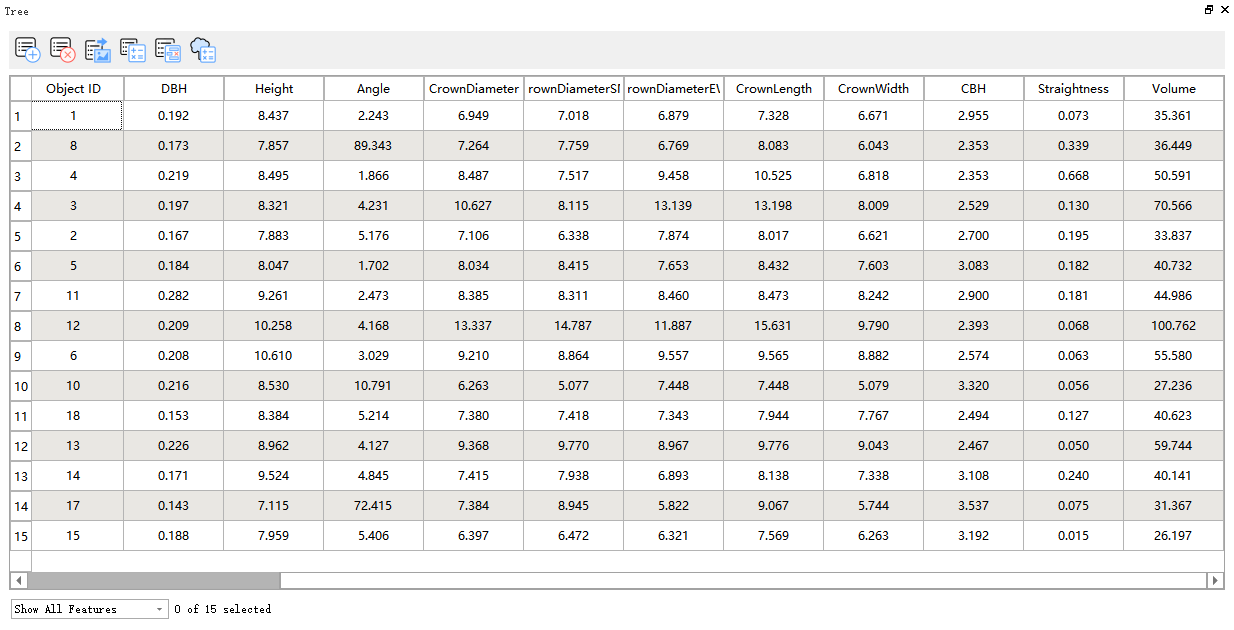
Calculate Parameters
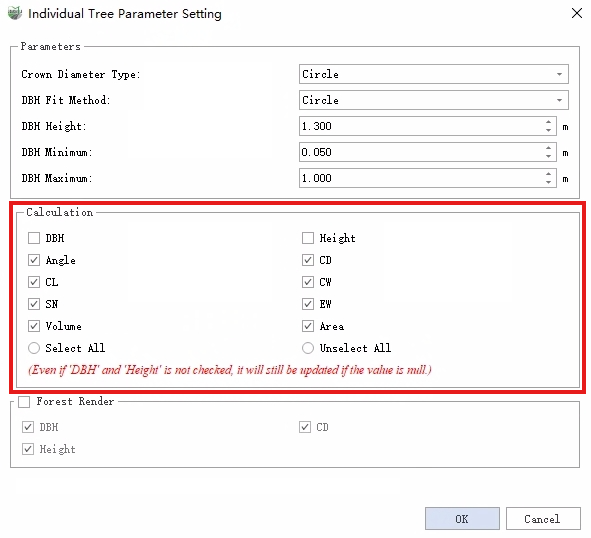
Calculation Settings
Note: Click the white box in the upper-left corner to select all individual-tree IDs.
2.Click Measurement to open the Tree layer attribute table. Select a record to move both windows to the actual vector object location. The left 3D view displays DBH parameters, while the right Tree View displays height, crown diameter, angle, crown length, crown width, and other parameters. The left toolbar contains slice height and slice thickness settings for DBH calculation; their default values are 1.3 m and 0.2 m.
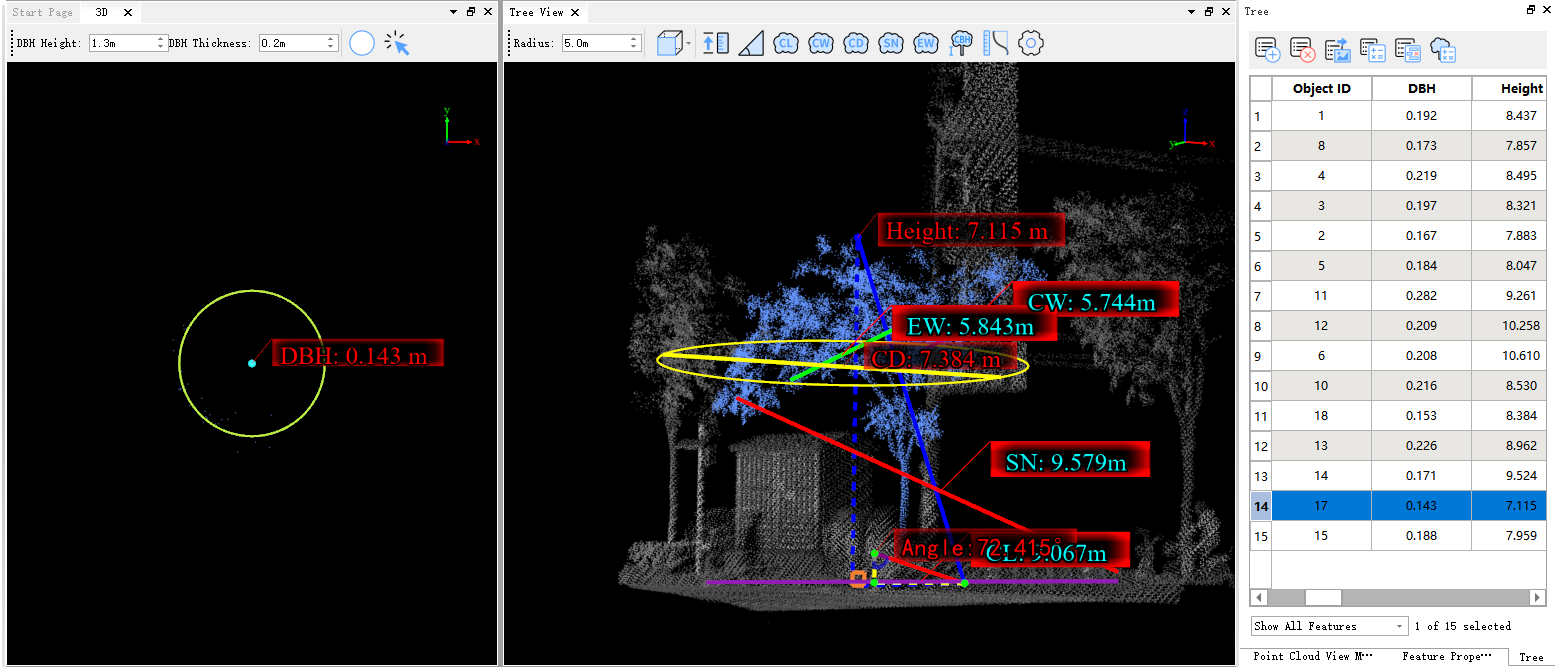
Note: Individual-tree segmentation and editing must be completed first.
3.DBH Measurement: Refit DBH using either of the following methods:
- Window: The left window is the DBH measurement window and displays the sliced point cloud.
DBH Height: Controls the elevation of the sliced point cloud so that DBH can be measured at a suitable height.
Note: This is a relative elevation based on the vector point, not an absolute elevation. The default is 1.3 m.
DBH Thickness: Controls slice thickness. Increase it to include more points when the point cloud is sparse.
- Three-Point DBH Fitting: Select the individual-tree ID, click Three-Point DBH Fitting
 in the 3D view, and click three points to define the refitted circle.
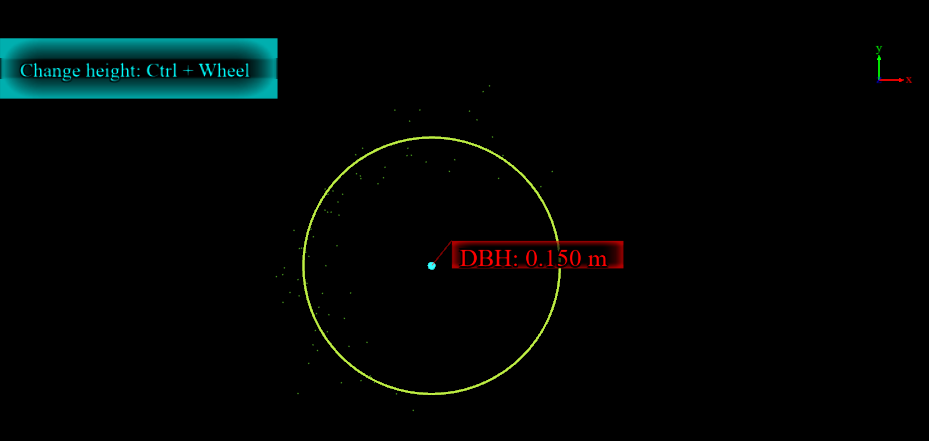
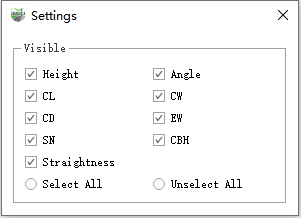
- Selection DBH Fitting: After switching to the required tree, click Selection DBH Fitting
 and select the point cloud to refit.

4.In Tree View, switch the point cloud to an appropriate angle using Top , Front
 , Back
 , Left
 , or Right
 view. Measure the parameter to be corrected and update the result in the attribute table.
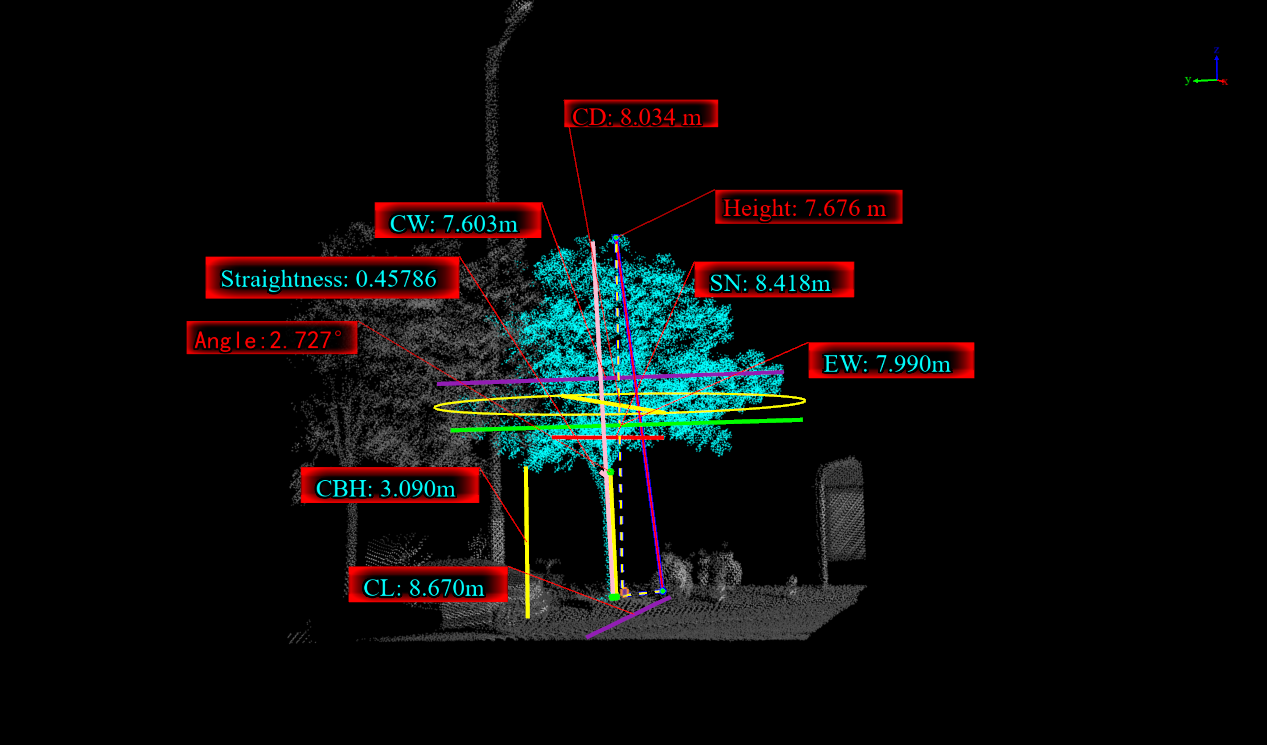
5.Height Measurement: Click Height Measurement and use two points to remeasure tree height. The value is updated in the corresponding table record in real time. Height is perpendicular to the ground by default; press B to switch to slant height for inclined trees.
6.Angle Measurement: Click Angle Measurement , use two points to remeasure the tree angle, and update the result in the parameter table.
7.Crown Length Measurement: Click Crown Length Measurement , use the top view in Tree View, remeasure crown length, and update the result.
8.Crown Width Measurement: Click Crown Width Measurement , use the top view, remeasure crown width, and update the result.
9.Crown Diameter Measurement: Click Crown Diameter Measurement , remeasure crown diameter, and update the result.
10.North-South Crown Diameter Measurement: Click North-South Crown Diameter Measurement , use the top view, remeasure the north-south crown diameter, and update the result.
11.East-West Crown Diameter Measurement: Click East-West Crown Diameter Measurement , use the top view, remeasure the east-west crown diameter, and update the result.
12.Crown Base Height Measurement: Click Crown Base Height Measurement , remeasure crown base height, and update the result.
13.Straightness Measurement: Click Straightness Measurement . Select two points to define the ideal trunk line, then select the point with the greatest deviation from that line to remeasure straightness and update the result.
14.Area Measurement: Click Area Measurement . In top view, use multiple points to measure area and update the result.
15.Click Settings and select the parameter values to show or hide in Tree View.