Template Manager
Function Description: Manages templates for the linear facility extraction function, including create, edit, delete, and clear operations. Detailed introductions are provided below.
Linear Facility Template
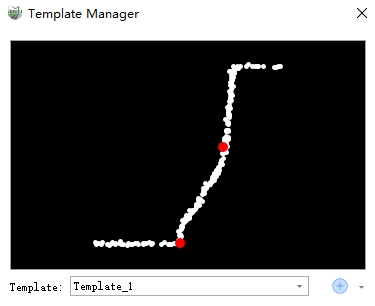
The linear facility template represents the geometric shape of the linear facility in the cross-sectional direction, consisting of local point clouds with rich geometric feature information plus key points. The graphic is shown below. Among them, point clouds are used to achieve accurate matching between the template and measurement frames, while key points are used to determine target positions. Finally, the linear vector line is constructed by connecting key points of consecutive frames.
New
Used to create new templates.
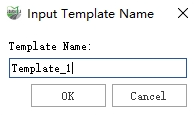
- Click the New button, enter the template name in the popup window, and click OK;
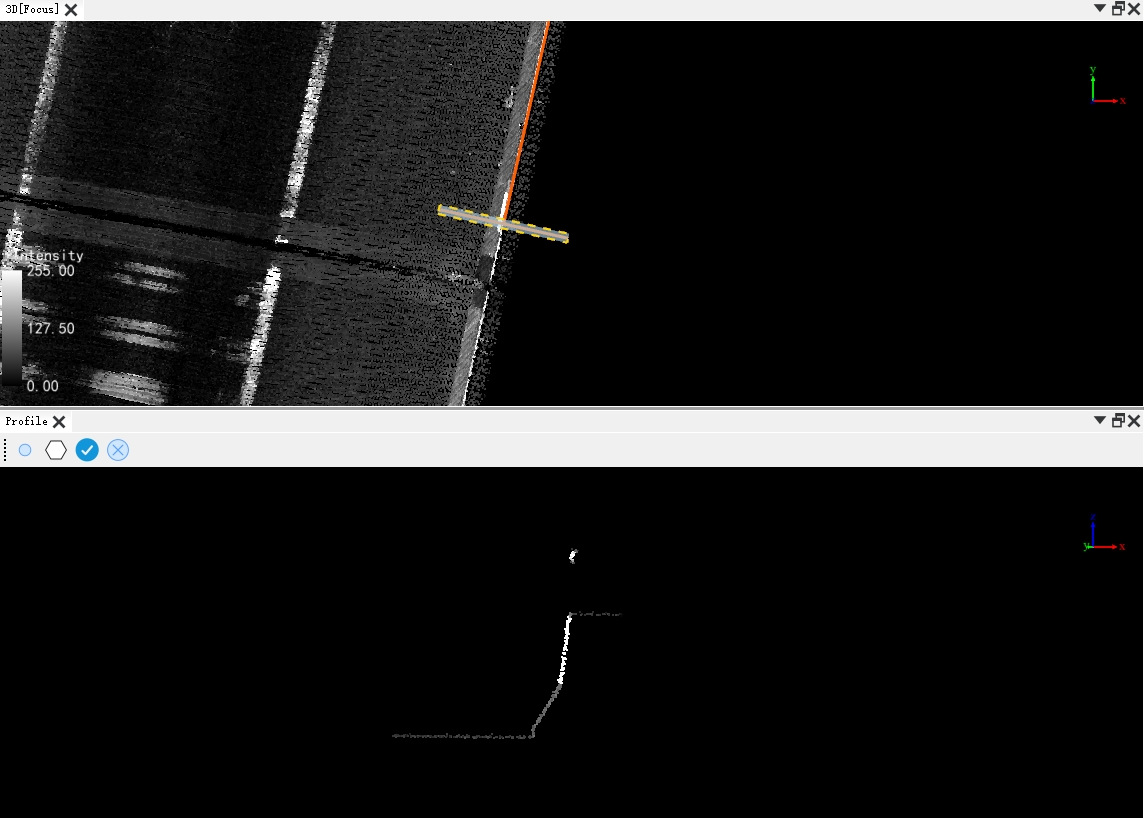
The profile view will pop up, which contains four buttons: Edit Key Point, Select Point Cloud, Accept, and Reject;
In the 3D view, zoom the view to an area where the target linear facility point cloud is well distributed, then draw a profile (the operation logic is the same as the Profile Tool), and the profile view will display the profile point cloud;
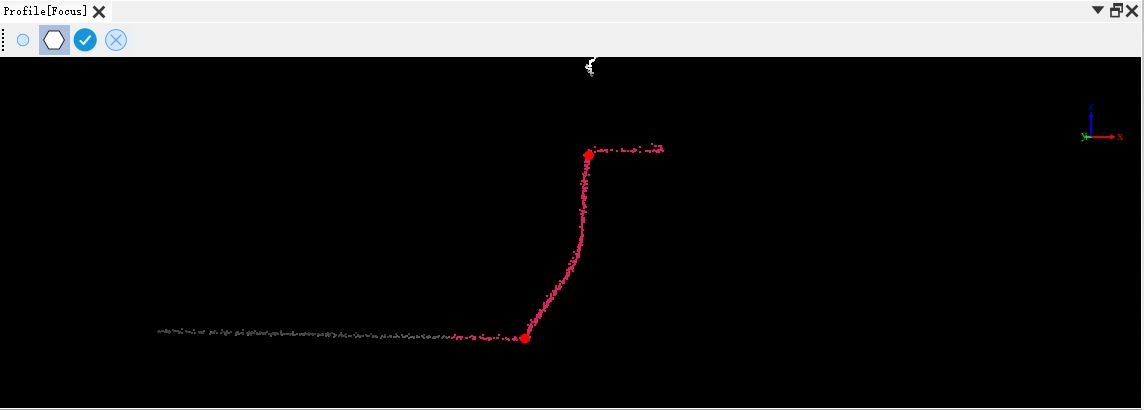
Click Edit Key Point and complete the addition of key points at the target positions according to the interactive prompt text in the view;
Since the profile view displays point clouds in the entire profile range, which contains a large number of non-target linear facility point clouds, Select Point Cloud can accurately select the target linear facility through polygon box selection, and the box selection area is displayed in red.
- Click Accept to complete the creation of the new template, and click Reject to discard the creation result. If the creation is successful, the new template will be added to the template list.
Edit
Used to edit key points of the current template (cannot modify point cloud), with the same interaction logic as Edit Key Point.
Delete
Delete the current template.
Clear
Clear all templates in the database.