Script Examples
Replace every D:/data/... path with a real location. The first three examples show complete workflows; the remaining five are compact references.
Query the version and project
Goal and prerequisites
Verify the basic bridge and read the active project. Version lookup requires no project; project lookup treats a missing project as an expected result.
Complete code
from gvscript import mls
version = mls.system.get_software_version()
print("version:", version.result)
project = mls.project.get_project_info(raise_on_error=False)
if project.ok:
    print("project:", project.data)
else:
    print("no active project:", project.message)
Version and project example
Modify and run
No values need changing. Save, press F5, and inspect the application Output window.
How it works
The version call uses the default error policy. The project call uses raise_on_error=False so that no active project becomes an explicit branch.
Result and troubleshooting
The log shows the version and, when available, project data. If version lookup fails, confirm that the code is running inside LiDAR360MLS and inspect the ScriptTool log.
Extension
Query loaded data and select later operations based on project state.
Batch extract point clouds by elevation
Goal and prerequisites
Extract an elevation range from multiple .LiData inputs. Confirm that inputs exist, the output directory is writable, and the required point-cloud feature and license are available.
Complete code
from gvscript import mls
params = mls.point_cloud.pointcloud_extract_by_elevation_parameters()
params.minElevation = 10
params.maxElevation = 80
result = mls.point_cloud.pointcloud_extract_by_elevation(
    input_paths=["D:/data/a.LiData", "D:/data/b.LiData"],
    output_path="D:/data/extracted",
    Parameters=params,
)
for path in result.outputs:
    print(path)
Modify and run
Replace the inputs, output directory, and elevation limits. Run Check, save, and press F5.
How it works
The factory creates the valid nested fields. Top-level arguments provide inputs, output, and the Parameters object. outputs normalizes the returned paths.
Result and troubleshooting
Verify files in the output directory. On failure, check paths, limits, license, and plug-ins, then inspect error_code, message, or raw.
Extension
Build input_paths from a directory or run several configured elevation bands.
Controlled multi-step workflow
Goal and prerequisites
Check the project before reading loaded data, and prevent dependent steps after a failure.
Complete code
from gvscript import mls
info = mls.project.get_project_info(raise_on_error=False)
if not info.ok:
    print("Open a project first:", info.message)
else:
    layers = mls.project.list_loaded_data(raise_on_error=False)
    if not layers.ok:
        print("Cannot read data:", layers.error_code, layers.message)
    else:
        print(layers.result)
Modify and run
No changes are required. Run once without a project and once with a project.
How it works
Each call disables automatic raising and checks ok, so a failed prerequisite does not feed a dependent step. The run records each tool call.
Result and troubleshooting
Without a project, the first branch explains the prerequisite. With a project, loaded data is printed. Inspect layers.raw if the structure is unclear.
Extension
Filter layer types, validate counts, and then call point-cloud or vector tools.
Extract by intensity and catch errors
from gvscript import ToolExecutionError, mls
params = mls.point_cloud.pointcloud_extract_by_intensity_parameters()
params.minIntensity = 100
params.maxIntensity = 5000
try:
    result = mls.point_cloud.pointcloud_extract_by_intensity(
        input_paths="D:/data/input.LiData",
        output_path="D:/data/intensity", Parameters=params
    )
    print(result.output)
except ToolExecutionError as exc:
    print(exc.result.error_code, exc.result.message)
- Modify: Replace paths and intensity limits.
- Result: Prints the first output or the error code and message.
- Key point: One
input_pathsstring becomes a one-item list.
List loaded data
from gvscript import mls
result = mls.project.list_loaded_data(include_hidden=True, type_filter="")
for item in result.data.get("items", []):
    print(item.get("id"), item.get("name"), item.get("type"))
- Modify: Set
include_hiddenandtype_filter. - Result: Prints loaded data items.
- Key point: Inspect
result.rawwhen the returned structure is unclear.
Control an interface component
from gvscript import mls
result = mls.ui.set_dock_visibility(
    dock_id="example_dock", visible=True, raise_on_error=False
)
print(result.ok, result.message)
- Modify: Use an actual public component ID.
- Result: Shows the dock and prints status.
- Key point: UI tools normally require an initialized main window.
Call an exact tool ID
import gvscript
tool_id = "get_software_version"
result = gvscript.run_tool(tool_id, {})
print(result.tool_id, result.result)
- Modify: Replace the exact ID and parameter dictionary.
- Result: Prints the actual tool ID and result.
- Key point: Prefer
mlswrappers for fixed scripts.
Inspect parameter metadata
from gvscript import mls
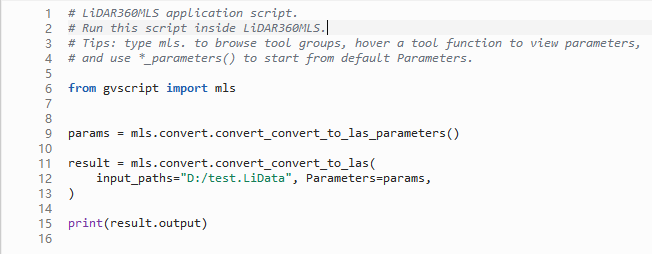
params = mls.convert.convert_convert_to_las_parameters()
print(params.__fields__)
print(params.__field_docs__["lasVersion"])
print(params.to_dict())
- Modify: Choose another parameter factory and field.
- Result: Prints valid fields, field documentation, and current values.
- Key point: Useful for debugging completion or building script generators.