Use an External Editor
- Under Home > Open With, choose a system application or select an executable.
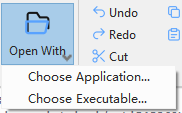
Choose an external editor
- Edit and save the script in the external editor.
- Return to the Script Editor and verify that the contents have synchronized.
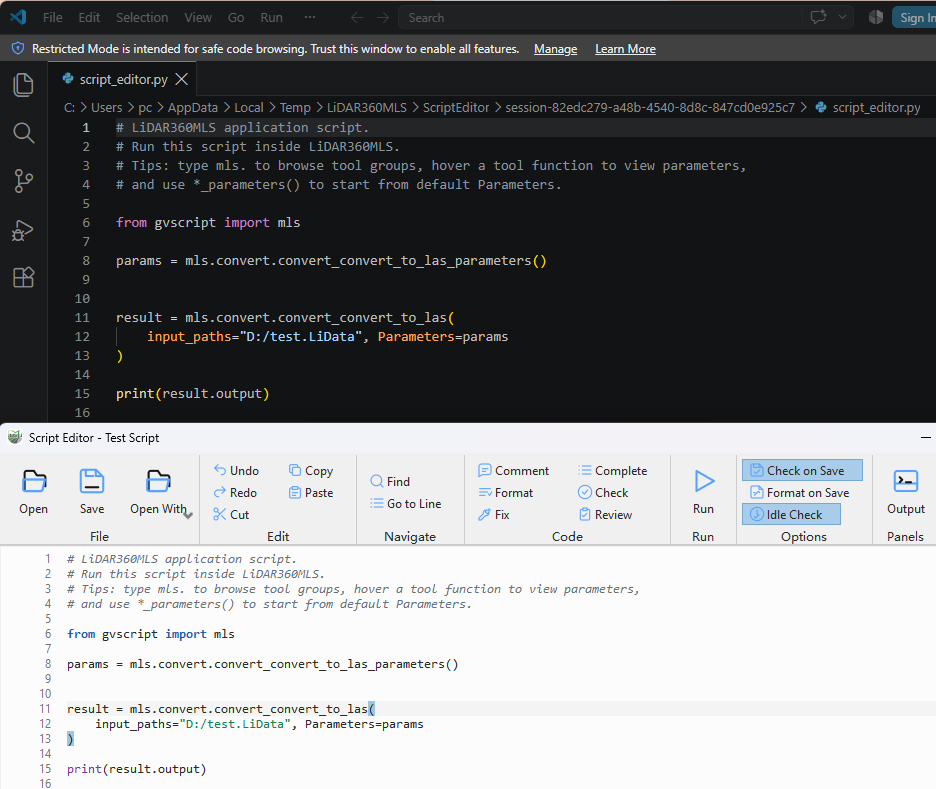
Edit the script externally
Synchronization uses a temporary session file. Save external changes before closing the Script Editor. System application selection is available only on Windows.
Synchronization rules
The application creates and monitors a temporary .py session file. Changes return to the built-in editor only after the external application saves. Switching tools or closing the Script Editor removes the session, so save externally and confirm synchronization first. The temporary file is not permanent Script Tool storage.