Show/Hide
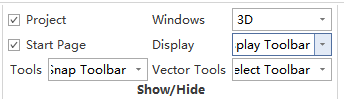
Function Description: Controls the visibility of dockable windows, view windows, and toolbars. The interface is organized into groups, allowing users to manage window layouts via dropdown menus.
1. Basic Display
Located on the far left of the ribbon, providing switches for the most commonly used panels:
- Project: Check to show the Project directory tree window.
- Start Page: Check to show the "Start Page".
2. Windows
Click the [Windows] dropdown menu to control the visibility of various view and output windows:
- 3D: Check to show the 3D point cloud view window.
- Panorama: Check to show the Panorama view window.
- Planar: Check to show the Planar view window.
- GS Viewer: Check to show the Gaussian view window.
- Raster: Check to show the Raster view window.
- Screenshot: Check to enable the Screenshot view window.
- Output: Check to show the Log Output window.
3. Display
Click the [Display] dropdown menu to control general display auxiliary functions:
- Display Toolbar: Check to show the "Display Toolbar".
- View Mode: Check to show the "View Mode" window.
4. Tools
Click the [Tools] dropdown menu to access general operation tools:
- Toolbox: Check to open the Toolbox sidebar. The Toolbox module contains most of the LiDAR360MLS tools and supports quick search.
- AI Assistant: Check to open the AI Assistant.
- Snap Toolbar: Check to show the "Snap Toolbar".
5. Vector Tools
Click the [Vector Tools] dropdown menu to manage vector data editing tools:
- Feature Properties: Check to open the sidebar for displaying and editing properties of the currently selected vector element. (Symbol settings can be configured here for point layers).
- Vector Editor: Check to show the "Vector Editor Toolbar".
- Vector Select: Check to show the "Vector Select Toolbar".
- Node Edit Tool: Check to show the "Node Edit Toolbar".
💡 Tips & Notes:
- Select All: Inside any dropdown menu (Windows, Tools, etc.), check [select all] to enable all windows or toolbars in that group at once.
- Context Menu: You can also control the visibility of dockable windows and toolbars by right-clicking on any blank area of the toolbar.
- Project Type Restrictions: In a Processing Project, only Project, Output, Start Page, and specific items under the Windows, Display, and Tools groups (such as 3D, Panorama, Planar, AI Assistant, Snap Toolbar) are available. Vector-related functions will be disabled.