Segmentation (Built-in Model)
Input Data
Point cloud data in the current project.
The input point cloud may be unclassified and unnormalized because the built-in model includes Classify by Deep Learning and Normalize by Ground Points.
If part of the processing has already been completed, check the input and parameters of the corresponding steps before running the model to avoid repeated processing.
Processing Workflow
The built-in model follows the Urban Forestry workflow in Basic mode and organizes the processing steps in this order:
1.Subsampling: Reduces point cloud density and the processing load of subsequent steps.
2.SOR Filter: Removes outlier noise.
3.Classify by Deep Learning: Identifies ground, vegetation, and other point classes.
4.Normalize by Ground Points: Removes the effect of terrain relief from point cloud elevations.
5.Segmentation: Extracts and separates individual trees. See Segmentation for the standalone function.
6.Calculate Tree Parameters: Calculates tree height, crown diameter, and other individual-tree parameters.
7.Export Report: Outputs the final Urban Forestry processing report.
Output Results
Individual-tree segmentation results and tree seed points.
Tree height, crown diameter, and other individual-tree parameters.
A forestry report containing three-view images, attribute values, custom fields, and overall statistics for each tree. See Export Report for report contents.
Steps
1.In the Processing Pipeline group in Pro mode, click Segmentation (Built-in Model). The software automatically loads the built-in Urban Forestry ModelBuilder model.
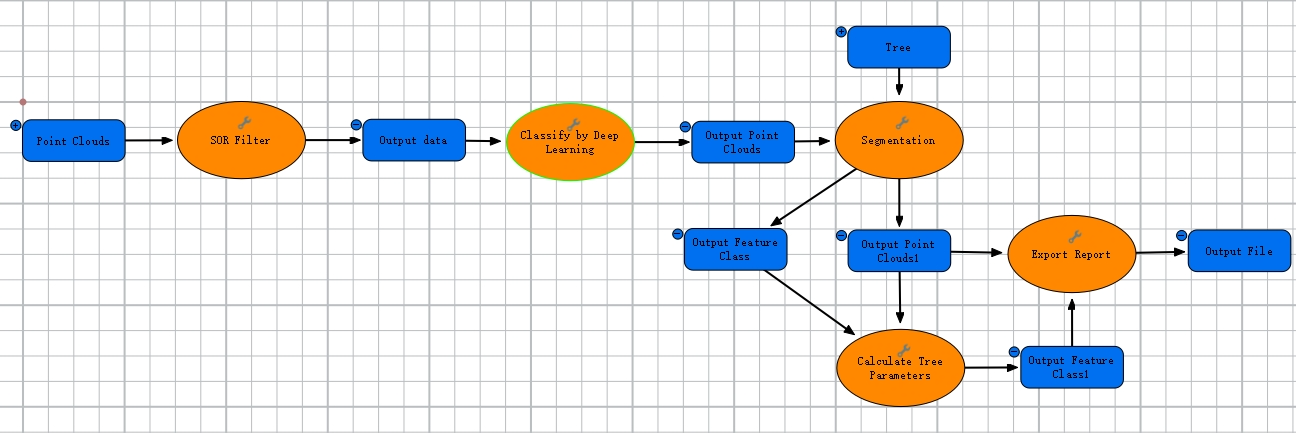
Built-in Urban Forestry ModelBuilder Workflow
2.Check the input data, step connections, and output locations in the model and confirm that they are appropriate for the current project data.
3.To modify input data or step parameters, double-click the corresponding data or tool element. See Add and Connect Data and Tools, and Modify Elements for details.
4.Before running the model, check whether any element has failed parameter validation. Use Validate to locate problems when necessary. See Validate a Model for details.
5.After the model reaches a runnable state, use Run to execute the workflow locally. If the cluster environment is configured correctly, Cluster Run can also be used according to the cluster support of the tools in the model. See Run and Stop a Model for details.
6.After processing, check the segmentation, parameter calculation, and report output results. Use Seed Editor and Tree Editor to correct individual-tree results when necessary.
Parameter Recommendations
The built-in model uses the same step order as Basic mode, while Pro mode allows users to view the model structure and modify the parameters of individual steps.
For the first processing run, retain the built-in workflow configuration. Adjust only the steps that produce unsatisfactory results after obtaining an initial result.
Subsampling parameters should be configured for the continuous forestry workflow rather than copied directly from the standalone Subsampling defaults. Use the settings in Basic as a reference.
After modifying classification or normalization, check whether the subsequent Segmentation and Calculate Tree Parameters steps need to be rerun.