Delete Cloud
Function Description: Select and delete cloud-like Gaussian splats (splats whose RGB values are close to white) from the Gaussian scene.
Steps
- Click
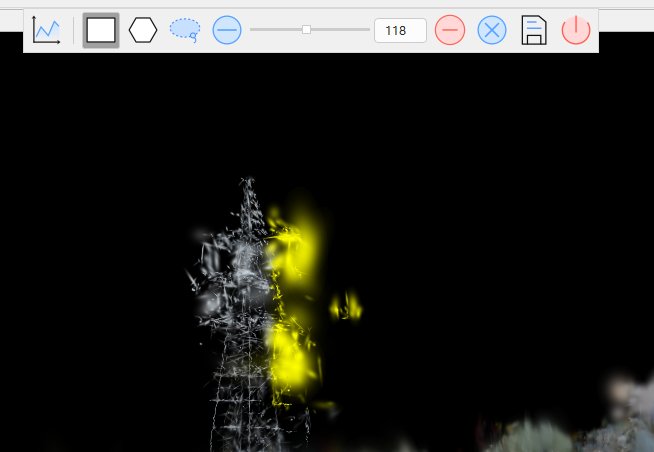
 Delete Cloud to activate the function. The selection toolbar appears in the Gaussian window.

- Adjust the scene view, then activate any selection tool on the Gaussian window toolbar to select the cloud-like data to delete.
Button Description:
 Profile: Open the profile window and select data in the profile view.
 Rectangle: Select data within a rectangular area.
 Polygon: Select data within a polygonal area.
 Lasso: Select data within a freehand area.
 Subtract: Remove data in a specified area from the current selection. Use this together with another selection tool.
 Del: Delete the current selection. Individual deletion operations cannot currently be undone; only all unsaved deletions can be canceled.
 Cancel: Cancel all unsaved deletion operations.
Check the selected data and use the other selection tools to add to or subtract from the selection as needed. Ensure that the selection contains only the data to delete. While the data is selected, you can manually adjust the brightness threshold. A Gaussian splat is selected when its brightness is greater than the specified threshold.
Click
 Save to delete the selected data and write the result to the current Gaussian file.
Click
 Exit to leave the Delete Cloud function.