Entity Modify
Entity provides many basic functions, such as shift/copy, rotate and scale.
Shift/Copy
Copying entities to one copy or multiple copies, which can create the same entities in different locations. In addition, multiple entities can be created with the same offset increment by this function. The steps are shown below.
- Select the entities that you want to copy.
- Click copy and click the left mouse button to select the base position.
- Left-click the mouse to select the location where you want to move, the pop-up dialog box will be displayed.
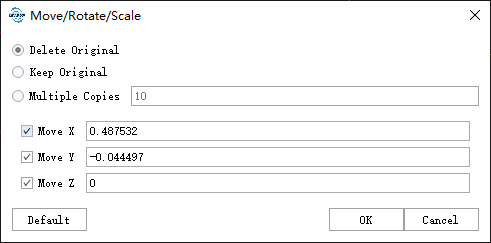
Settings
- Delete Original: Remove the original entity and keep the moved entity.
- Keep Original: Keep both the original entity and the moved entity.
- Multiple Copies: Keep the original entity, copy multiple entities, set the number of copies, and the multiple entities will be shifted with the same offset increment.
Rotate
Rotate entities to get one copy or multiple copies at different rotation angles. In addition, multiple entities can be created with the same angle increment. The steps are shown below.
- Select the entities that you want to rotate.
- Click rotate and click the left mouse button to select the position of rotation center.
- Left-click the mouse to determine the final angle position of the rotation, the pop-up dialog box will be displayed.
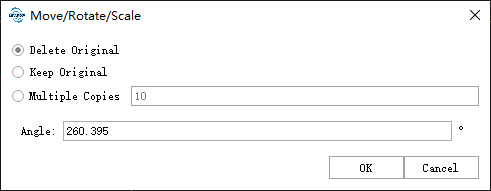
Settings
- Delete Original: Remove the original entity and keep the rotated entity.
- Keep Original: Keep both the original entity and the rotated entity.
- Multiple Copies: Keep the original entity, copy multiple entities, set the number of copies, and the multiple entities will be rotated with the same angle increment.
- Angle(°): Set the angle value of rotation.
Scale
Scale entities to get one copy or multiple copies at different scales in different locations. The steps are shown below.
- Select the entities that you want to scale.
- Click copy and left-click the mouse to select the zoom center position, the pop-up dialog box will be displayed.
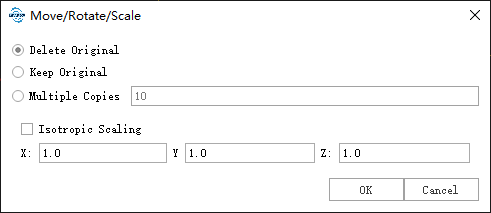
Settings
- Delete Original: Remove the original entity and keep the scaled entity.
- Keep Original: Keep both the original entity and the scaled entity.
- Multiple Copies: Keep the original entity, copy multiple entities, set the number of copies, and the multiple entities will be scaled with the same scale increment.
- Isotropic Scaling: This parameter defines the scaling of the X and Y directions, separately. If checked, the scaling of X,Y and Z directions are the same.
- X: Set the scaling of the X direction.
- Y: Set the scaling of the Y direction.
- Z: Set the scaling of the Y direction.
Merge Polygon
Merge two closed polygons or rectangles into one entity. The operation steps are as follows:
- Click the left mouse button to select an entity as the outer.
- Click the left mouse button to select an entity as the inner, and multiple entities can be selected until right-clicking to complete the combination.