Block Editing Tool
Block editing tool allows users to split the LiData into several tiles, and inspect and edit each block separately. After starting editing, software will determine the range of each memory data block according to the partitioning mode selected by the user and the related parameter Settings, and load all the point cloud data in the current data block for further editing. Users cancreate TIN modelfor the current memory point cloud to assist further classification work.


| Icon | Description | Shortcut keys |
|---|---|---|
 | Start block editing, split the data into tiles. | |
 | Inspect and edit them separately | Ctrl+Z |
 | Redo | Ctrl+Y |
 | Save | Ctrl+Shift+S |
 | Settings | |
 | Shortcut keys Settings | |
 | Block Move Left | Alt+← |
 | Block Move Right | Alt+→ |
 | Block Move Up | Alt+↑ |
 | Block Move Down | Alt+↓ |
 | Choose Block | |
 | Choose Blocks by Rectangle | |
 | Display/Hide the Text |
Edit Toolbar
Tile
Functional Description: Click the Partition button to open the Grid Settings dialog. The Tile button is shown in the figure below:
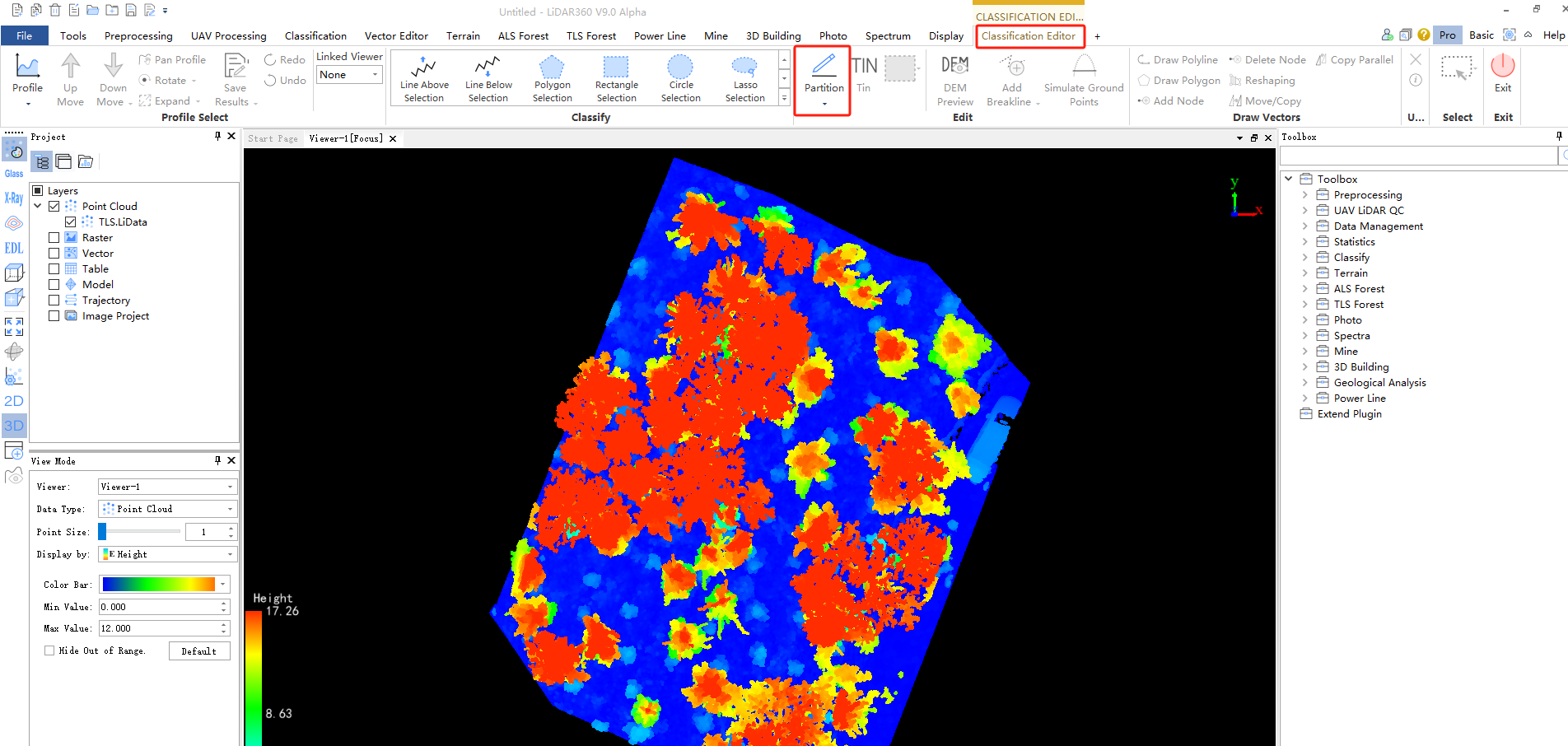
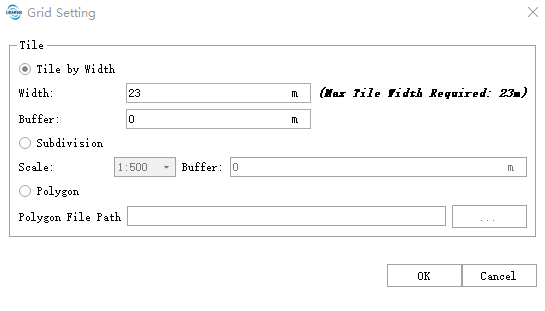
In the grid settings dialog, users can select one of three tiling methods—"Tile by Width", "Subdivision" or "Tile by Polygon"—based on the prompts, and configure the relevant parameters. After clicking OK, the software will display all point cloud data within the grid tiles.
Note: It is recommended that approximate 1500k points are in each block in average when setting the width of each grid.
Undo
Functional Description: This function allows users to redo the undone steps. This function will be disabled after saving the data. Support operations in big data mode and memory mode
Note: In each profile editing, the undo and redo functions can only return results within 20 steps before the current result.
Redo
Description: This function allows users to redo the undone steps. This function will be disabled after saving the data. Currently, the big data mode is not supported.
Note: In each profile editing, the undo and redo functions can only return results within 20 steps before the current result.
Save
Functional Description: Save the modified data to the corresponding LiData file.
Settings
Functional Description: Profile editing supports automatic saving mode when users switch memory data blocks.
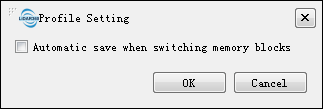
- Save automatically when switching memory blocks: This parameter is used for memory mode editing. If this option is checked, the software will automatically save the edit when users change the editing block to another one.
Block Change Toolbar
Block Change Toolbar is active only when the data is split into tiles.
Block Move Left
Functional Description: In the grid combination table displayed in the window, the data in the left grid of the current data block is displayed for data editing.
Block Move Right
Functional Description: In the grid combination table displayed in the window, the data in the right grid of the current data block is displayed for data editing.
Block Move Up
Functional Description: In the grid combination table displayed in the window, the data in up grid of the current data block is displayed for data editing.
Block Move Down
Functional Description: In the grid combination table displayed in the window, the data in down grid of the current data block is displayed for data editing.
Choose Block
Functional Description: This tool is effective in memory editing mode. Click this button, users can click any grid in the main view window or TIN window for data display, viewing and edit.
Choose Blocks by Rectangle
Functional Description: This tool is effective in the memory editing mode. Click this button, and users can select multiple grid blocks in the main view window or TIN window to view and edit the data by pulling a rectangle.
Display/Hide Blocks
Functional Description: This tool is effective in memory editing mode, click the button, users can switch to Display/Hide the number corresponding to the blocks.