AI Assistant
Starting and Closing
The AI Assistant is located in the AI Assistant group on the tool ribbon page. Click the corresponding function button to start it, and click it again to close it.
Prerequisites: Before launching the AI Assistant, ensure the following conditions are met:
1.A valid AI Assistant license is available. 2.You have logged in to your LiCloud account and have sufficient available points.
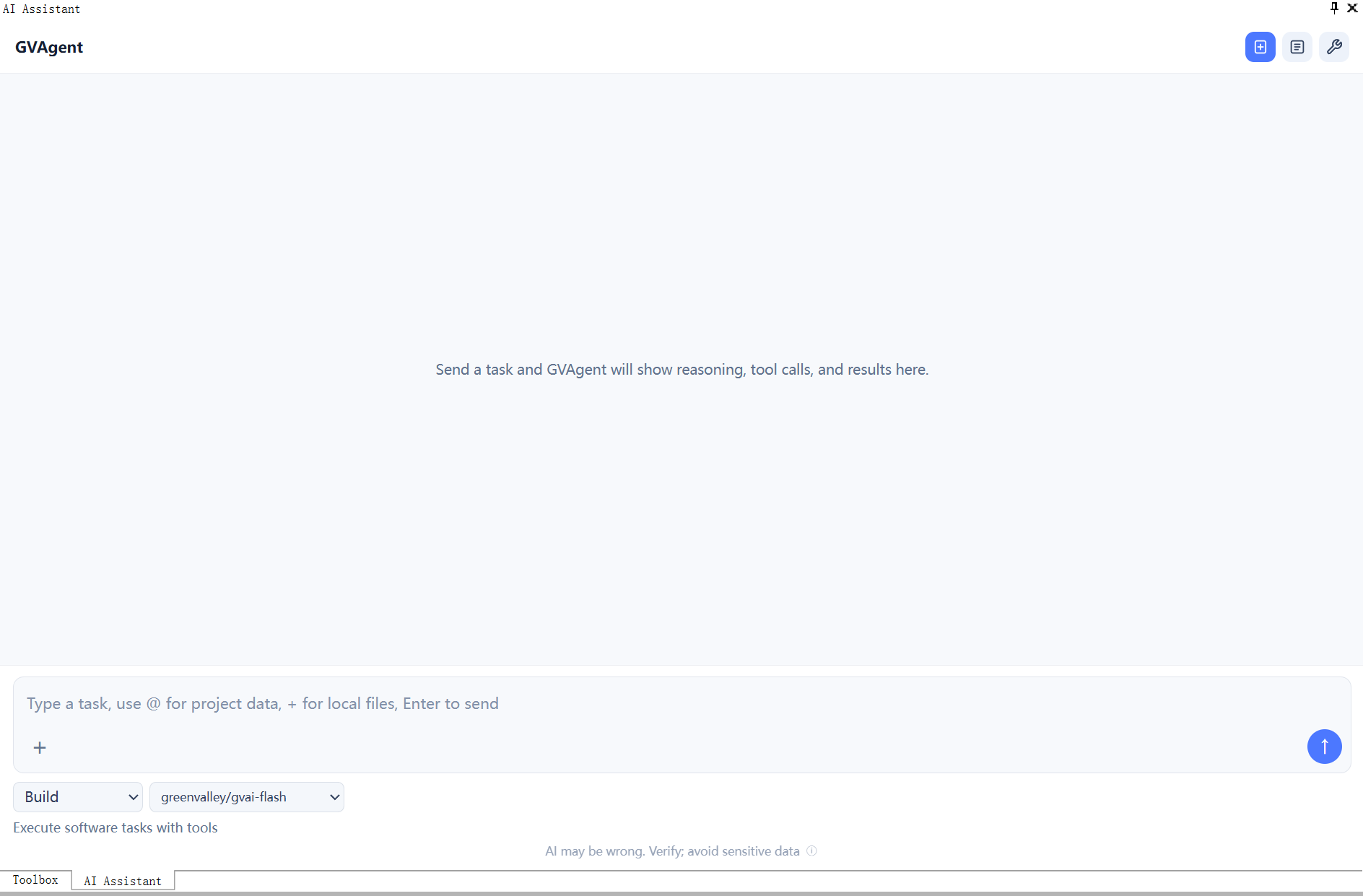
After clicking the button to start the AI Assistant, wait until the service has started. You can use it normally after the interface shown above is displayed.
Features
The AI Assistant provides a built-in agent client. It supports using natural-language conversations to call tools for data processing or to obtain help.
- Conversational help: Ask about tool usage, parameter meanings, troubleshooting suggestions, and other product information.
- Tool calling: More than 300 tools and processing workflows can be called, including platform operations such as loading data and attribute rendering, single-function processing, workflow-based processing, and custom development tools.
- Custom tool building: Supports extension operations such as building custom tools through dialog boxes.
- Tool indicator: Tools that support calls from the AI Assistant display an indicator on their icons, helping users identify them quickly.
- Network requirement: The AI Assistant requires an internet connection. Different models are used in domestic and international environments.
Q&A and Execution
The AI Assistant supports Q&A mode and execution mode.
- Q&A mode: Searches product documentation and the knowledge base. This mode is suitable for feature consultation.
- Execution mode: Executes supported tools in the software according to the user's input.