Model Context Menu
Functional Overview
The right-click menu of model data in the layer management tree mainly includes importing and removing model data, as well as information display, display settings, zoom to layer, restatistics, export, and other operations for a single model data object.
Data Type Context Menu
- Import Data: The model formats that LiDAR360 supported include: (*.LiTin, *.LiModel, *.LiBIM, *.LiTree), OSG data (*.osgb, *.ive, *.desc, *.obj), among which the LiTIN format and LiModel format are LiDAR360 defined model format.
 This function is the same with the function , see Add Data.
 - Remove All: Remove All: Remove all model files from LiDAR360.
Data Context Menu
Info: View the basic information of model file, including the path, resolution, the minimum and maximum of X, Y, Z. This function applies only to LiTin, LiModel, and 3DTile files.
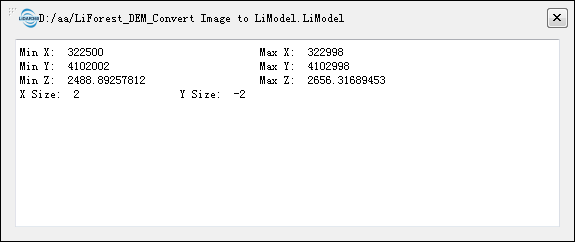
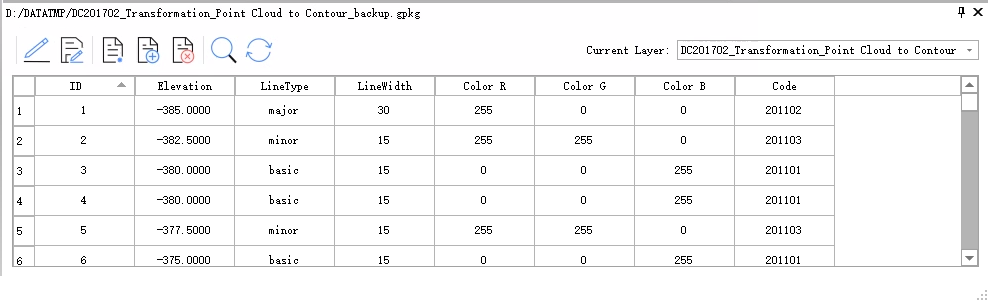
Table Attribute: This function is only applicable to LiBIM files, displaying the attribute information of LiBIM model data. It supports adding, deleting, viewing, querying by attribute fields, and modifying attribute values.
When clicking on a row or cell in the attribute table, the corresponding data in the view will be highlighted as shown in the picture.
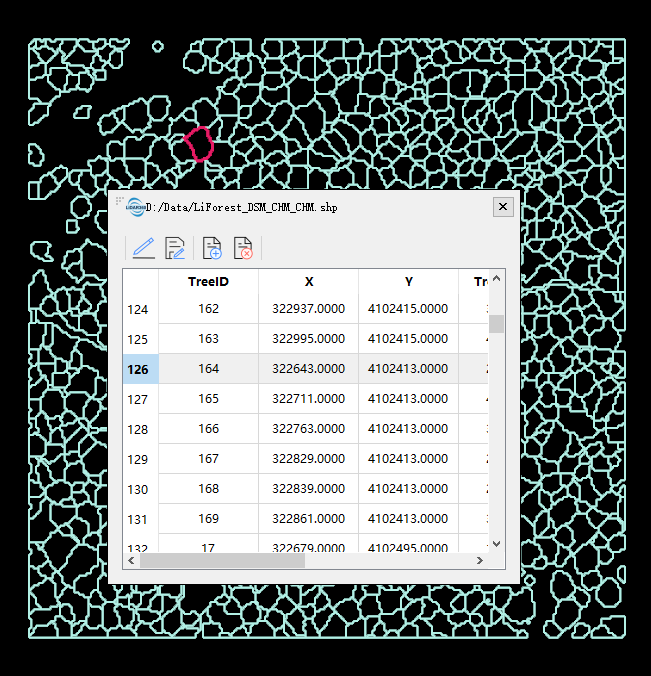
Click a row or cell in the attribute table. The corresponding data in the view is highlighted, as shown below.
Double-click the row header in the attribute table. The view locates the data corresponding to the double-clicked row.
Freeze panes. When scrolling data with the scroll bar, only the unfrozen area scrolls.
- Freeze by selected cell. Select a cell in the table to freeze the columns to the left of the cell and the rows above it.
- Freeze rows. Select the row number to freeze that row and all rows above it.
- Freeze columns. Select the header field name of the column to freeze that column and all columns to its left.
Hide columns.
- Mouse dragging. Move the pointer to the boundary of a header cell until the corresponding pointer state is displayed, and then drag left or right. Dragging left reduces the column width. When it exceeds a threshold, the column is hidden; cascading hide by continued dragging is supported. A blank gap is displayed at the position of hidden columns, and dragging right expands the hidden columns.
- Context menu. Right-click a specified header to open the menu and hide the column. You can also open the settings for all columns and modify which columns are shown or hidden.
Adjust column width. In addition to dragging the header manually, right-click in the header area to accurately adjust the column width for a single column or for all columns.
Open Containing Folder:Open the folder.
Rename: Rename the file.
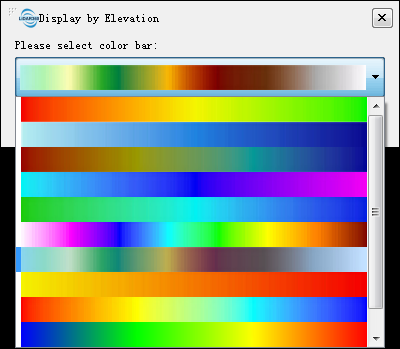
View Mode: Set the model file's display mode, including display by elevation, display by texture, display by light. If "Display by Elevation" is selected, the color bar selection dialog will be popped up, and the display effect is as below:
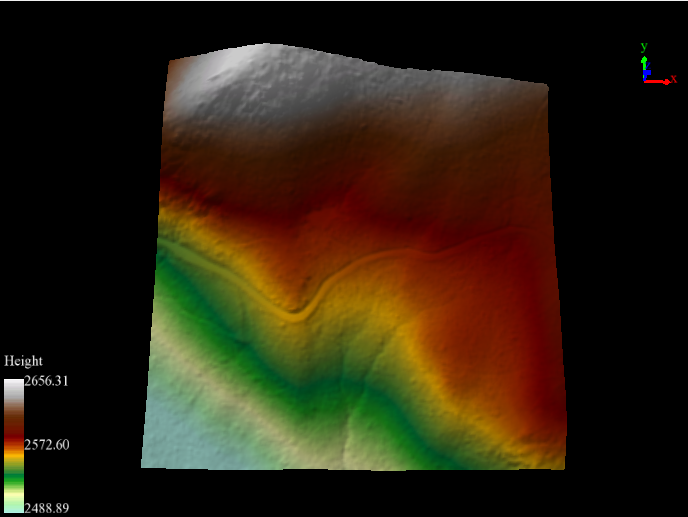
Zoom to Layer: Calculate the bounding box of the current model data, and all windows that contains this file will display globally in this bounding box range.
- Model Transparency: Set the display transparency of the model.
- ReStatistics: Recalculate basic information such as Min X, Y, Z and Max X, Y, Z. In general, if you edit the LiModel data, such as smooth height or repair height, you can use the Restatistics function.
- Export: This function only applies to LiModel file, and the export format is TIF. In General, after 3D visualization editing of LiModel and LiTIN generated by DEM, it is necessary to convert the editing files to TIF format file.
- Remove: Remove the selected model data from viewer window or project.
Note: Except "Import Data", other functions in context menu work on all windows that contains this model file.