Select and Clip
| Icon | Function Name | Description | Shortcut |
|---|---|---|---|
 | Polygon Selection | Draws a polygon to select points within the defined area. | Shift+P |
 | Rectangle Selection | Draws a rectangle to select points within the defined area. | Shift+R |
 | Sphere Selection | Draws a sphere to select points within the defined area. | Shift+S |
 | Circle Selection | Draws a circle to select points within the defined area. | Shift+C |
 | Lasso Selection | Uses a lasso to select points. | Shift+L |
 | Above Line Selection | Selects points above the polyline using a line. | None |
 | Below Line Selection | Selects points below the polyline using a line. | None |
 | Plane Selection | Selects points on a plane defined by three points. | None |
 | Above Plane Selection | Draws a polygonal plane to select points above the plane. | None |
 | Below Plane Selection | Draws a polygonal plane to select points below the plane. | None |
 | Plane Inside Selection | Draws a polygonal plane with thickness to select points inside the plane. | None |
 | Subtract Selection | Increases or decreases the selection area based on previous selections. | Shift+D |
 | Cancel Selection | Cancels all selection and clipping operations. | None |
 | In Cut | Clips the point cloud to keep only the selected points. | Shift+X |
 | Out Cut | Clips the point cloud to keep only the points not selected. | Shift+Ctrl+X |
Selection Tool Steps
- Click the tool button to activate the selection tool.
- For polygon tools, click the left mouse button to define the vertices of the polygon in the area of interest. The program will automatically form a closed polygon. Double-click to finish. For other selection tools, click the first point, drag the mouse to cover the area of interest, and double-click to complete the selection.
- If vertices are misplaced in the polygon selection, right-click to cancel the last selected vertex. This operation can be performed multiple times.
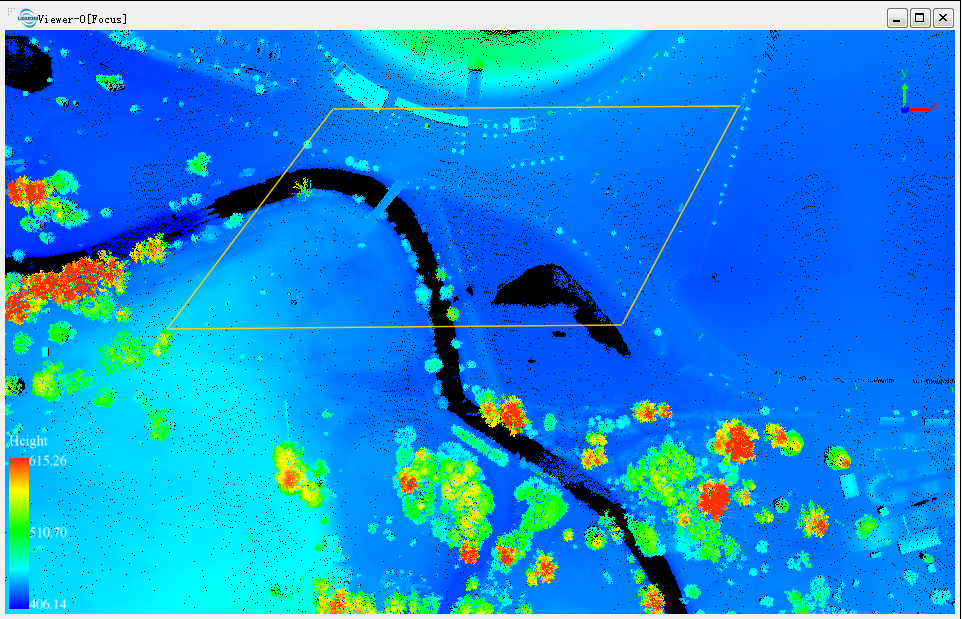
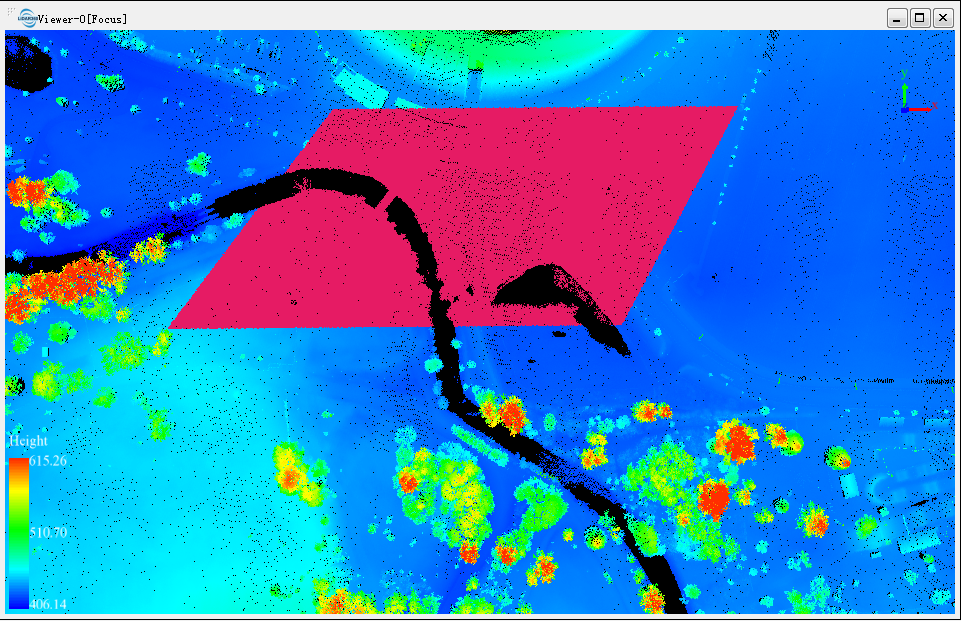
- Double-click the left mouse button on the last vertex to end vertex selection. The points within the selected polygon area will be highlighted (in red).
- After completing one selection, you can perform another selection based on the first. Cancelling the result of the last clipping will also cancel the clipping of the corresponding selection area.
- Each selection area will either add to or subtract from the existing selection area based on the inverse selection state.
Selection results:
Selection Settings

Selection settings. Configure parameters related to selection, and open the plane selection settings interface.
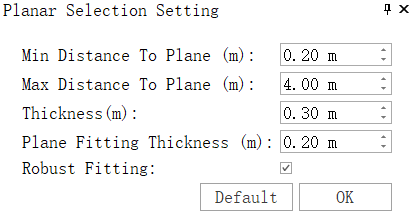
Parameter Settings
- Min Distance to Plane: Sets the minimum distance to the plane.
- Max Distance to Plane: Sets the maximum distance to the plane.
- Thickness: Sets the thickness within the plane.
- Plane Fitting Thickness: Thickness used for plane fitting.
- Robust Fitting: Provides better fitting results but is slower.
- Default: Click this button to restore all parameters to their default values.