TIN Tool
With this tool the user can generate a triangulation model, which is updated in real-time while the user edits the point classes. It provides an intuitive view of the result and helps in manual editing. For memory efficiency the TIN model can be divided in to tiles. This tool is based on browsing and editing of LiTin in RAM.
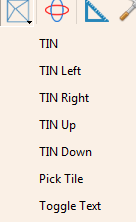
Note: You can adjust the lighting by keyboard shortcuts P to improve the display effect of TIN model.
TIN
Click TIN to open the TIN Setting interface, which is shown in the following figure:
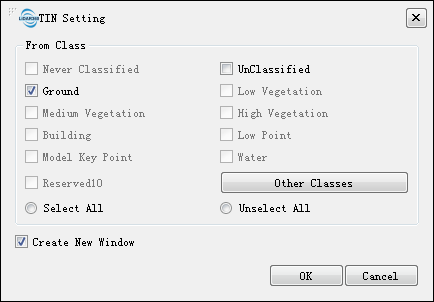
The parameters are described below:
- From Class: Specify the From Class (for example, a TIN model generated from ground points helps in manual ground point classification).
- Create New Windows:
- Yes(Default): Generate TIN in a new window, which is linked with the original window.
- No: Generate TIN in the current window of point cloud.
- No Tile:Generate TIN without tiling.
- Tile by Width: Generate TIN with tiling.
- Width(Default: 100m): The width of each tile.
- Buffer(Default: 0m): The buffer of each tile.
Click OK in the TIN Setting interface to generate TIN model.
TIN Left
Move to the left tile.
TIN Right
Move to the right tile.
TIN Up
Move to the upper tile.
TIN Down
Move to the lower tile.
Pick Tile
Pick a tile freely.
Toggle Text
Show/hide tile index.
Display by Height
TIN model is displayed by height.
Display by Classification
TIN model is displayed by classification.