Options

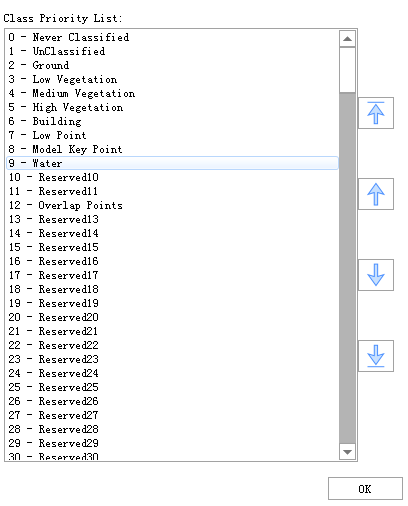
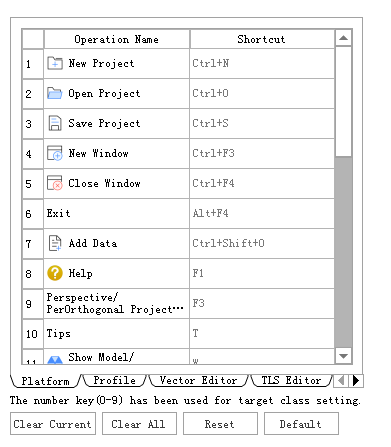
Brief: Features include software system settings, view settings, rendering, category priority settings, shortcuts, measurement settings. Category priority sets the priority order of categories in the section category, and will be displayed in order on the category interface and the category setting interface of the section view. Shortcut keys are shortcut keys for common system functions.
Steps
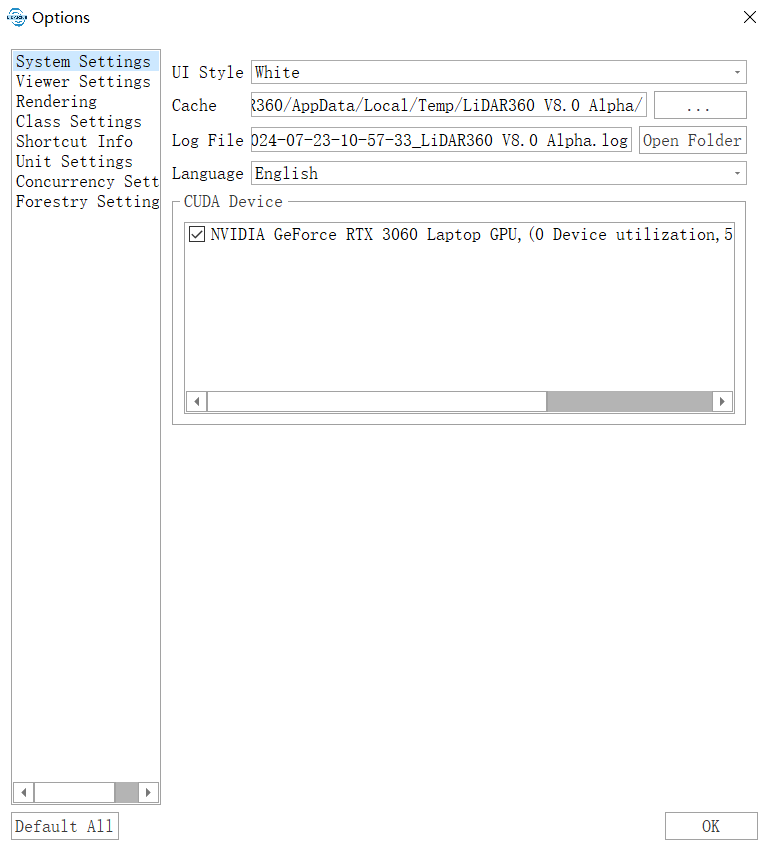
- Click this button to open the interface shown below. System setting includes UI style setting and language setting. The available styles include scenic, blue, white, and dark gray. Languages include English, Chinese, French, etc.
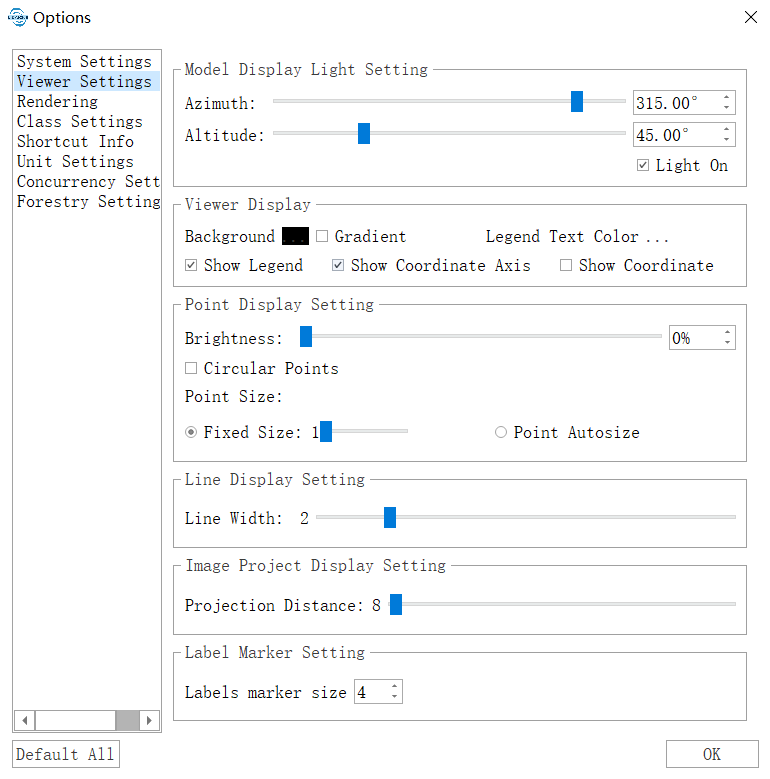
- Click "Viewer Setting" to switch to the interface shown below. The viewer setting includes model display light setting, viewer display, point display setting, and label marker setting. The model display light setting can only be applied to the model files (such as LiModel, LiTin, OSGB, etc.), and the position of the light source can be changed.
Click the "Render" option, the interface changes as shown in the figure below. The rendering settings include real-time contour settings. The settings interface is as shown below.
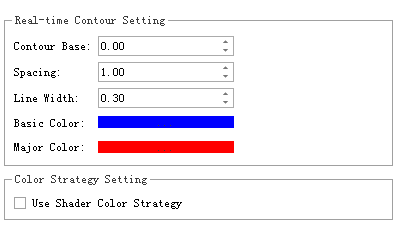
Users can set real-time contour reference, contour distance, line width, drawing color of first curve and gauge curve, etc.
Click "Class Settings" to switch to the interface shown below.
- Click the “Shortcut” option, the interface changes as shown in the figure below, please refer to Shortcut for the setting method.
- Click "Default All" to restore all settings to default values.
Settings
- Hot Keys: Press P on keyboard to change the light source position.