Operation Mode
Function Overview
Operation Mode controls which ribbon tabs and tools are displayed in LiDAR360. The software provides several built-in operation modes for different workflows, and users can also create custom operation modes.
Built-in operation modes include:
- All Modules
- Data Preparation and Quality Assurance
- Surveying Production
- Forestry Resource Inventory
- Mine Engineering and Safety
- Spectral Interpretation and Analysis
Usage
Click the operation mode drop-down list on the quick access toolbar and select the required mode.
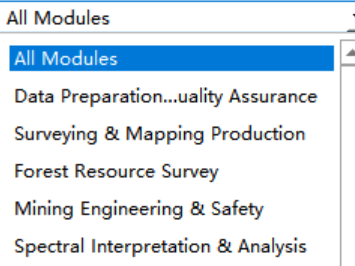
After a mode is selected, the ribbon displays the tabs and tools configured for that mode.


Custom Operation Mode
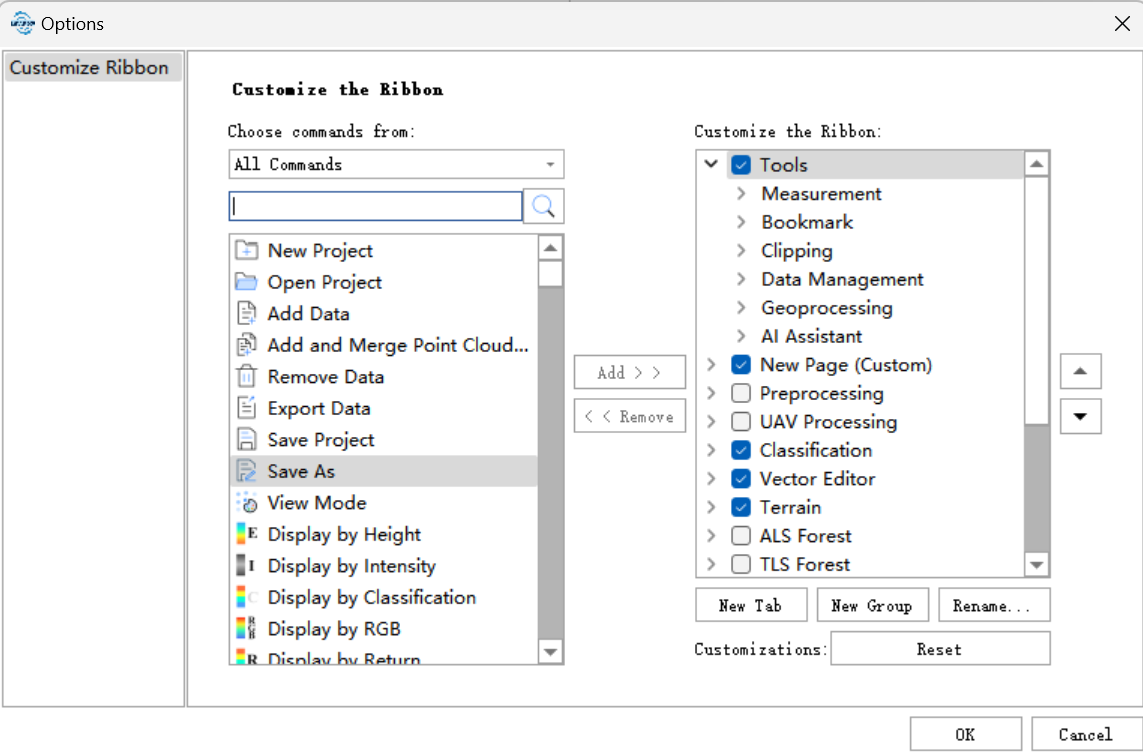
Users can create a custom operation mode and configure the ribbon structure according to their work requirements.
Parameter Settings
Select Function Source: Select the source group from which tools are added to the custom ribbon.
Search Box: Search for a tool by keyword.
Add: Add the selected tool to the custom ribbon.
Remove: Remove the selected tool from the custom ribbon.
Custom Ribbon Structure: Displays the tab, group, and tool structure of the custom operation mode.
New Tab: Create a new tab in the custom ribbon.
New Group: Create a new group under the selected tab.
Rename: Rename the selected tab or group.
Move Up / Move Down: Adjust the display order of tabs, groups, or tools.
Reset: Restore the configuration to the default state.
Notes
- Operation modes only affect ribbon display. They do not change project data or processing results.
- Custom operation modes help keep frequently used tools visible and hide tools that are not needed for the current workflow.