Simulate Ground Points
Function Description
The function primarily addresses the issue of missing ground points in mountainous areas caused by dense vegetation occlusion. It predicts missing terrain points to simulate a realistic triangular mesh representation of mountainous terrain.
Usage
The Terrain Points Estimation function belongs to the Classification Editing module. Activate the Classification Editing module -> Click "Start Editing" -> This function becomes available after executing "TIN" generation. Click "Simulate Ground Points" to open the parameter dialog; select drawing tools or import vector files to define the simulation area. In the profile window, use measurement tools to determine the height of occluding vegetation; set parameters in the dialog, then click the selection button (left-click to add points, right-click to undo, double-click to confirm) to select the simulation area.
Parameter Settings
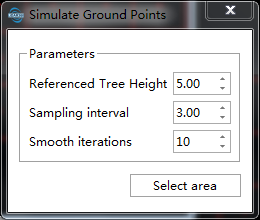
By Reference Trees: Simulate based on the high points of the covered terrain
- Referenced Tree Height: Approximate height of occluding vegetation measured in the profile;
- Sampling Interval: Average spacing of simulated points;
- Smoothing Iterations: Number of smoothing iterations for simulated ground points. Higher values result in smoother simulated areas;
By Neighbor Ground Points: Simulate based on neighboring ground points of the target area. The selection should cover the neighboring region
- Sampling Interval: Average spacing of simulated points;
- Smoothing Iterations: Number of smoothing iterations for simulated ground points. Higher values result in smoother simulated areas;
By TIN: Interpolate simulated points based on the TIN model of the target area
- Sampling Interval: Average spacing of simulated points;
Select File
Multiple areas can be processed simultaneously by selecting vector files. The vector file should contain at least one polygon or closed polyline, and will only be used if the polygon/polyline is within the currently selected block range.
Delete Simulated Points
Delete specified simulated ground point sets from the scene.
Usage
Click the "Select" button in the toolbar to enable the selection function, select the simulated terrain point set in the scene, and click "Delete" in the toolbar to delete the point set.