TLS Seed Point Editor
Functional Overview
The TLS Seed Point Editor toolbar contains functions for checking the results of individual tree segmentation routines run on Terrestrial Laser Scan (TLS) input data. The TLS Editor is also used to extract Diameter at Breast Height (DBH) for individual trees, to add or delete seed points, to execute point cloud segmentation operations that include seed points, and to measure physical attributes of individual trees found in the source dataset. Since v3.2, the right-click shortcut menu is supported.
Note: The original Tree Species Marker functionality has been integrated into this module.
TLS Seed Point Editing Shortcuts
| Shortcut | Description |
|---|---|
| shift + mouse left | Profile translation |
| ↑ | Translate the profile up |
| ↓ | Translate the profile down |
| → | Pan profile to the right / to the next tree in single tree attribute table |
| ← | Pan profile to the left / to the previous tree in single tree attribute table |
| Ctrl + z | Undo seed point editing |
| Ctrl + y | Redo seed point editing |
Usage
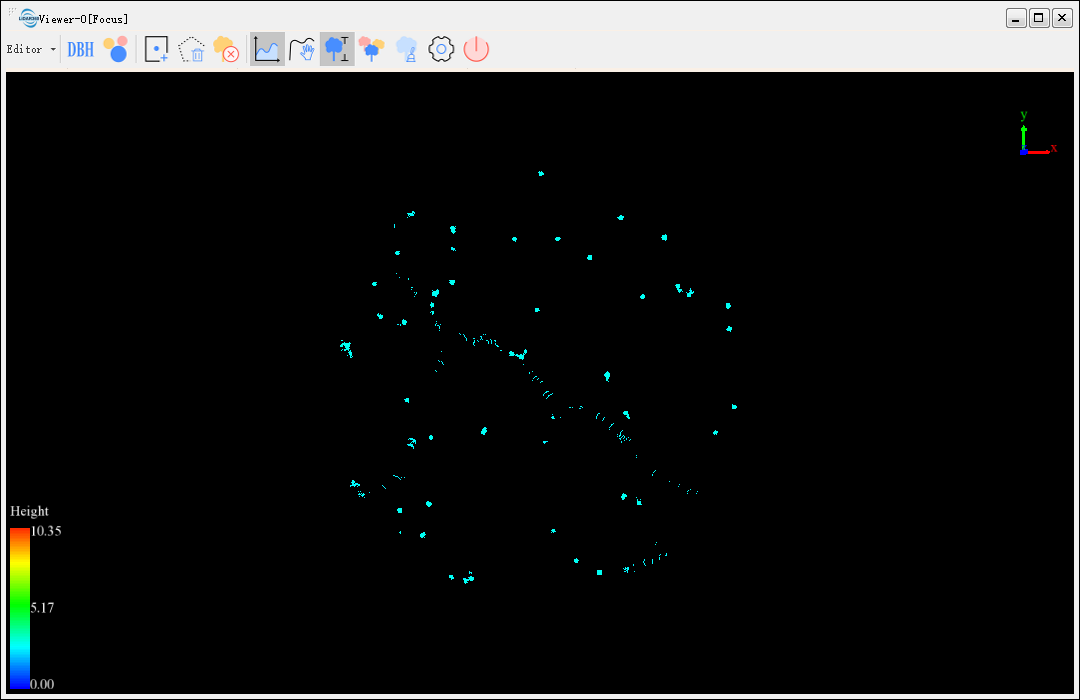
Load the point could data to be edited into the viewer and activate the view window.
Navigate to and click on TLS Forest > TLS Seed Point Editor to load the TLS Seed Point Editor toolbar in the active view window.

TLS Seed Point Editor toolbar functions (from left to right): Start/End Edit, Open Seed Points File, Open/Close Trajectory File, Fit DBH, Batch Extraction of DBH, Add Seed Points, Delete Seed Points, Clear All Seeds, Profile, Pan Profile, Measure Individual Tree Attribute, Point Cloud Segmentation from Seed Points, Clear Tree ID, Tree Species Marker, Select Frame, Filter by Elevation,Undo, Redo, Setting, and Exit.
Start/End Edit
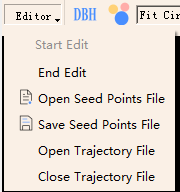
To begin editing session navigate to and click on Editor > Start Edit.
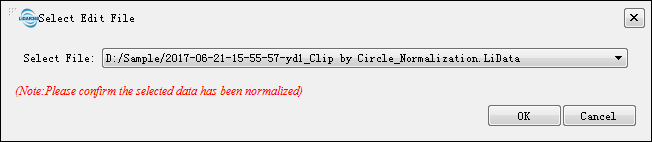
Select the data to be edited, click "OK", The other functionalities of the TLS seed point editing toolbar will become available.
If the selected point cloud data is associated with a seed point data file (tree attribute file), after enabling seed point editing, this data will be directly used as the editing dataset. It will automatically be displayed as seed points in the "Measure Individual Tree Attribute" window. Subsequent additions, deletions, and modifications will also be based on this data.

During the editing process, the selected data cannot be removed from the window. After completing edits, click "End Editing" to conclude the session. Other functions of the TLS seed point editing toolbar will become grayed out.
Open seed points File

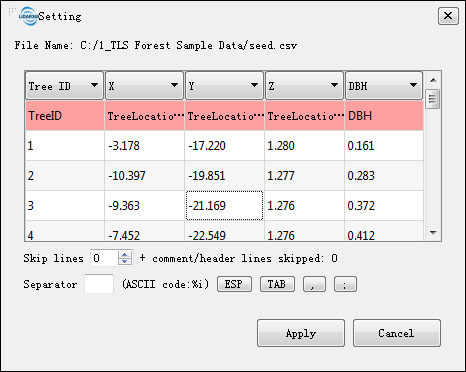
Function Description:Click this button to select a seed point file. For the seed point file format, please refer to the Seed Point File Format in the appendix,A window as shown in the figure below will appear. If Z-values are ignored, the displayed Z-value for seed points will use the mean value set in "Settings -> Display Point Cloud Height". If the seed point range does not match the point cloud, a loading failure prompt will appear.

Function Description:Save seed points as a CSV file or tree attribute file.(*.tatt).
Open Trajectory File
Function Description:Load trajectory files, supporting .traj and .out formats, as well as trajectory file formats (*.xyz) output by LiBackpack series products.
Close Trajectory File
Function Description:Close the loaded trajectory file.
Fit DBH

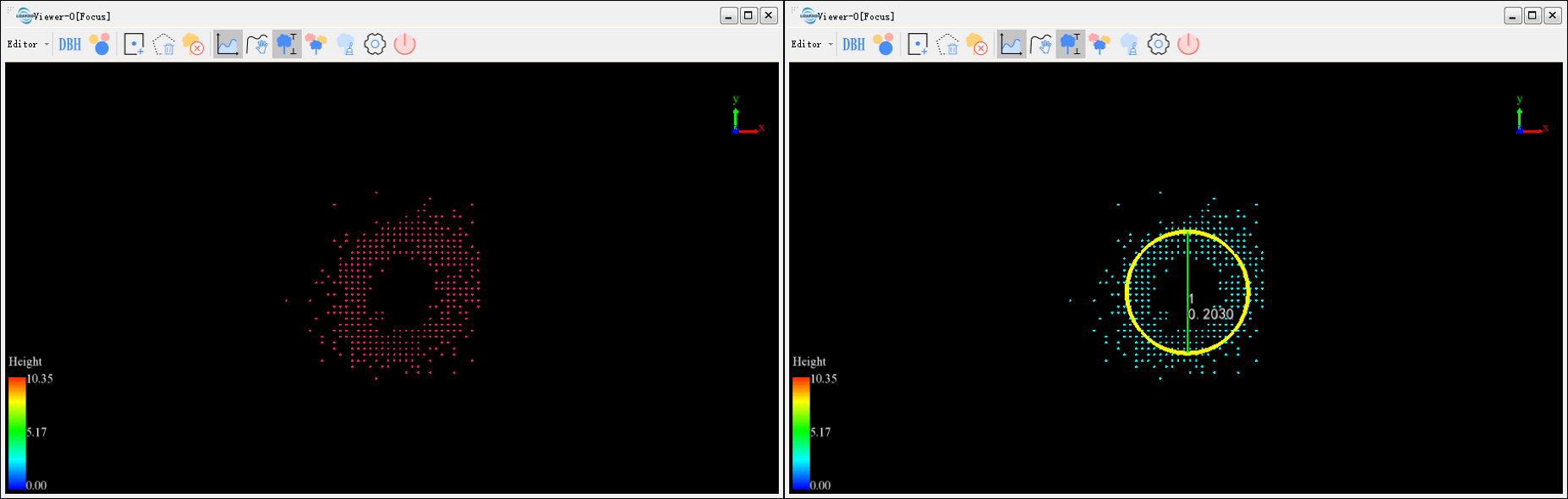
Function Description:Select point cloud data at the DBH position of a single tree to fit the DBH.
The left image below shows the selected point cloud data at the DBH position of a single tree, and the right image shows the fitting result. "1" represents the ID number, and 0.2030 is the fitted DBH value in meters.
Batch Extraction of DBH

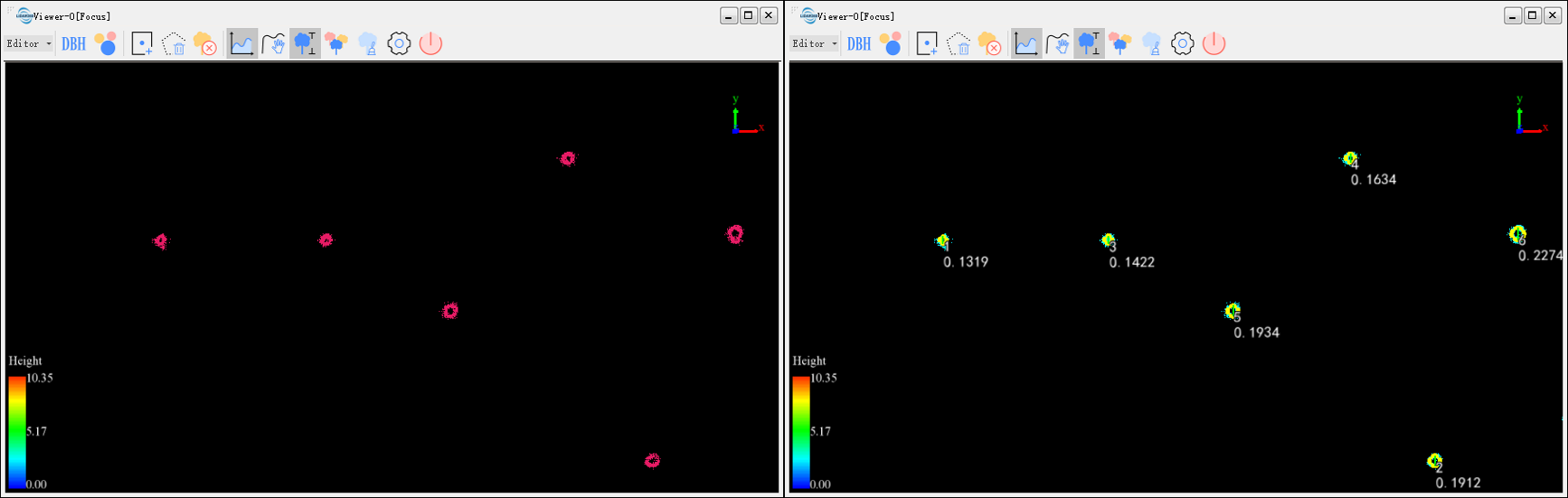
Function Description:Select point cloud data at the DBH positions of multiple trees. Automatically clusters each tree and fits the corresponding DBH based on user-set parameters. By default, all point cloud data displayed in the window is used for batch fitting. Alternatively, users can choose to fit only the point cloud in the selected area by checking the corresponding option. To exclude a specific class from the fitting process, simply hide that class.
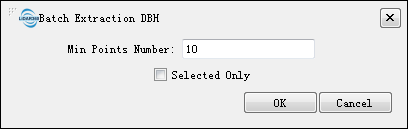
- Min Points Number(Default: "10"):The minimum number of points in a cluster set by the user. Clusters below this threshold are not considered trees and will not undergo DBH fitting.
- Fit Method:Point clouds can be selected for DBH fitting either by setting the display height in the 2D window or by flexibly combining selections using the profile window. DBH fitting methods include circle fitting, Column fitting, and ellipse fitting. Typically, the circle fitting method is sufficient. For trees growing at an incline, the Column fitting method can be selected.

Fit Circle(Default): Fits a 2D circle using the planar coordinates of the input point cloud data, employing the least squares method. Fit Column: Fits a 3D cylinder using the input point cloud data; the cylinder's diameter represents the tree's DBH. Fit Ellipse:Considers that tree stems can sometimes appear elliptical. Fits a 2D ellipse using the planar coordinates of the point cloud data with the direct least squares method. DBH = 2 × sqrt(major semi-axis × minor semi-axis).
The left image below shows the selected point cloud data at the DBH positions of multiple trees, and the right image shows the fitting results. Numbers 1, 2, 3, and 4 represent tree IDs, and 0.2791, 0.2717, 0.2820, and 0.3936 are the fitted DBH values in meters.
Add Seed Points

Function Description:Interactively manually add seed points, supporting addition in both the editing window and the profile window.
Delete Seed Points

Function Description:Delete selected seed point data. Click this button to open the selection tool dialog. Users can choose the appropriate selection tool (polygon selection, circular selection, rectangular selection tool) based on their needs and select the desired area in the scene to delete the seed points within that area.
Note: Starting from version 5.0, the previous process of deleting seed points has been modified. Selecting seed points and deleting them have been simplified into a single operation. After selecting seed points, the selected points will be deleted immediately.
Clear All Seeds

Function Description:Clear all seed points in the window.
Profile
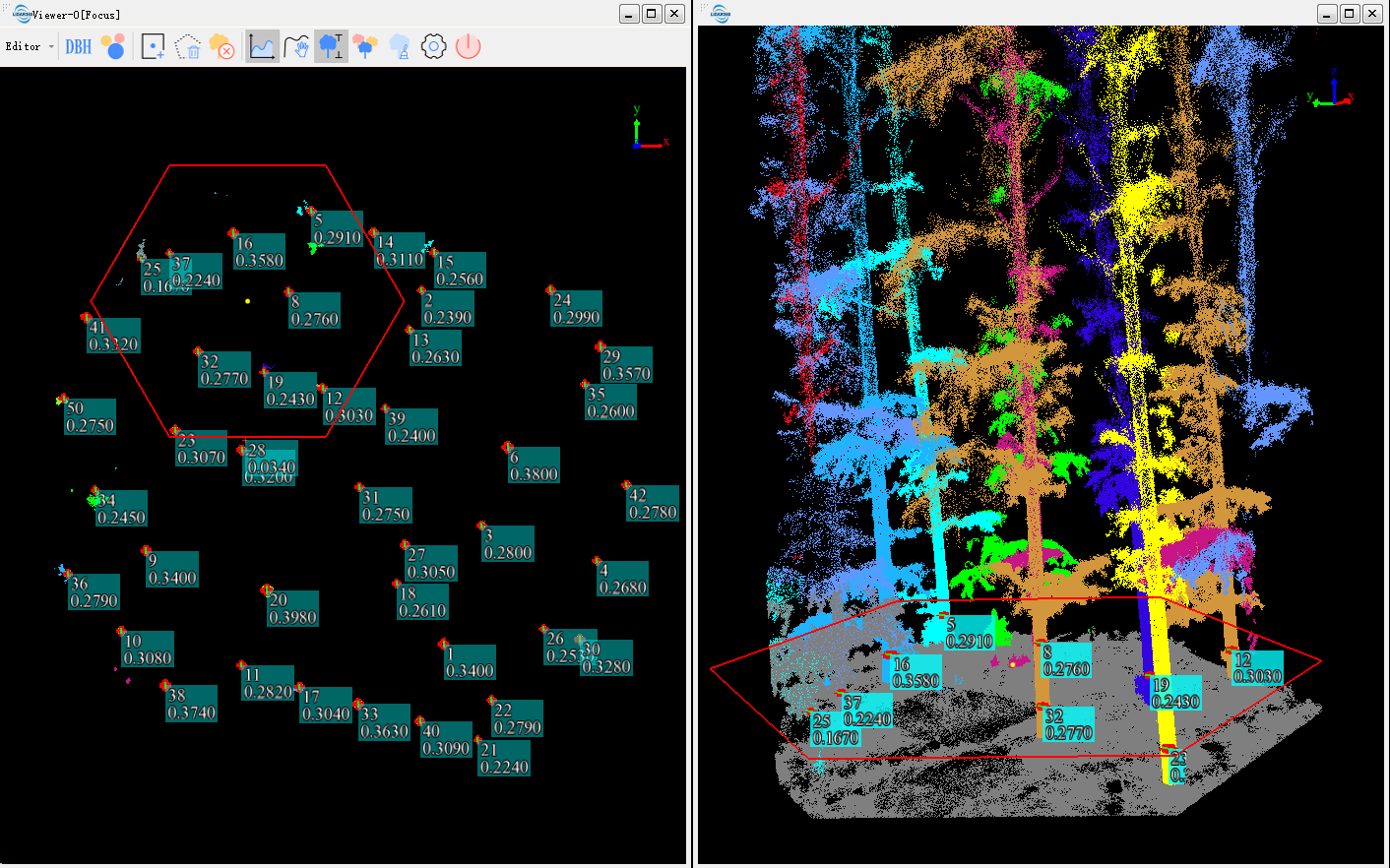
Function Description:After opening the TLS seed point editing toolbar, the point cloud window will switch to 2D mode. Click the Profile button to open the profile window, select a profile selection method, draw the profile area, and view the point cloud and seed points in the selected area in real-time in the profile window. > Rect Selection: Draw a rectangle with three points in the point cloud window. The first two points determine the center line of the rectangle, and the third point determines the width. Double-click to complete the selection. > Hexagon Selection: Draw a hexagonal area in the point cloud window. Click the left mouse button, drag, and release to complete the drawing of the profile area.
Note: Starting from version 5.0, the method for drawing a profile area with a hexagon has been modified to: click the left mouse button, drag, and release to complete the drawing of the profile area.
Pan Profile

Function Description:After drawing a profile in the main window, click this tool to pan the profile position and view the profile data in real-time.
Measure Individual Tree Attribute
Function Description

Click the *Measure Individual Tree Attribute Window Switch* button to control the display of the individual tree attribute window.
For descriptions of individual tree attribute measurement, please refer toMeasure Individual Tree Attribute.
Point Cloud Segmentation from Seed Points

Function Description:Perform point cloud segmentation based on seed points. Please refer to Point Cloud Segmentation from Seed Points, After segmentation, the recalculated tree height will be updated.
Clear Tree ID

Function Description:If the point cloud has already been segmented, the Tree ID needs to be cleared before performing segmentation again. Please refer to Clear Tree ID.
Tree Species Marker

Function Description:The Tree Species Marker function determines tree species by overlaying panoramic images with point clouds and seed points, and records the results in the corresponding seed point file. When the Tree Species Marker is activated, it calculates original elevation information from the point cloud data and updates the elevation attributes of existing seed point data for display in the panoramic window. After calculation completes, a dialog for selecting panoramic files will appear. Once files are selected and data is imported, tree species marking can begin.
Open Panoramic Window

Function Description:Opening the Tree Species Marker requires selecting panoramic files and automatically opens the panoramic window. If the panoramic window is closed, click this button to reselect files and reopen the window. A panoramic toolbar appears above the panoramic window with the following tools from left to right: Previous Frame, Next Frame, Panoramic Roaming, Point Cloud Display Range, Point Cloud Transparency.
Previous Frame
Function Description

Click the *Previous Frame* button to jump to the previous frame in the panorama.
Next Frame
Function Description

Click the *Next Frame* button to jump to the next frame in the panorama.
Auto Roaming
Function Description

Click the *Auto Roaming* button to browse through all subsequent frames from the current frame at a set time interval until the last frame is reached, or click the *Auto Roaming* button again to stop roaming.
Show Only Selected Seed Points
Function Description
Click the *Show Only Selected Seed Points* button to display only the seed points selected in the Individual Tree Attribute Measurement window within the panoramic window, hiding all other seed points.
Panoramic Point Cloud Cone Display Radius:Adjusts the radius of the conical display range for point clouds and seed point markers in the panoramic window.
Point Cloud Transparency:A scroll bar for adjusting point cloud transparency. Moving left makes the point cloud more transparent until invisible, while moving right makes it less transparent until the point cloud appears clearest.
Select Frame

Function Description:Click the *Select Frame* button, then use the mouse to select a point in the point cloud window. The panorama will automatically jump to the panoramic image closest to the selected location.
Filter By Elevation

Function Description:Synchronizes the point cloud display height and the mouse position settings within the profile view.

- Point Cloud Display Settings:
- Position: The height of the cross-sectional point cloud in the window. This value can be modified using the range slider.
- Buffer: The thickness of the cross-sectional point cloud in the window. This value can be modified using the range slider.
- Show Mouse Fosition In Profile Viewer: When the profile view is open, determines whether the real-time mouse position is displayed within the profile as the mouse moves in the cross-section window.
Note: The Ctrl + Mouse Wheel scroll adjustment for elevation is only responsive when the Filter By Elevation window is pop-up and the cross-section view is the currently focused window. After closing the window, the elevation parameters, buffer parameters, and the state of the profile mouse position synchronization display will all remain in their pre-closure state.
Undo、Redo
Function Description:During the seed point editing process, if an editing error or misoperation occurs, press 【Ctrl+Z】 or click the button to undo the operation; press 【Ctrl+Y】 or click the button to redo the operation.
Note: Within a single seed point editing session, the undo and redo functions are limited to 20 operations each.
Settings

Function Description:Includes settings for seed point and DBH display, point cloud display height, fitted DBH range, and other configurations.
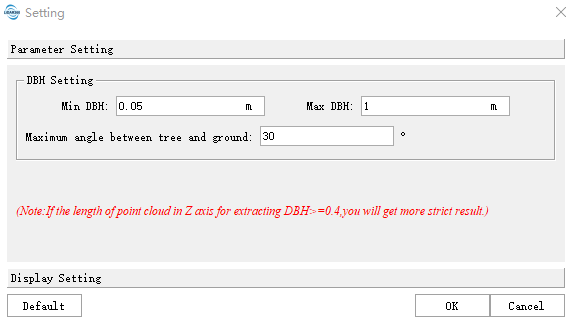
- DBH Setting:
- Min DBH(m)(Default: "0.05"):The minimum DBH threshold. Values smaller than this are considered errors.
- Max DBH(m)(Default: "1.00"):The maximum DBH threshold. Values larger than this are considered errors.
- Maximum angle between tree and ground(°)(Default: "30"):The maximum tree inclination threshold, i.e., the angle between the tree and the ground. Angles smaller than this value are not considered trees. This parameter is used for cylinder fitting.
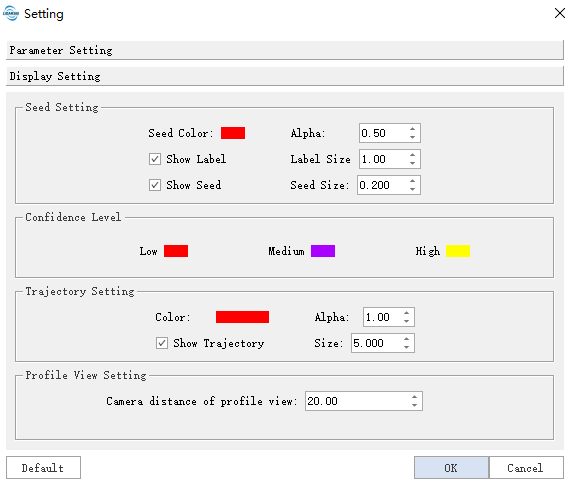
Seed Setting: Configure the color, transparency, display of seed point IDs, seed point size, and font size.
- Seed Color(Default: "Red"):Click
 to pop up a color selection interface as shown below, allowing you to choose any color for the seed points.
- Seed Color(Default: "Red"):Click
Alpha(Default: "0.5"):The transparency of the seed points, ranging from 0 to 1, 0 indicates fully transparent, 1 indicates fully opaque. The default value is 0.5. Click
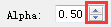 to increment or decrement this value in steps of 0.1, or enter a specific value directly.
- Show Lable:Sets whether to display the seed point ID in the window.
- Label Size(Default: "1"):The size of the label displaying the seed point ID, valid within the range [0, 100). Click
 to increment or decrement this value in steps of 1, or enter a specific value directly.
 - Show Seed:Sets whether to display seed points or fitted DBH in the window.
- Seed Size(Default: "0.2"):The size of the seed points, valid within the range [0, 100). Click
 to increment or decrement this value in steps of 0.1, or enter a specific value directly.
 - Confidence Level:During batch DBH fitting, a confidence estimate is performed on the fitted DBH results. The fitted DBH is displayed according to the colors set for each confidence level.
- Low:Users can set the color for low confidence. Low confidence indicates that the point cloud used for fitting has low reliability for being a tree trunk, requiring user focus to check if it indeed represents a tree.
- Medium:Users can set the color for medium confidence. Medium confidence indicates that the reliability of the DBH fit is not high, potentially affected by tree forks. Users should review these.
- High:Users can set the color for high confidence. High confidence indicates a very reliable DBH fit, which users can check last. Note: When performing single DBH fitting, the result is considered high confidence.
Note: For the batch DBH fitting method, if the display range is greater than or equal to 0.4 meters, a stricter method is used for confidence estimation, etc. This generally yields better results for trees with longer stem sections.
- Camera distance of profile view(Default "20“):The distance from the observation point to the display area of the profile window when drawing a profile. This allows users to view and edit the area or check editing effects based on distance, according to operational needs.
Exit

Function Description:Exits the TLS seed point editing mode. Clicking the Exit button will pop up a prompt window as shown below. Clicking 'Yes' will close the TLS seed point editing toolbar. Clicking 'No' will return to the editing window.
Note: If the point cloud has already been segmented, you need to Clear Tree IDbefore segmenting again. Otherwise, the software will pop up a message: "All files have been segmented, please clear treeID first!".
    @inproceedings{
        author={ Macdonald E, Mochan S},
        title={Protocol for stem straightness assessment in Sitka spruce},
        booktitle={Journal of Bacteriology,176(17):5578-82},
        year={2000}
    }