Python Script Editor
1. Function Overview
LiDAR360 has a built-in Python script development environment that supports writing, code checking, and running custom data processing tools. The environment can integrate with the software's core processing capabilities such as point cloud, imagery, and forestry survey, enabling personalized algorithm development through Python scripts (e.g., DBH inversion model construction, individual tree attribute format conversion, etc.). The Python script editor supports two types of tools:
- Pure Script Tool: Created through "New Tool" from the top menu. The execution logic of this tool is to directly execute the code in the current editing area according to Python syntax.
- User Plugin: Select a user-defined Python extension tool from the right toolbox. The execution logic of this tool runs according to the process defined by the user plugin.
2. Interface Layout Description
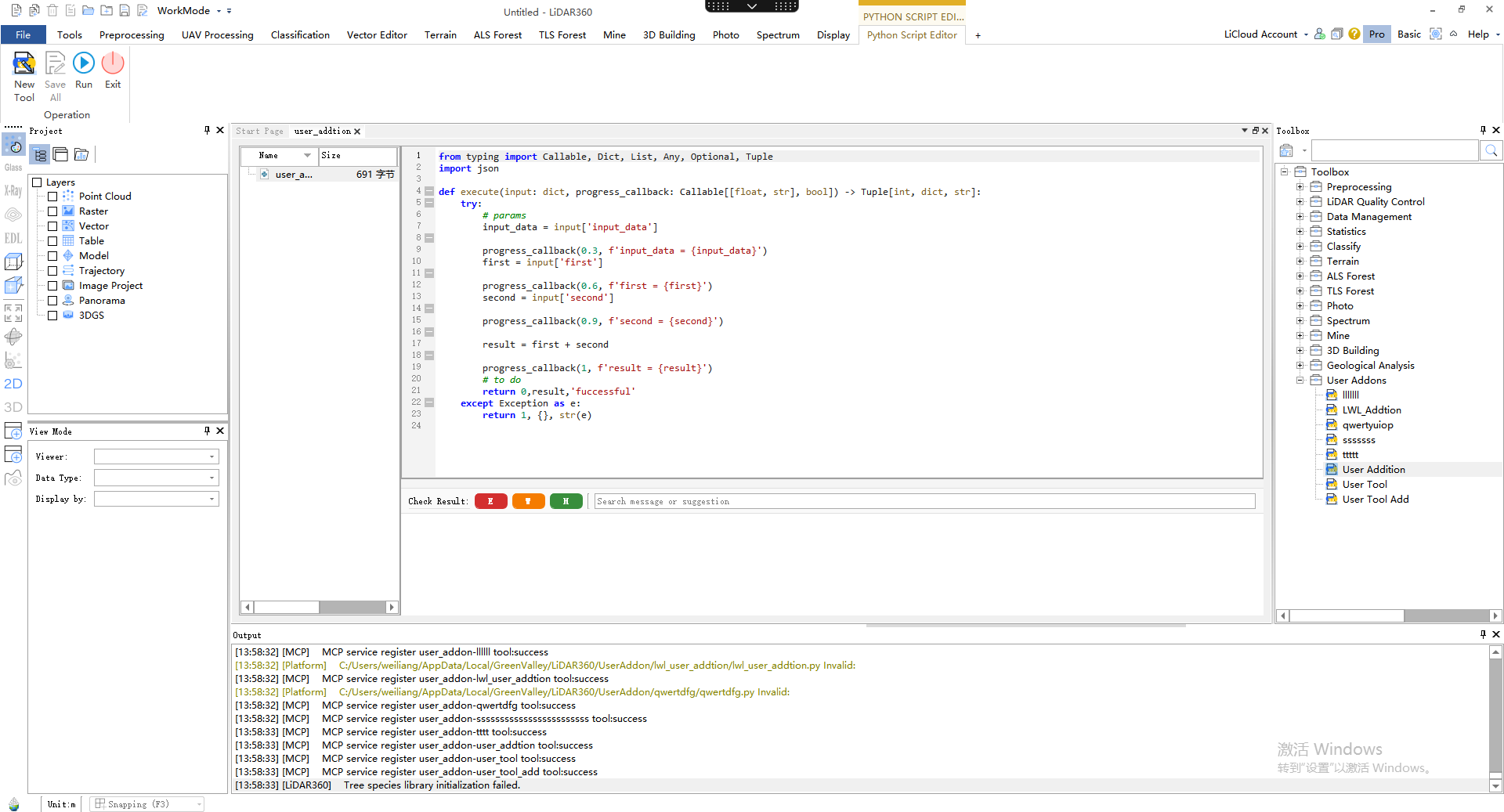
The overall interface consists of six parts: Top Operation Bar, Left Project File Panel, Middle Code Editing Area, Right Toolbox Panel, Code Check Result Output Panel, and Bottom Log Output Panel.
2.1 Top Operation Bar
The top area contains the Python script tool global menu and shortcut operation buttons:
Script Shortcut Toolbar:
- New Tool: Create a blank Python script tool
- Save All: Save all modified script files in the current tool directory
- Run: Execute the current tool: if the current tool is a user-defined plugin opened from the right toolbar, it runs according to the plugin's execution flow; if the current tool is a pure script tool created from the main menu "New Tool", it executes the Python script in the current editing area according to syntax.
- Exit: Exit the entire Python script editor
Tab Bar: Supports multiple Python tools open simultaneously, switching between different tools through tabs; also supports the "Python Console" interactive mode, where single-line Python commands can be executed directly.
2.2 Left Project File Panel
The panel is divided into two parts: the project file list and layer management:
Script File List: Displays all .py script files in the current tool directory, showing basic information such as file name and size.
Right-clicking a selected file allows the following operations:
- Rename: Modify the script file name
- Import py file: Import external scripts from the local directory into the current project
- Delete: Remove the selected script file
- Copy Path: Copy the local absolute path of the file
- Show in Folder: Navigate to the local file explorer directory where the file is located
2.3 Middle Code Editing Area
The core script writing area, supporting Python syntax highlighting and line number display. The right-click menu provides complete editing and debugging capabilities:
| Right-click Menu Item | Shortcut Key | Function Description |
|---|---|---|
| Undo | Ctrl+Z | Undo the last editing operation |
| Redo | Ctrl+Y | Redo the previously undone editing operation |
| Cut | Ctrl+X | Cut the selected code content |
| Copy | Ctrl+C | Copy the selected code content |
| Paste | Ctrl+V | Paste clipboard content at the cursor position |
| Save | Ctrl+S | Save the current script file |
| Select All | Ctrl+A | Select all code in the editing area |
| Find | Ctrl+F | Open the find window to search for specified content |
| Replace | Ctrl+H | Open the replace window to batch replace target content |
| Comment/Uncomment | Ctrl+/ | Add/remove line comments for selected lines |
| Fold | - | Collapse/expand the specified code block |
| Check | - | Perform syntax compliance check on the selected code |
2.4 Code Check Result Output Panel
Right-click a code snippet to use the "AI Assistant" for code inspection and explanation. (Note: Using the "AI Assistant" here will also consume account credits.)
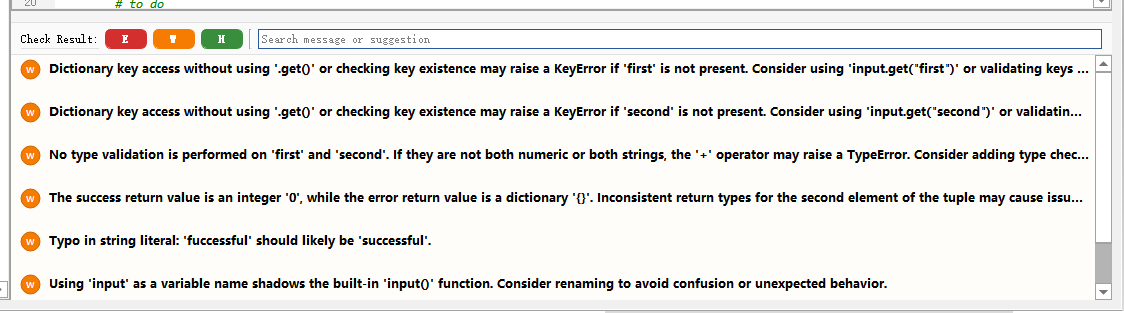
The code check results at the bottom of the editing area support severity level identification and problem retrieval, allowing localization of code errors or matching solutions.
2.5 Right Toolbox Panel
User Plugins: You can enter the Python script editor through Python extension tools in user plugins (DBH inversion calculation, generate DBH inversion model, individual tree attribute format conversion, etc.) to write the calculation part of the tool code.
2.6 Bottom Code Check Result Output Panel
Used to display script running results, tool execution logs, and system prompts:
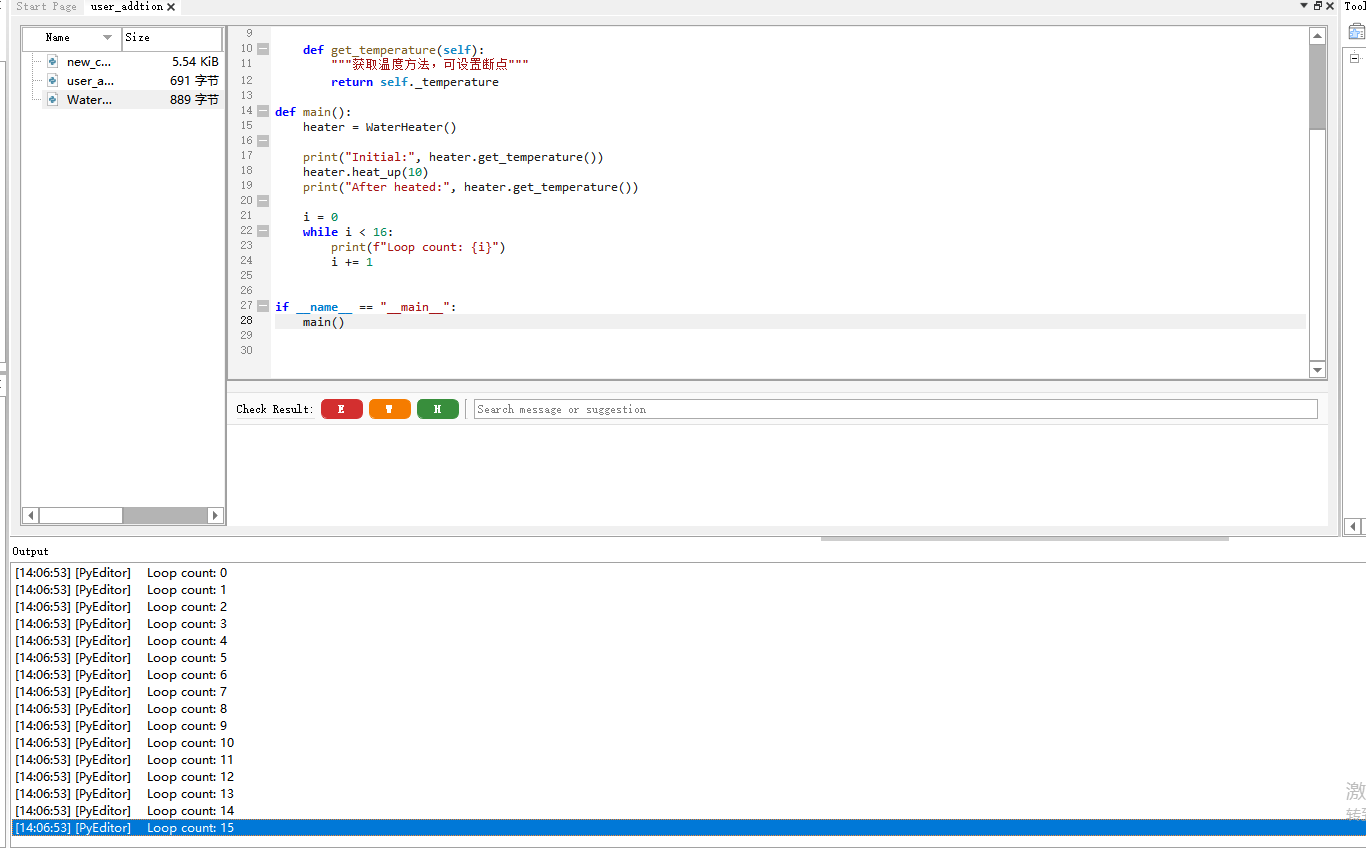
- If there is console output during tool execution, it will be printed in real-time in the bottom output panel.
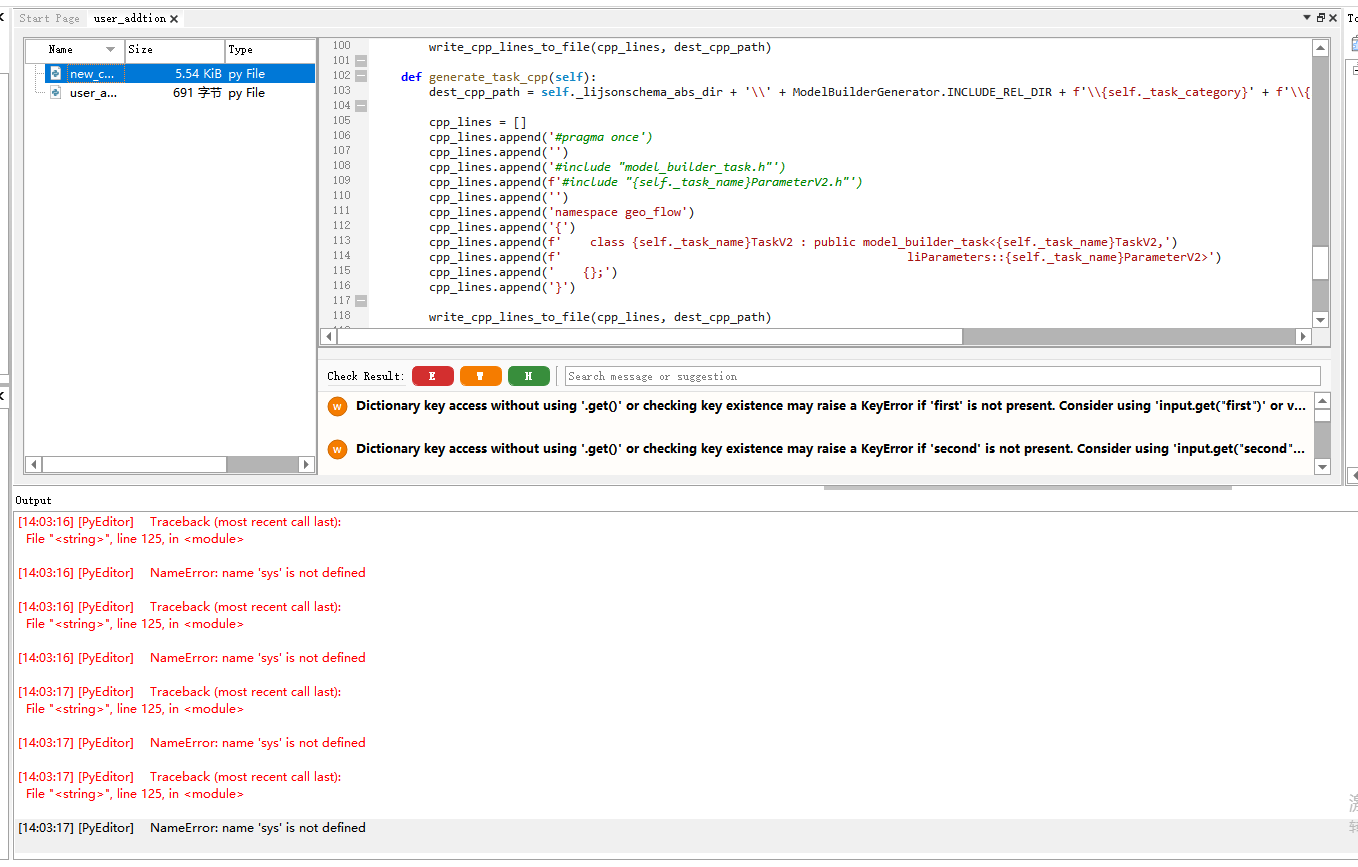
- If errors in the script are detected during tool execution, they will be printed in real-time as error logs.
3. Basic Operation Guide
3.1 Script File Management
- New Script: Click the "New" button at the top, and a blank script file will be automatically generated in the editing area, where you can directly write code.
- Import External Script:
- Click the "Import" button at the top and select a local
.pyfile to complete the import - Or right-click in the left file list and select "Import py file" to add
- Click the "Import" button at the top and select a local
- Save File:
- Single file save: Right-click in the editing area and select "Save", or press
Ctrl+S - Batch save: Click the "Save All" button at the top to save all open scripts
- Single file save: Right-click in the editing area and select "Save", or press
- File Management Right-click Operations: Select the target script in the left file list, right-click to perform operations such as rename, delete, copy path, and show in folder.
3.2 Code Editing Tips
- Quick Comment: Select multiple lines of code and press
Ctrl+/to add/remove comments with one click, improving debugging efficiency. - Find and Replace: Press
Ctrl+Fto bring up the find panel, supporting quick keyword positioning; pressCtrl+Hto batch replace code content. - Code Folding: Use the folding function for code blocks such as functions and loops to simplify the reading view of long code.
- Syntax Check: After editing, right-click and select "Check" to troubleshoot syntax errors in advance and reduce the probability of runtime failures.
3.3 Script Running and Log Viewing
- Run Script: After confirming that code editing is complete, click the "Run" button at the top, and the script will execute in the software's built-in Python environment.
- View Running Results: The bottom output panel will print execution logs in real-time. You can determine the execution module through the log prefix:
- Logs starting with
[PyEditor]are output content from the Python console/script - Other module prefixes correspond to execution records of built-in software tools
- Logs starting with
- Troubleshooting: If execution fails, you can locate the problem through the failure prompt in the log, and correct the script combined with the code check function.