Rectangle Selection
Functional Description: Select point cloud data in rectangle area. (Shortcut key: Shift+R)
Steps
- Click the function button, which is in the box selected state, to activate the function.
- Add the first vertex by left click. Then move cursor to adjust rectangle size.
- Delete the first vertex by right click, if it's unwanted. Go back to Step 2 and select again.
- Double-click the circular boundary point to end the selection, and identify the point cloud in the selected area to highlight (in red), as shown in the figure.
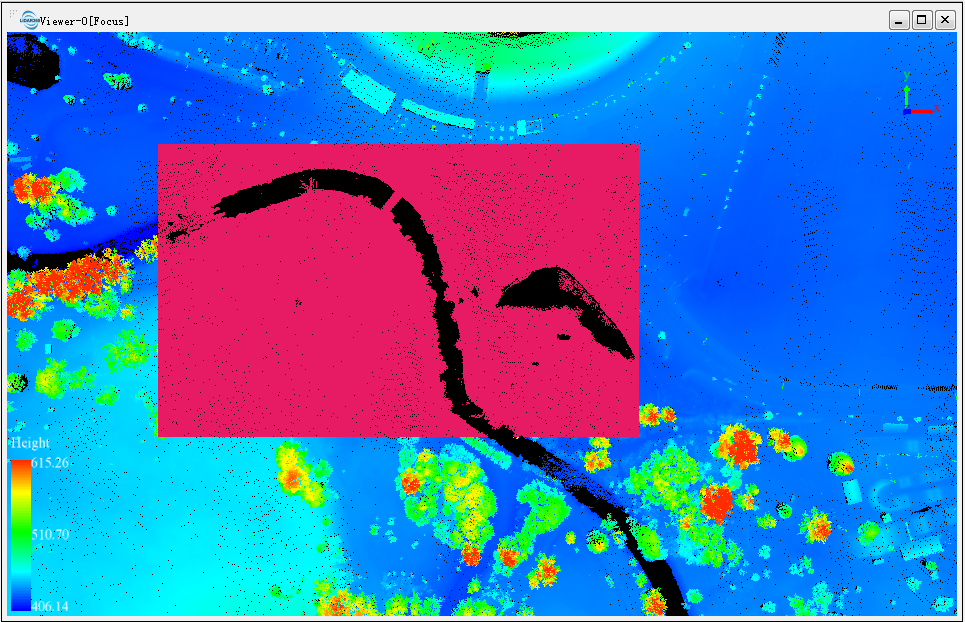
- After one selection is over, another selection can be made on the basis of the first selection.
- Each selection area will be selected according to the state of Inverse Selection to add or subtract the selection area.
Note: This function is only applicable to point cloud data.