Custom Class Setting
This feature allows you to define classification functions using custom-trained deep learning models. Depending on the type of model trained, this classification function can be applied to both point clouds and images.
Usage
Click the Settings function in the Custom Classification group on the Classification page.
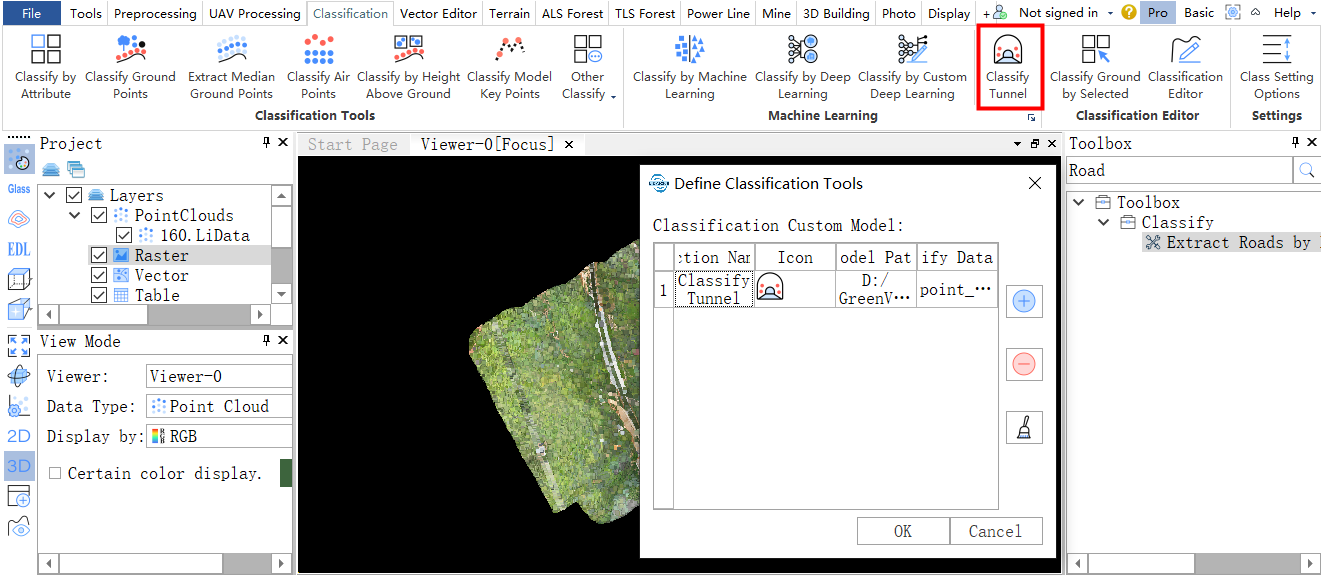
The following dialog box will appear:
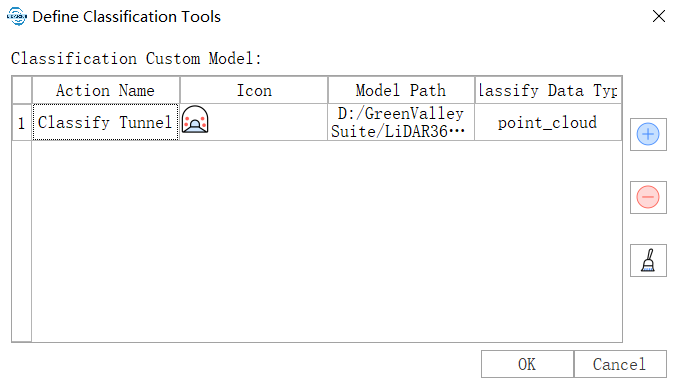
This list displays all custom classification functions that have been added.
Add New Classification Function

Function Description: Click this icon to open the Add Classification Function interface.
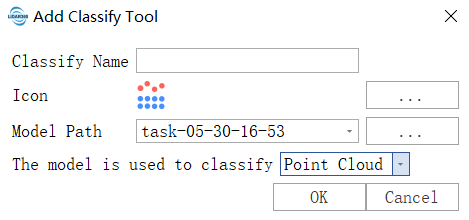
On this interface, define the classification name, select an icon. The Model Path list displays the model files generated from custom deep learning classification training. You can either select a model file from this list or import an external model file. Finally, set the classification data type for the model. After clicking OK, the classification function will be defined. Once the settings interface is closed, the function will be displayed on the page.
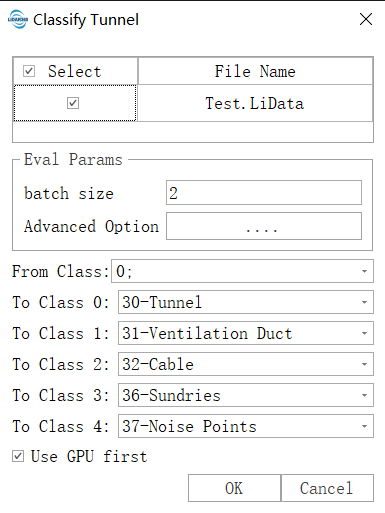
Taking "Classify Tunnel" as an example: after clicking this function, the following interface appears. Select the data to be classified, initial classes, and deep learning classification parameters. Click OK to classify the selected data.
Delete Classification Function

Function Description: Deletes the selected classification function from the list. After closing the settings interface, the function will be removed from the page.
Clear Custom Classification Functions

Function Description: Clears all classification functions from the list. After closing the settings interface, all custom classification functions will be simultaneously removed from the page.