Save Cut Results
Functional Overview

Functional Description: Save results after cut operation as new point cloud files.
Usage
- The cutting operation is carried out first to form the cutting result, refer to In Cut and Out Cut.
- This function will be activated If the result of cutting is available. Click this function to pop up the save setting interface, as shown in the picture.
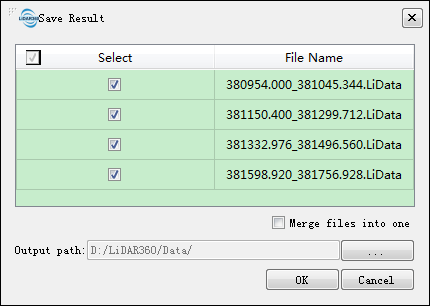
- Select source point cloud files that you want to participate in the Cut Save.
- Select whether to combine all the cut point clouds and save them to one point cloud file.
- Select a directory to save the cut file.New file names are created based on the source file names and system time,the naming rule is "SourceFileName_CutResult_SystemTime.LiData".
- After saving, the system will automatically cancel the original Select and Clip operations, and ask the user whether to add the Clip saving data to the current project. The user can select yes or no as required.
- After saving, the original selection and cropping operations will be automatically cancelled, and the user will be asked whether to add the cropped data to the current project. The user can choose yes or no according to their needs. If they choose yes, the corresponding cropped file will be loaded into the project.