Camera Roam
Description: Camera Roam supports creating roaming paths based on viewpoints or based on external trajectory files collected by devices. The camera moves along the roaming path in the point cloud scene, simulating a person's movement through the scene and observation of collected data. This improves scene immersion and presentation. Together with Save to Video, it can output roaming videos of 3D scenes.
Steps
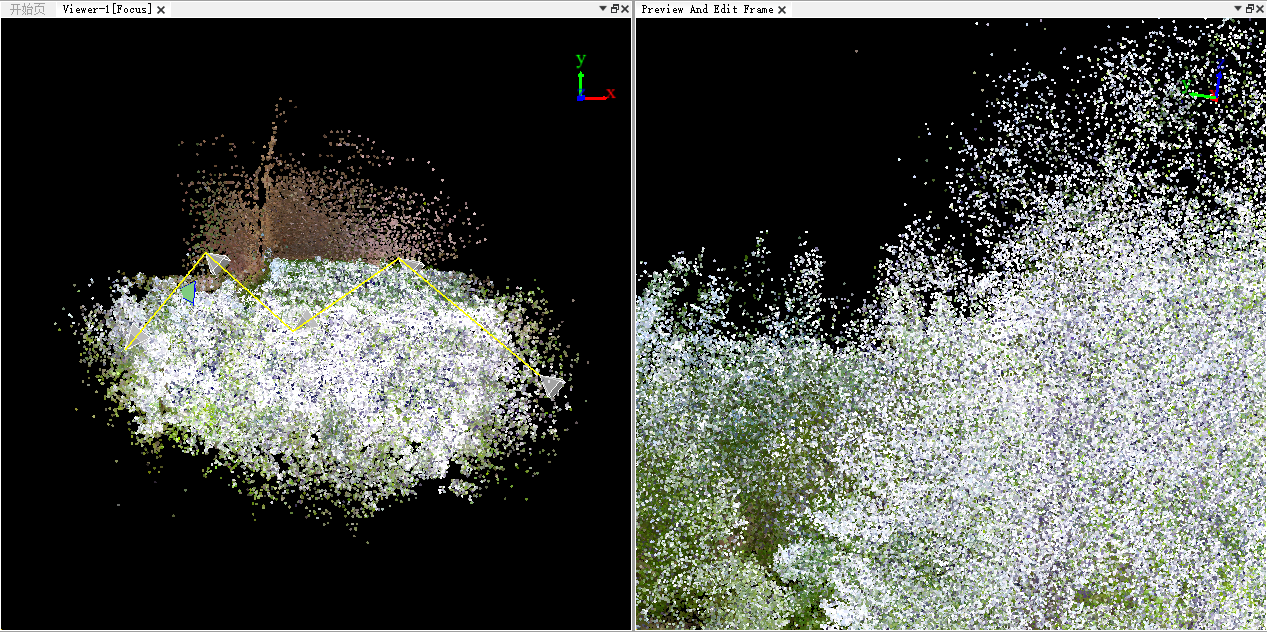
Click Menu > Display > Camera Roam to enable this function. The system creates a preview window based on the initial window. The window uses a left-right split layout: the left side is the original window, used to draw, display, and edit the roaming path; the right side is the preview window, used to show the roaming view in real time.
The Camera Roam settings interface is shown below.
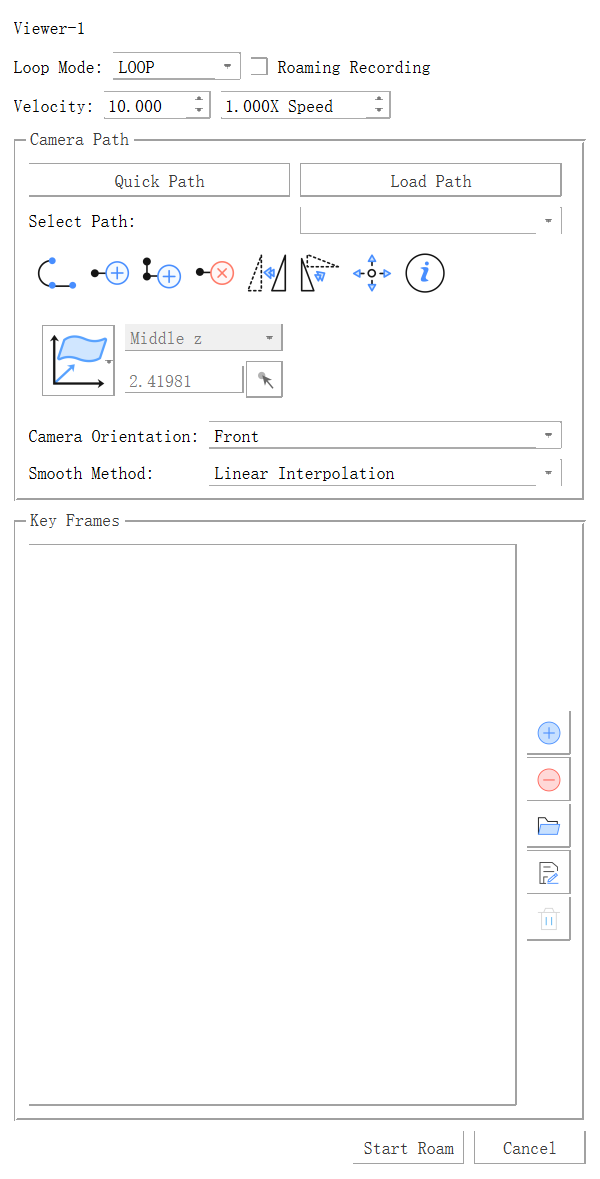
Create a roaming path by one of the following methods:
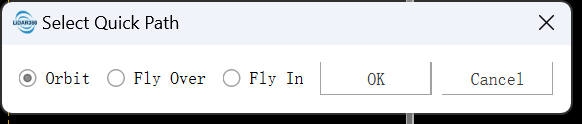
- Quick Path: Supports drawing semicircle, arrow-shaped, and rectangular paths. A roaming path can be generated quickly from the current view range and target location.
- Import Path: Supports importing path files in .txt and .pos formats and converting the path data in the files into roaming routes.
- Draw Path: Supports drawing custom roaming paths in the left window by using vector line drawing or polygon drawing tools.
- Add Keyframe Path: Uses the current view in the right preview window as a roaming path node, records its position and attitude as a keyframe, and generates a roaming path from multiple keyframes.
- Quick Path: Supports drawing semicircle, arrow-shaped, and rectangular paths. A roaming path can be generated quickly from the current view range and target location.
After the roaming path is generated by any method, the path is displayed in the left window, and the corresponding node view information is displayed in the keyframe list. Path switching is supported.
Path editing: A path added by any method can be edited with vector editing tools to modify node positions.
Keyframe editing:
- Click a keyframe item in the keyframe list. The right preview window displays the corresponding view in real time.
- Use the context menu to modify the attitude and speed parameters of a single keyframe to precisely control the roaming route.
Global attitude settings are used to uniformly modify the viewing direction of all roaming nodes, including front, back, left, right, up, and down, and control the observation direction during roaming.
Select the interpolation method to control movement between path nodes. Three interpolation methods are supported:
- Linear Interpolation: Moves along straight-line paths between nodes.
- Spline Interpolation: Moves smoothly along a curve between nodes.
- Bezier Interpolation: Controls the path between nodes more flexibly, making the route more rounded and natural.
Select a loop mode:
- Loop: After roaming reaches the endpoint, it starts again from the beginning.
- Ping-pong: After roaming reaches the endpoint, it plays backward and then repeats in reverse order.
- No Loop: Roaming stops automatically after reaching the endpoint.
Before roaming starts, you can select recording to record the current roaming view as a video.
Click Start Roaming to enter roaming mode. The right preview window displays the roaming view in real time.
During roaming, click Pause/Continue to pause or continue roaming.
Click Stop to exit roaming.
Click Cancel to cancel the Camera Roam function.
Parameter Settings
- Input File: Imports the current window observation position and attitude information into a path file.
- Speed: Sets the roaming speed.
- Loop Mode: Sets the behavior after roaming reaches the endpoint, including Loop, Ping-pong, and No Loop.
- Acceleration: Moves according to a certain acceleration during roaming.
- Camera Attitude: Uniformly sets the viewing direction of all roaming nodes, including front, back, left, right, up, and down.
- Interpolation Type: Sets the interpolation method for movement between path nodes, including Linear Interpolation, Spline Interpolation, and Bezier Interpolation.
Note: The attitude and speed parameters in the keyframe context menu are used to modify the motion status of a single roaming node, while the global parameter settings are used to modify all nodes. The former is used for precise control of a node, and the latter is used for global unified settings.