Complete Guide to Distributed Processing
Function Overview
Distributed Processing distributes large point cloud processing tasks to multiple computers. One computer works as the master node, and the other computers work as computing nodes. The master node splits point cloud tasks, sends them to computing nodes, monitors processing progress, and collects the output results.
Distributed processing is suitable for large point cloud datasets or batch workflows that need higher processing efficiency.
Workflow
Prepare computing nodes -> Start computing nodes -> Configure master node -> Query online nodes -> Configure task and data paths -> Execute distributed processing -> Monitor task status -> Collect results
1. Set Up Computing Nodes
On each computer used as a computing node, click Start Computing Node. In the settings dialog, set the IP address and port number of the current computer. In most cases, the default port can be used.
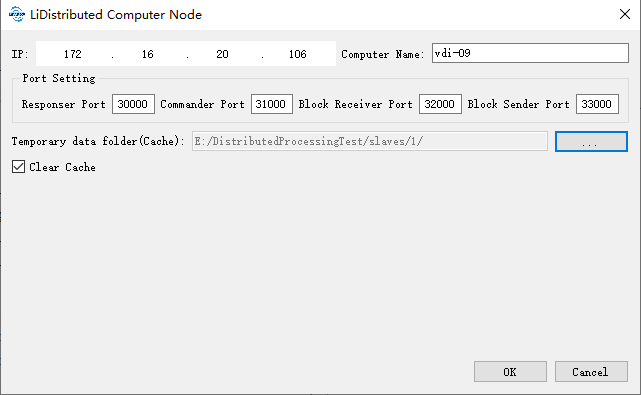
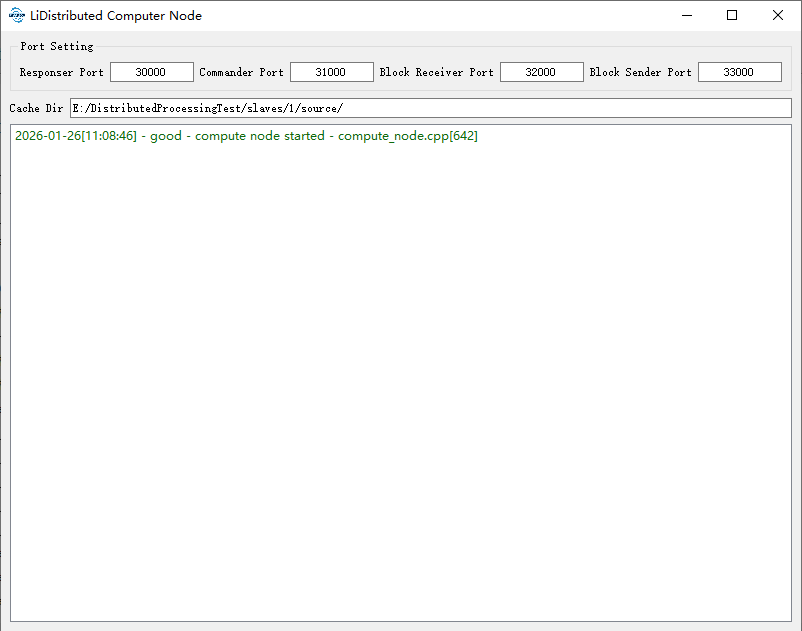
After the settings are confirmed, the computing node monitor is displayed. Keep the computing node running during distributed processing.
2. Set Up the Master Node
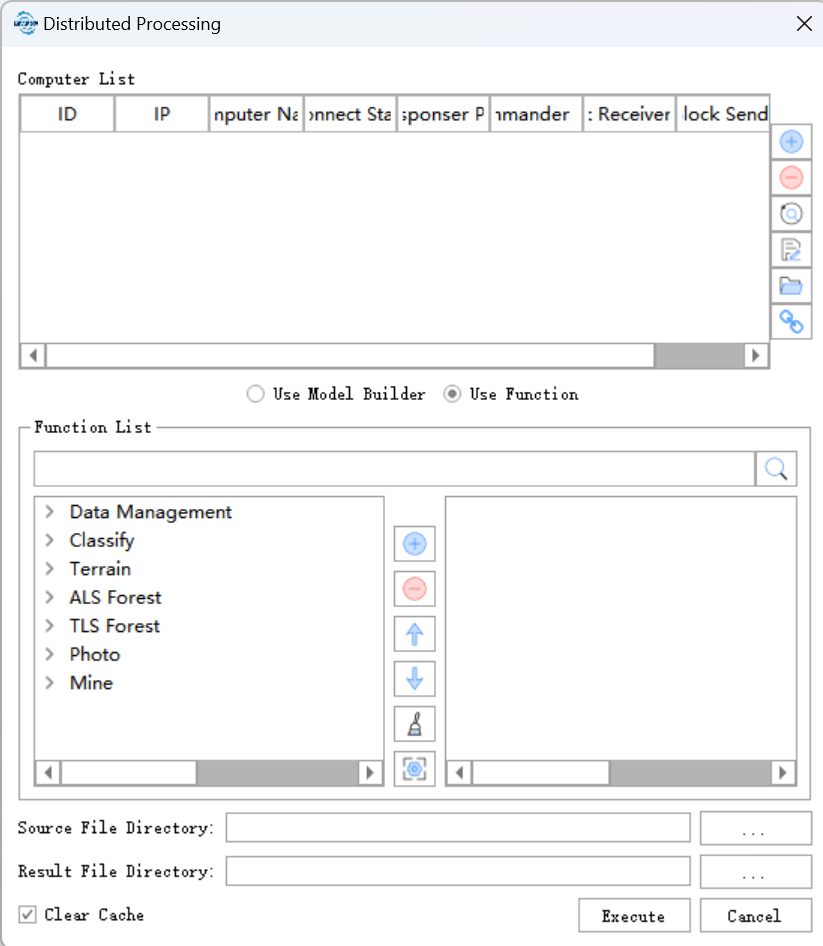
After all computing nodes are started, click Distributed Processing on the LiDAR360 toolbar to open the master node settings dialog.
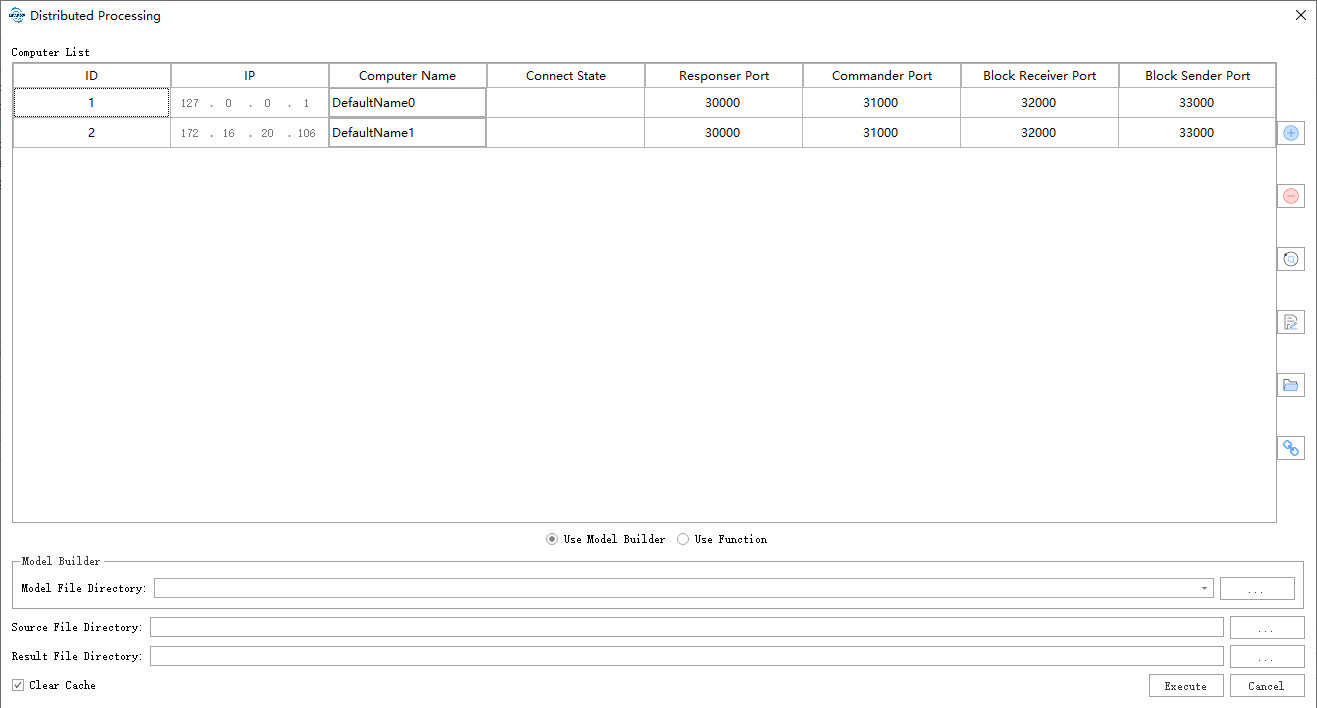
The master node settings include node configuration, task configuration, source data, output data, and optional model builder files.
Configure IP and Port
Add the IP address and port number of each computing node. The IP address and port number must match the values configured on the corresponding computing node.
Query Computing Nodes
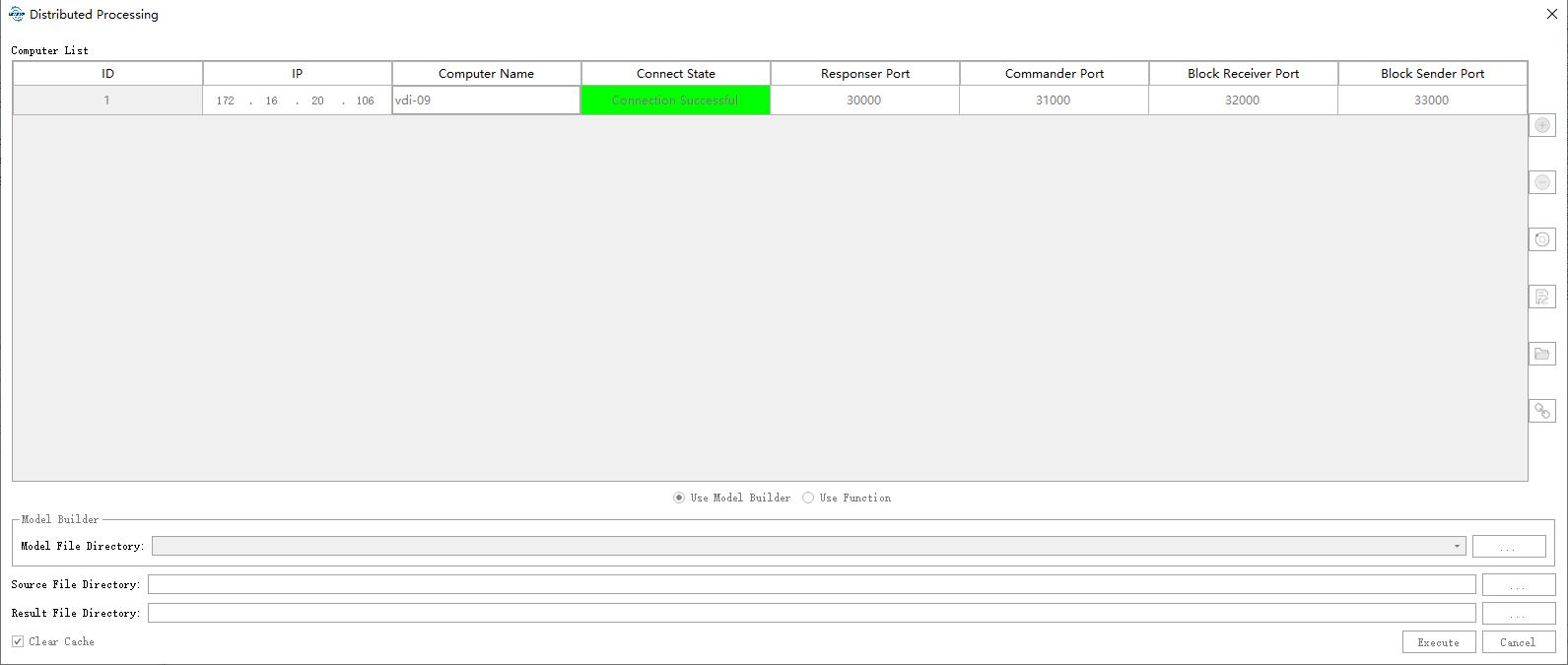
Click Query Nodes to automatically search for online computing nodes.
Configure Processing Tasks
Select the processing tasks to be executed. For example, a workflow can first classify ground points and then perform resampling.
Set Source and Result Directories
- Source Point Cloud Directory: Folder containing the point cloud files to be processed.
- Result Point Cloud Directory: Folder used to save distributed processing results.
Set Model Builder File
Distributed processing supports workflows saved by Model Builder. Select the model file when the distributed task needs to execute a saved model workflow.
3. Start Distributed Processing
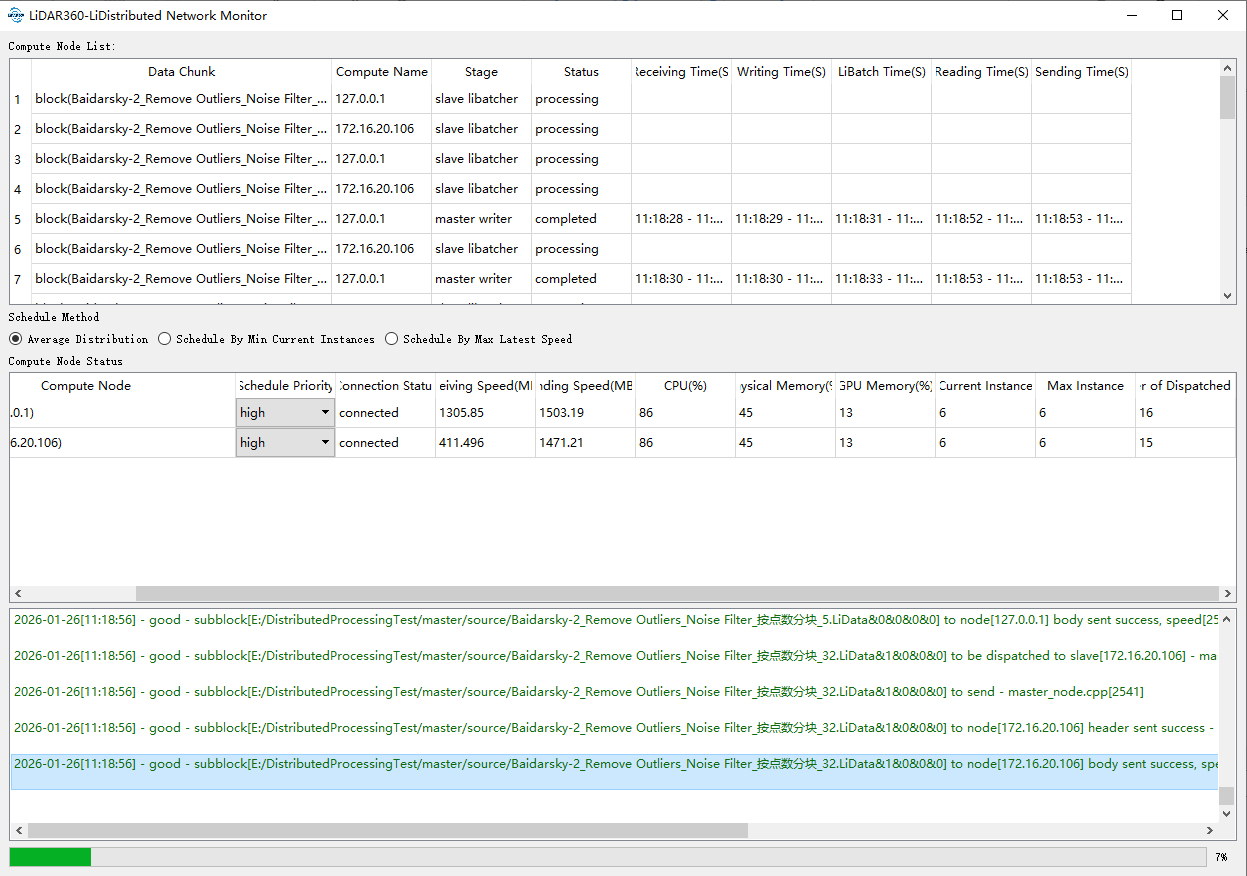
Click Execute to start distributed processing. The master node monitor opens and displays the current task status.
Monitoring Distributed Tasks
The master node monitor contains three main areas:
- The upper list displays the real-time status of each point cloud block, including assigned computing node IP, current stage, processing status, and elapsed time.
- The middle list displays the real-time status of each computing node, including connection status, transfer speed, CPU usage, memory usage, current number of Libatch instances, and the historical maximum number of Libatch instances.
- The lower area displays log messages and overall progress.
Notes
- Keep the master node and all computing nodes on the same network, and make sure the configured ports are not blocked by the firewall.
- Do not close the computing node monitor during processing.
- Make sure the source data path and result path are accessible and have sufficient disk space.