LiDAR360 Deep Learning Module Manual
System hardware and software configuration
The recommended hardware configuration of LiDAR360 Deep Learning Service is as follows:
- Memory (RAM): 16GB or more;
- Central Processing Unit (CPU): Intel Core i7 3.8GHz recommended;
- Display adapter: NVIDIA discrete graphics card is recommended, and the video memory is not less than 8GB;
OS: Microsoft Windows 8 (64-bit) and above and .NET Framework >=4.5.2 Details
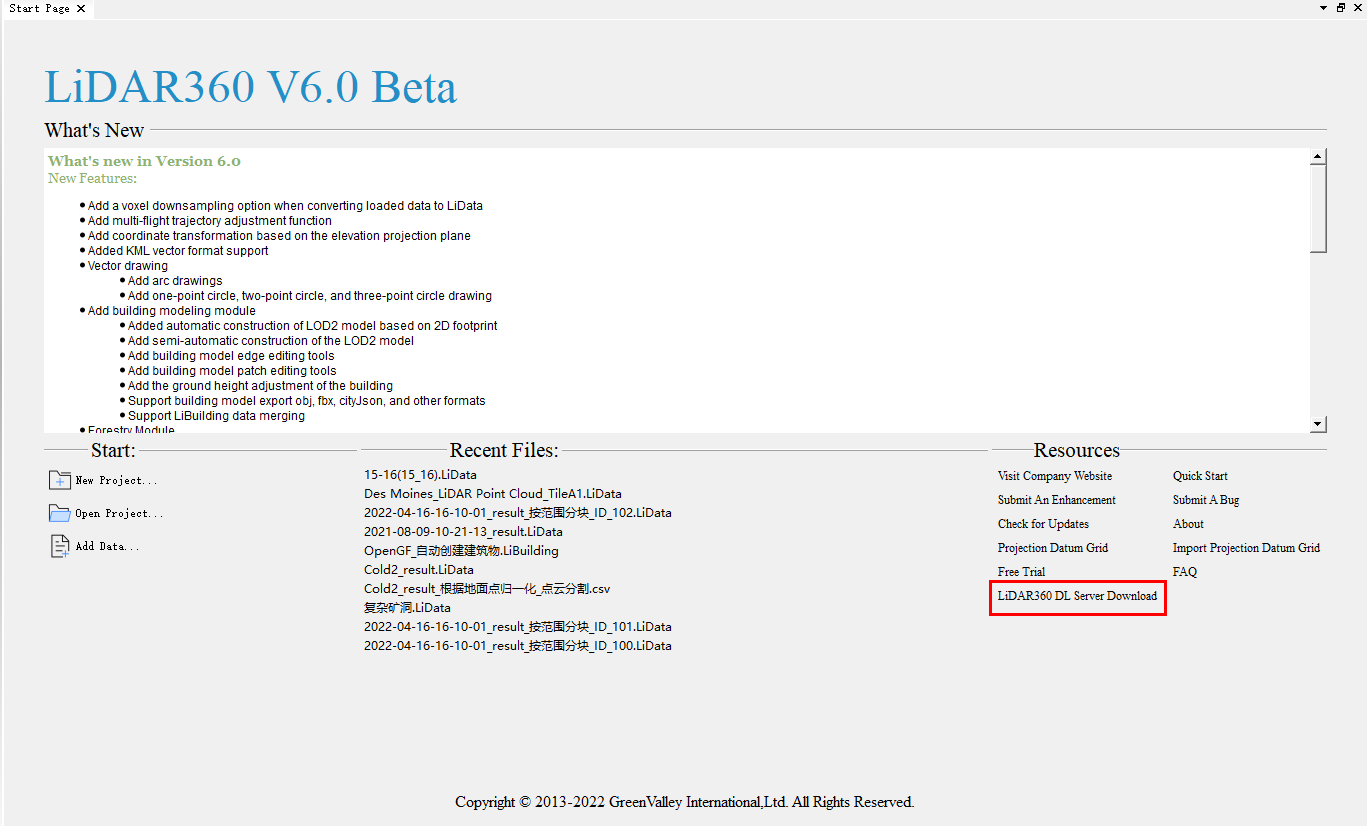
Click to download LiDAR360 deep learning service software download from LiDAR360
Double-click to run the "LiDAR360 DL Server Setup.exe" installation program;
The interface as shown in the figure below pops up, and click "Next", select the installation directory;
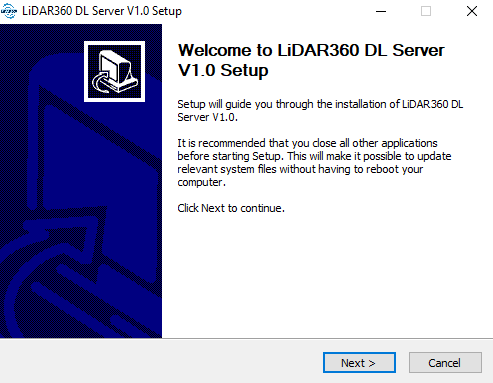
System interface composition
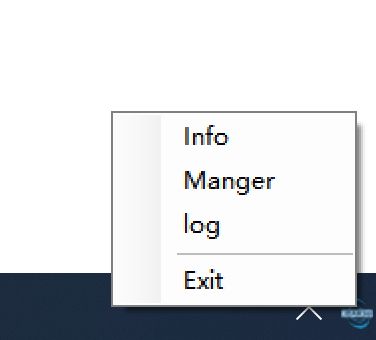
Info (about): You can view the IP and port number of the current service;
Manger: Displays the applications and application-related management functions contained in the current service;
Log (log): You can view the log information output by the current service running;
Exit: Exit the service.
Using Lidar360 AI Service Manager
Function description: After starting the software, open the manager to manage the use of specific application services.
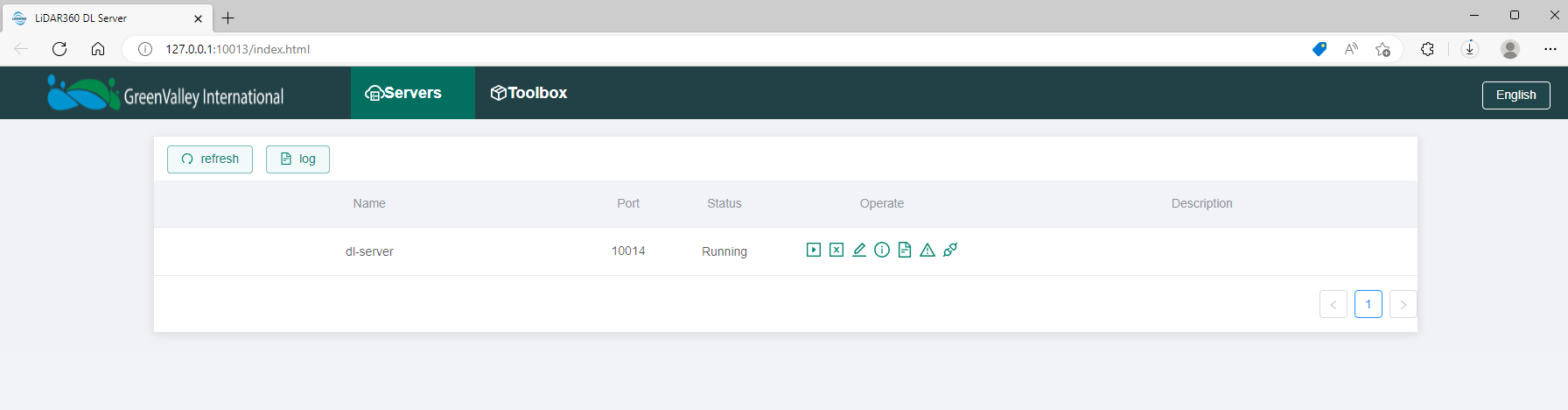
Right-click the LiDAR360 DL Server icon and click "Manager" to jump to the service management page. The "Chinese" button in the upper right corner can switch the system language. Currently, only Chinese and English are supported.
Usage of Application Services
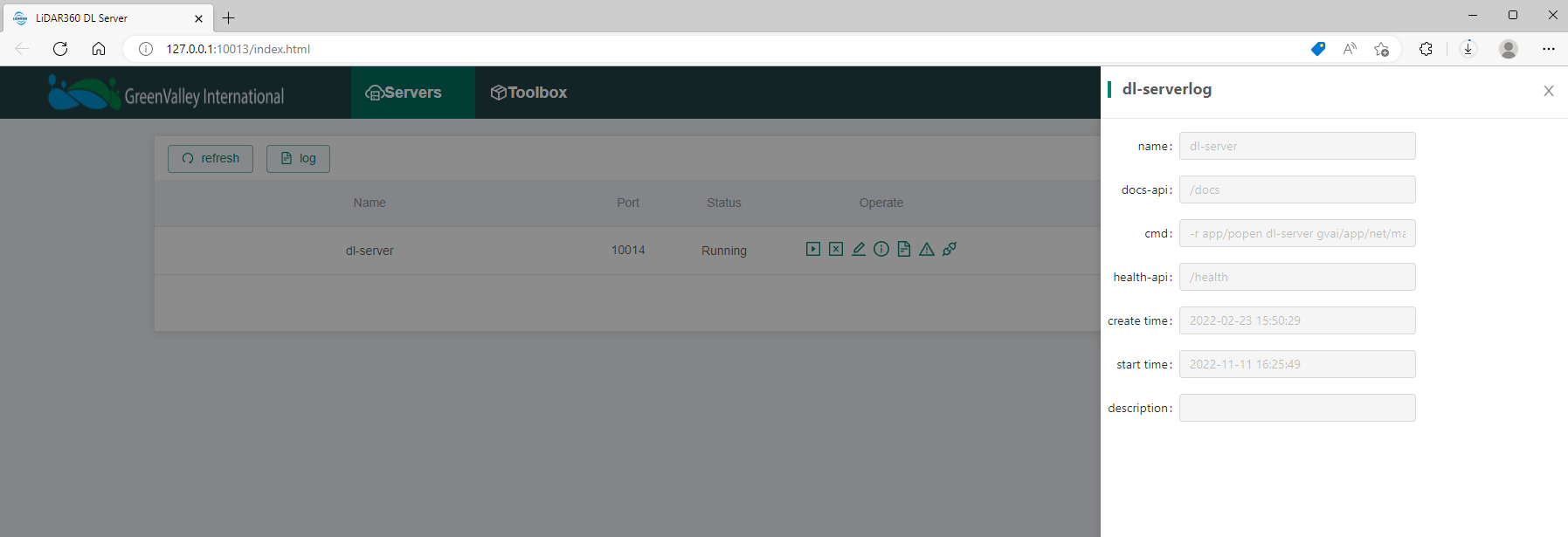
After the user enters the Lidar360 AI management interface, it is located in the service management interface by default, which will display all the application services currently installed by the user, and the service will maintain the state before the user left last time. As shown in Figure 3-3 below, each service mainly includes five parts: service name, port number, status, related operations, and description.
Among them, "Name" shows the name of each current application service; "Port" shows the IP port number used by the current application service; "Status" shows the running status of the current application service.
Running state: Starting, Stopped and Running three states;
- Starting: Indicates that the application service is being started, and the user needs to wait for the service to be fully started before using its functions;
- Stopped: Indicates that the application service has been stopped;
- Running: Indicates that the application service is running.
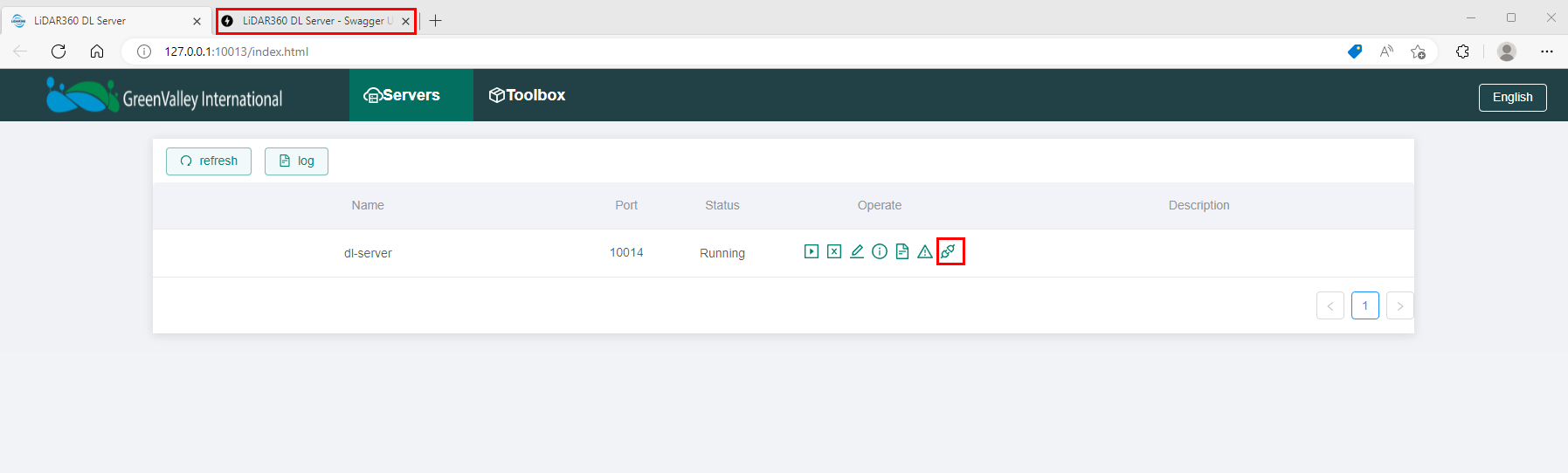
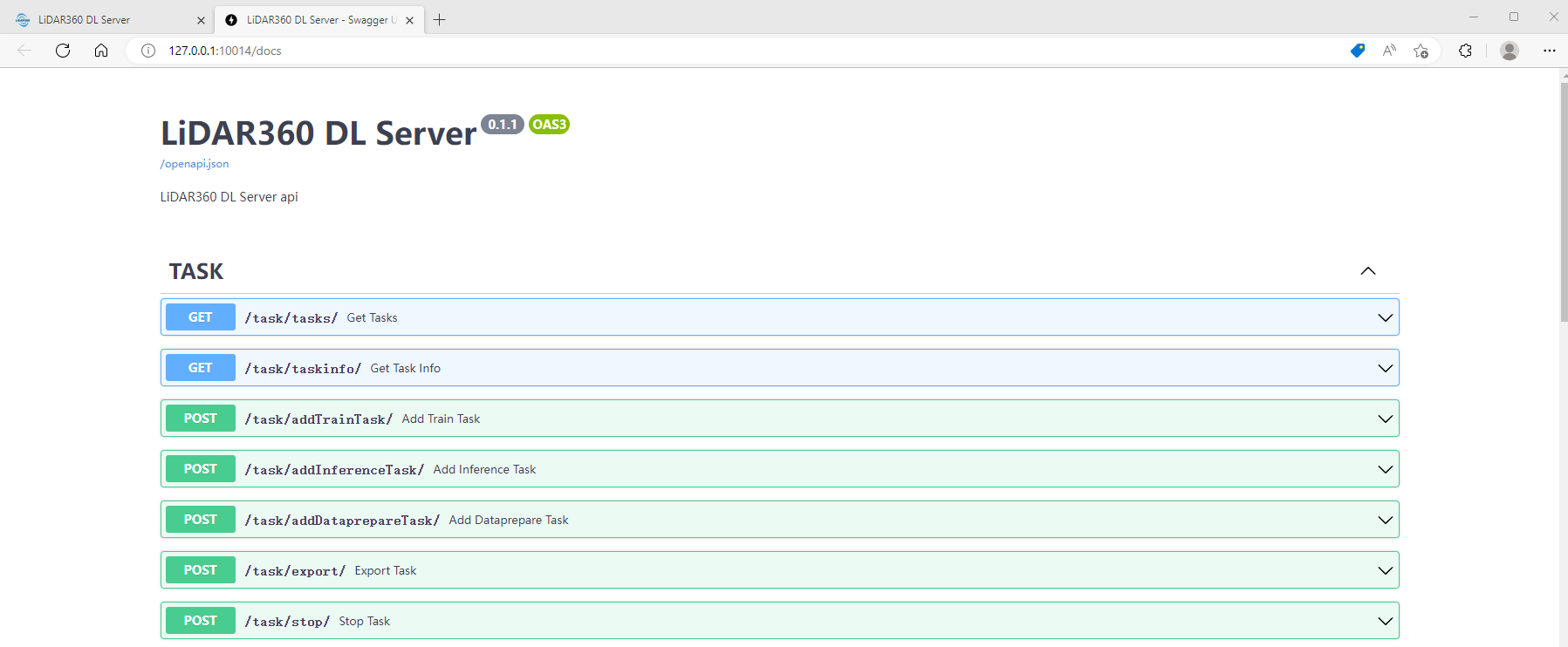
The "Operation" column lists the various operation functions of the current service in turn, mainly including: start the service, stop the service, modify the port number, details, output log, error log and open api seven functions; "Description" is used to display the current A description of the application service.

Application service related operations
Start the service: The user can start the current application service by clicking the "Start service" button under the operation bar, the interface will start the action accordingly and update the application service status to Starting, and the status will be automatically converted to Running after the service is fully enabled;
Stop service: The user can stop the current application service by clicking the "Stop Service" button, and the interface will start the action accordingly and update the application service status to Stopped;
Modifying the port number: Since there may be multiple application services, some port numbers may be occupied, so the system also provides the function of manually modifying the port number. Users can click "Modify port number", enter the unoccupied port number, then click the "Save" button, and finally restart the current service;