Classify By Custom Deep Learning
This feature employs deep learning algorithms to classify point cloud or image data. It utilizes supervised classification, requiring manual editing of a small amount of data within the same batch to establish categories. After training the model, it can process large volumes of data in bulk. Two workflows are supported: selecting training samples, generating a training model, processing data to be classified, and using an existing model to process data to be classified.
To use this feature, please ensure you have installed the Deep Learning Service.
Requirements
| GPU Requirements | Description |
|---|---|
| GPU Type | Minimum CUDA compute capability 3.5, recommended 6.1 or higher. Learn more Compute Capability |
| GPU Memory | Recommended: 8GB or higher, depending on the deep learning model structure and batch size |
Usage
Click Classify > Classify By Custom Deep Learning
Workflow: Data Preparation --> Train Point Cloud Classification Model --> Classify Using Trained Model
The task management page is shown below, which displays the status/manages training tasks for point cloud classification models and tasks for classifying using trained models.
The toolbar, from left to right, includes: New Task, Delete Task, Start Task, Pause Task, Import Task, Export Task, Task Info, Model Management, Refresh
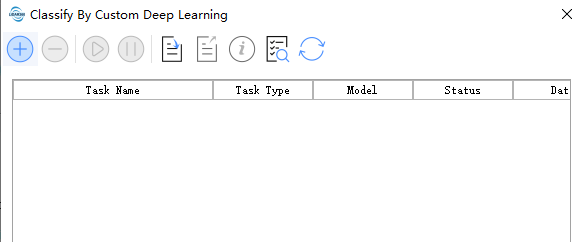
The task management page displays the status/manages training tasks for point cloud classification models.
Data Preparation
Point Cloud
Before training, prepare the required data (labeled data) for training. Use the profile editing function provided by LiDAR360 to edit category data. Training data should be real-scene data, allowing the use of data in LAS, LAZ, and LiData formats. Adjust the amount of training data based on the scene and algorithm processing methods. In principle, the more labeled data participating in training, the better. We recommend preparing at least 100m*100m of data for a good user experience. Please note that data labeling must follow a unified principle, and category settings should not vary with the scene. Incorrectly labeled data will have a negative impact.
Image
Before training, prepare the required data (labeled data) for training. Use the SAM vector editing export labelme annotation function provided by LiDAR360, or use the labelme tool directly for annotation. Training data should be real-scene data, allowing the use of common image formats such as jpg, png, tif, etc. The recommended size for each image is less than 2048*2048; otherwise, overly large images will lead to poor training results. Large images are recommended to be sliced before annotation.
Train Model
Point Cloud
Click Classify > Classify By Custom Deep Learning ->Train Point Cloud Classification Model
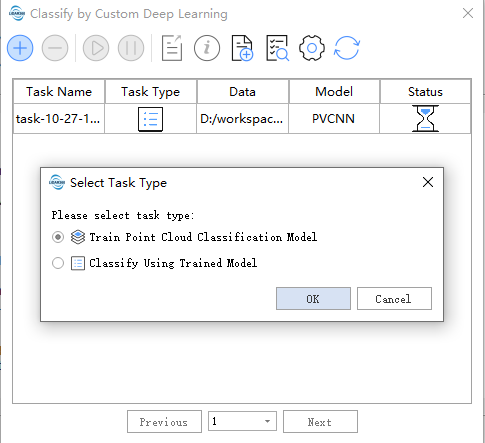
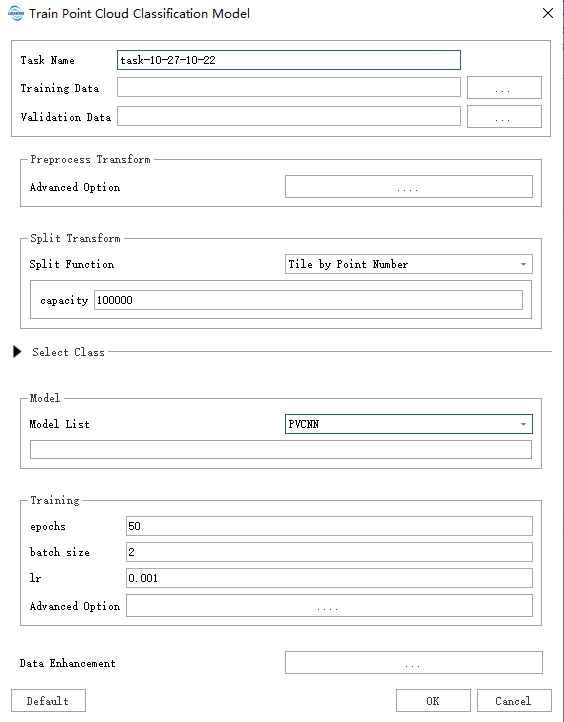
After filling in the data paths as needed, click Default to use the default parameters and start.
- Task Name: The task name will be used as the name of the trained model.
- Training Data: Place the data with category labels in the same folder. All data in supported formats under the folder will be read.
- Validation Data: Place the data with category labels in the same folder. The data in this folder will be used as a template to calculate metrics such as accuracy.
- Preprocess Transform:
- Advanced Option: Select data preprocessing functions here, usually including statistical filtering, voxel filtering, etc. Voxel filtering is used by default to avoid unexpected memory insufficiency caused by overly dense data.
- Split Transform:
- Split Function: Data segmentation. To avoid using excessive video memory, it is recommended to segment the data to an appropriate size. The choice of segmentation size is related to data distribution, algorithm, etc. Parameter filling guide.
- Select Class: Category mapping.
Sample Classis the category of the training sample.Merge Tagsmerges the corresponding categories inSample Classinto one category for training. One or moreSample Classcorrespond toMerge Tags. Note thatSample Classshould include all categories in the training sample data. The category corresponding to 0 inMerge Tagsis the background and does not participate in training. - Model:
- Model List: Currently, five classic models are provided: SPVANS, DRINet, PVCNN, KPConv, MinkUNet (not the original implementation, with minor changes). For these five algorithms, we provide corresponding recommended parameter settings. It is recommended to use the
Defaultbutton in the lower left corner to automatically fill in subsequent parameters.
- Model List: Currently, five classic models are provided: SPVANS, DRINet, PVCNN, KPConv, MinkUNet (not the original implementation, with minor changes). For these five algorithms, we provide corresponding recommended parameter settings. It is recommended to use the
- Training:
- epochs: Epochs. Each complete cycle processing all data is one epoch.
- batch size: Batch size, i.e., the number of data processed by the model each time. Generally, the larger the better within the allowed memory limit, as it has advantages in model accuracy and training speed. For a GPU with 8 GB of dedicated RAM, use the default batch size of 2. If you find that there is still a large amount of GPU memory available during training, you can safely increase the batch size to process more blocks at once.
- lr: learning rate. Cooperates with the optimizer to control the speed and direction of model learning.
- optimizer: Optimizer, same as above.
- lr scheduler: Learning rate controller. A learning rate that changes with cycles can achieve better accuracy in some cases.
- loss: Loss function. In
Advanced Option, cross-entropyCrossEntropyLossis used by default.FocalLossgenerally performs better when categories are unbalanced, but may perform worse when labels are incorrect. Cross-entropy is recommended.
The bolded items above are required parameters; others are optional. It is worth noting that parameters may change with version updates.
Image
Click Classify > Classify By Custom Deep Learning -> Train Image Classification Model
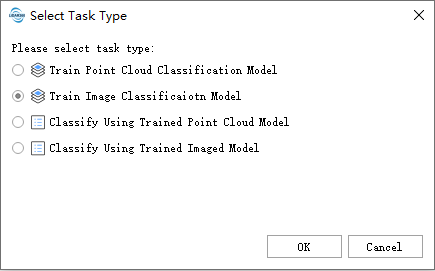
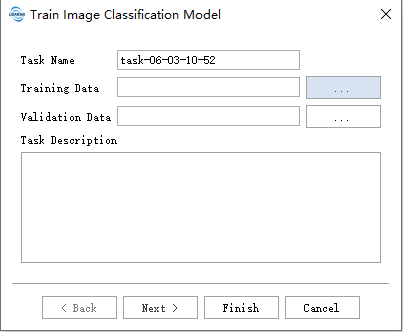
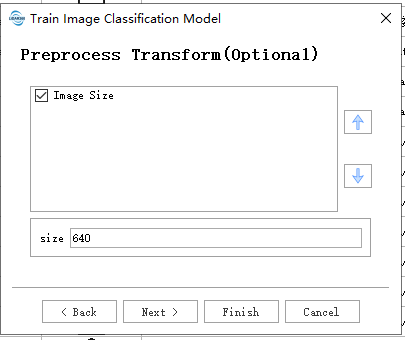
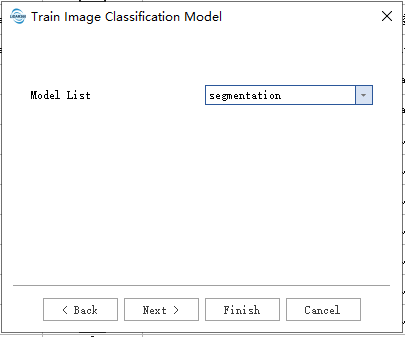
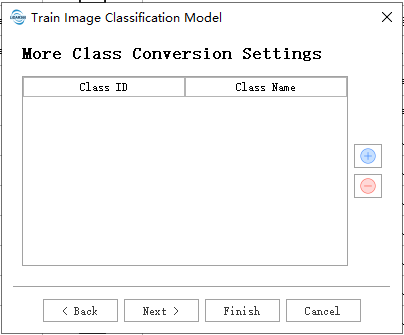
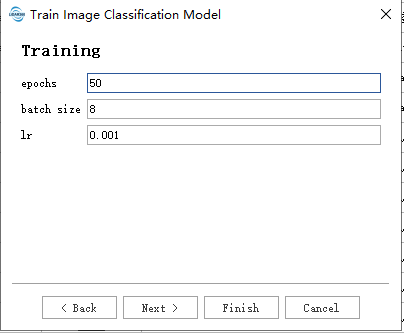
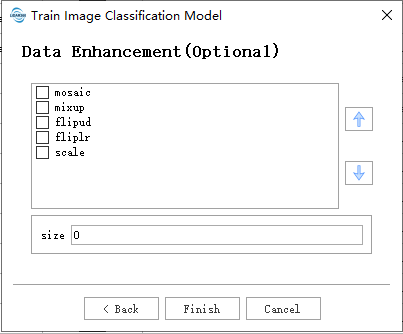
After filling in the data paths as needed, click Default to use the default parameters and start.
- Task Name: The task name will be used as the name of the trained model.
- Training Data: Place the data with category labels and annotation files in the same folder. All files in supported formats and their corresponding annotation files under the folder will be read. The image and annotation file formats are as shown below:

- Validation Data: Place the data with category labels and annotation files in the same folder. The image and annotation file formats are consistent with those in
Training Data. The data in this folder will be used as a template to calculate metrics such as accuracy. - Data Preprocessing:
- Image Size: The size of the training image. The image will be resized to the set size during training.
- Select Class: Category mapping. The numerical category of the annotation label and the real category.
- Model:
- Model List: Currently, two types are provided:
segmentationanddetection.segmentationis for image segmentation tasks, anddetectionis for image object detection tasks.
- Model List: Currently, two types are provided:
- Training:
- epochs: Epochs. Each complete cycle processing all data is one epoch.
- batch size: Batch size, i.e., the number of data processed by the model each time. Generally, the larger the better within the allowed memory limit, as it has advantages in model accuracy and training speed. For a GPU with 8 GB of dedicated RAM, use the default batch size of 2. If you find that there is still a large amount of GPU memory available during training, you can safely increase the batch size to process more blocks at once.
- lr: learning rate. Cooperates with the optimizer to control the speed and direction of model learning. Usually, a lower learning rate is more stable, but it is also more likely to get stuck at saddle points.
- Data Augmentation:
- mosaic: Combines four training images into one, simulating different scene compositions and object interactions. Very effective for understanding complex scenes.
- mixup: Mixes two images and their labels to create a synthetic image. Enhances the model's generalization ability by introducing label noise and visual variations.
- flipud: Flips the image vertically with a specified probability, increasing data variability without affecting object features.
- fliplr: Flips the image horizontally with a specified probability, which is useful for learning symmetric objects and increasing dataset diversity.
- scale: Scales the image by a gain factor, simulating different distances between the object and the camera.
The bolded items above are required parameters; others are optional. It is worth noting that parameters may change with version updates.
Use Trained Model
Point Cloud
Click Classify > Classify By Custom Deep Learning > Classify Using Trained Point Cloud Model
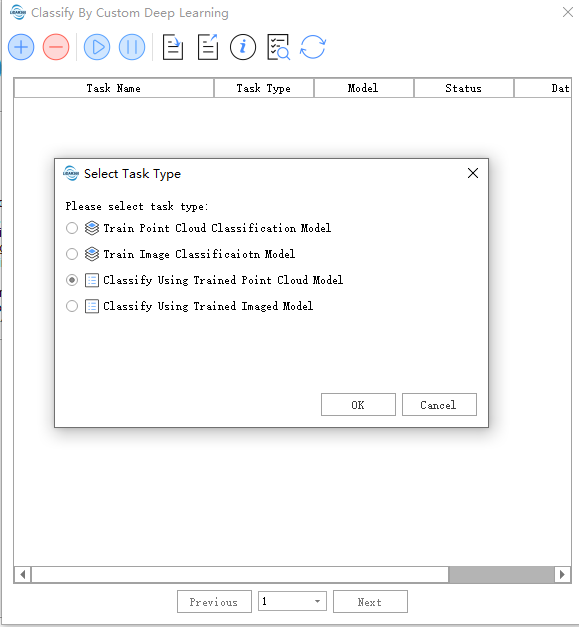
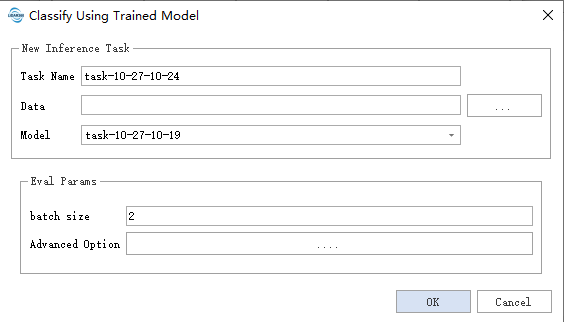
- Data: Reads all data in supported formats under the folder and directly modifies the source data. Please back up the data yourself when necessary.
- Model: Select the model to use. The model name will be named after the training task name and will be automatically added to Model management after training is completed.
- Evaluation Parameters:
- batch size: Mainly controls the amount of data entering the model each time. Appropriately increasing it can speed up the process but will also use more memory.
- weight name: Controls the selection of the model based on a certain best metric (such as acc, miou, etc.).
The model will be generated when the training task completely stops (training task completed, training task paused, training task exited due to memory overflow).
The bolded items above are required parameters.
It is worth noting that parameters may change with version updates.
Image
Click Classify > Classify By Custom Deep Learning > Classify Using Image Model
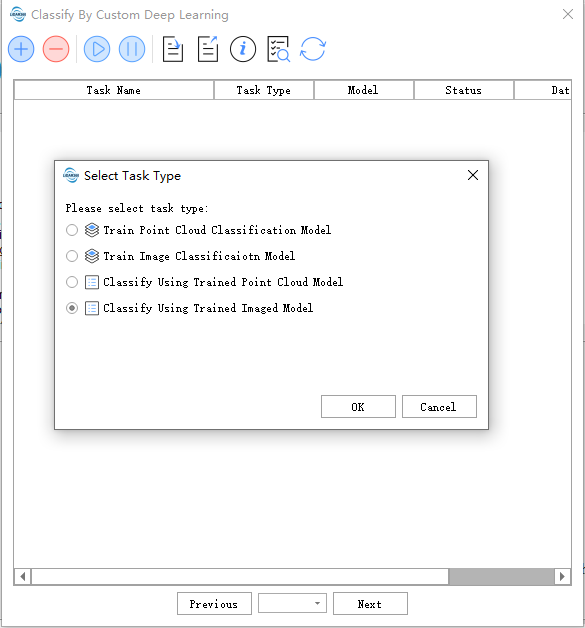
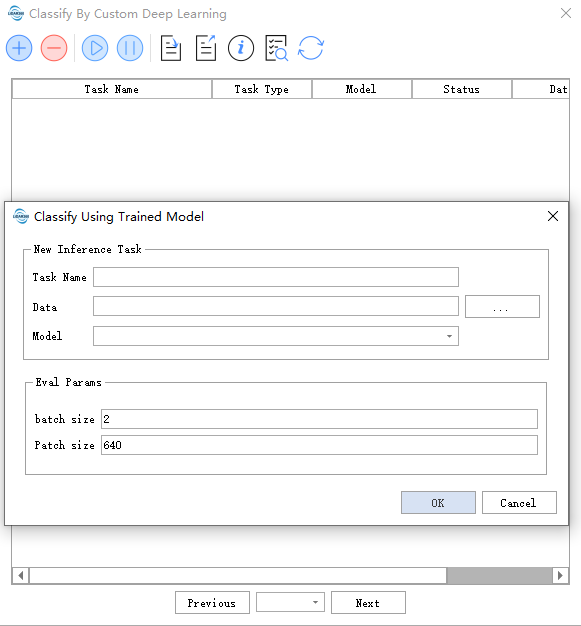
- Data: Reads all data in supported formats under the folder.
- Model: Select the model to use. The model name will be named after the training task name and will be automatically added to Model management after training is completed.
- Evaluation Parameters:
- batch size: Mainly controls the amount of data entering the model each time. Appropriately increasing it can speed up the process but will also use more memory.
- Patch size: The size of the image blocks when reasoning the model.
The model will be generated when the training task completely stops (training task completed, training task paused, training task exited due to memory overflow).
The bolded items above are required parameters.
It is worth noting that parameters may change with version updates.
Evaluate Training Results
Point Cloud:
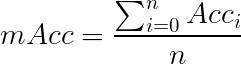
Provides three metrics: MIoU, Acc, MAcc, mainly calculated based on the confusion matrix.
True Positive (TP): The number of instances where the true value is positive and the model predicts positive.
False Negative (FN): The number of instances where the true value is positive and the model predicts negative.
False Positive (FP): The number of instances where the true value is negative and the model predicts positive.
True Negative (TN): The number of instances where the true value is negative and the model predicts negative.
| True Category | |||
| 1 | 0 | ||
| Predicted Category | 1 Positive |
True Positive |
False Positive |
| 0 Negative |
False Negative |
True Negative |
|
A table composed of these four indicators is called a confusion matrix.
IoU (Intersection over Union)
The intersection of the target and prediction divided by the union of the target and prediction.

MIoU (Mean Intersection over Union)
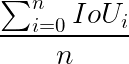
Acc (Accuracy)


Recall

Average Precision (AP): The area under the PR curve and between the horizontal and vertical axes. The PR curve is composed of Precision and Recall, with Recall on the horizontal axis and Precision on the vertical axis.
Mean Average Precision (mAP): The sum of the average precision of all categories divided by the number of all categories.
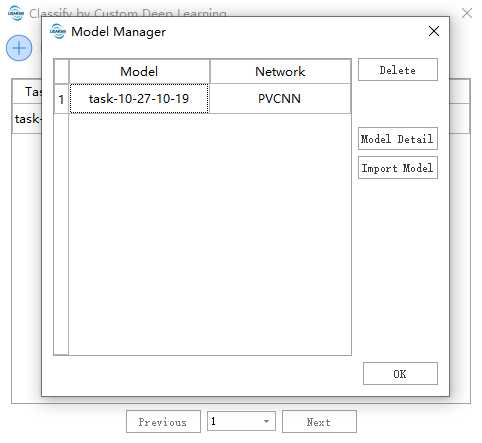
Model Management
The model management interface can manage available models and also import external models (only models produced by the LiDAR360 client).
Import Training Task
External models can be imported to obtain parameters/weights.
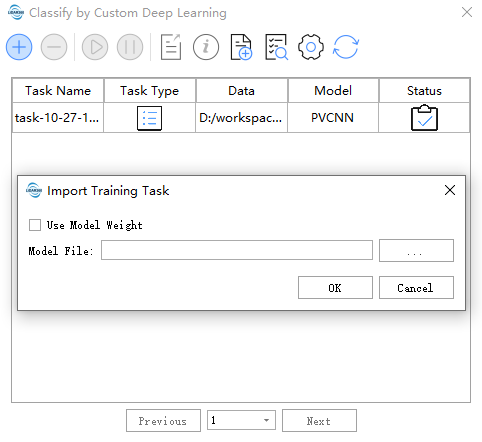
- Model File: External model file path (only supports models produced by the LiDAR360 client).
- Use Model Weight: Model weight. When checked, it is for continued training; when not checked, it only obtains model training parameters.
Deep Learning Model Comparison
Point Cloud
The following data is from the training phase, using voxel downsampling with a voxel size of 0.5, about 200,000 points per dataset, and a batch size of 2. Time complexity and space complexity are mainly affected by data density. The point density after multiple downsampling of the model is difficult to control, so only an approximate value can be provided for reference.
Hardware Configuration
CPU: i7-10700k (8t16c)
GPU: RTX3060
| Algorithm | Speed (items/s) | Memory Usage (GB) |
|---|---|---|
| PVCNN | 1.82 | 8G |
| KPConv | 0.04 | 11G |
| MinkUNet | 1.05 | 8G |
Generally, KPConv has the highest accuracy and detail performance and is recommended for small scenes requiring fine classification. MinkUNet has a larger field of view and suitable speed and is recommended for large scenes. PVCNN has good detail performance and the fastest speed and is recommended for general use.
Image
The following data is from the training phase, with a batch size of 4.
| Speed (items/s) | Memory Usage (GB) | |
|---|---|---|
| segmentation | 3 | 2G |
| detection | 3 | 2G |
Feature Selection
Point Cloud
RGB and Intensity features can be added according to data characteristics. RGB and Intensity features can make the model fit earlier, with little difference in final accuracy (depending on the actual data situation). The difference in memory usage and calculation speed is negligible.
| Features | miou |
|---|---|
| RGB+Intensity | 99.1 |
| Intensity | 98.8 |
| RGB | 99.0 |
| None | 98.7 |
Image
No feature selection is required.
Data Segmentation
Point Cloud
It is generally recommended that users select at least the maximum size of the individual category to be classified (e.g., if the maximum size of a building to be classified is 80m*80m, it is recommended to use Tile by Range with a length parameter of 90 or above), and then increase it as needed based on hardware conditions.
Tile by Range Point Number segments by point count, which may provide better performance when data is unevenly distributed (e.g., in sparse scenes).
Image
It is generally recommended that users perform data blocking during training. The recommended block size should not exceed 2048.
Debugging Guide
- Insufficient Memory: Reduce the
batch_sizeparameter. For point clouds, reduce thesplit transformsegmentation size. For images, reduce theImage Size. - Class Imbalance: It is recommended to change the loss to
Focal Loss. - Loss Fluctuates: Wait for a few more epochs during the early stages of training. If it cannot stabilize within 10-20 epochs, try reducing
lr/10. It is recommended to useCosine Annealing WarmRestartsinlr_scheduler. If necessary, use a largelrfor early training and then use the import model training function to change to a smalllrfor continued training.
Notes
- The validation set uses the data augmentation of the training set by default.
- If the user does not specify input features, basic features required by the model will be used based on the model's needs.