Bookmarks
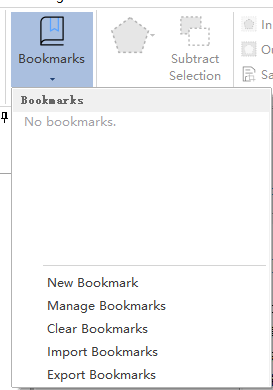
Click the Bookmarks menu in the toolbar to view the list of currently imported bookmarks, providing functions for New, Manage, Clear, Import, and Export.
Bookmark List
Displays bookmarks in the current bookmark file; it is empty when the software starts and requires importing existing bookmarks via the Import function or creating new ones via the New function. The bookmark list shows the bookmark name and its corresponding view center coordinates; detailed information is displayed when the mouse hovers. Click a bookmark item to jump to the corresponding view and display the recorded annotations; click it again to close the bookmark and hide the annotations.
Edit Bookmark
Right-click a bookmark item and click Edit Bookmark to pop up the following dock window:
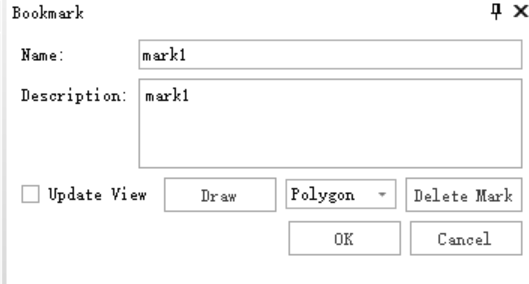
Users can edit the bookmark name and description, update the view, and add/delete annotations, which support polygons, polylines, and location icons.
Remove Bookmark
Right-click a bookmark item and click Remove Bookmark to delete it from the list.
New Bookmark
Click New Bookmark, enter a name and description, and a new bookmark will be created based on the current view.
Manage Bookmarks
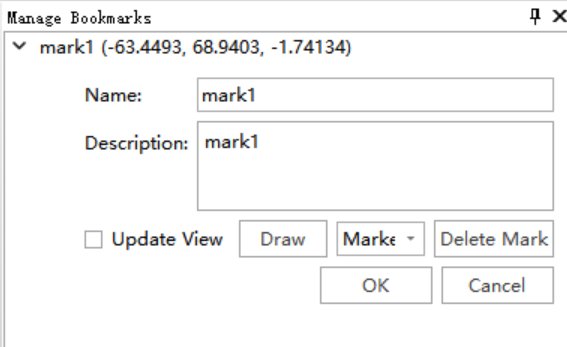
Click Manage Bookmarks to display all bookmarks in a dock window; expand an item to edit it and click OK to save. This function is suitable for scenarios requiring batch editing of bookmarks.
Clear Bookmarks
Click Clear Bookmarks to empty the current bookmark list.
Import Bookmarks
Click Import Bookmarks to import previously exported bookmark files (*.bkmk). Importing will first clear the current list before reading and displaying the bookmarks from the file.
Export Bookmarks
Click Export Bookmarks to save the current bookmark list as a .bkmk file. Note: Editing the list does not affect the file content; this function must be used for persistent storage.