Volume Measurement
Functional Overview
Functional Description: This tool is applicable to point cloud data and model data. This tool calculates filling, cutting and total amount relative to a reference height. The measurement area can be selected either by interactively selecting polygon vertices or by inputting the vector file of the polygons. It's commonly used in volume measurement of coal pile and hull.
Usage
Click Tool > Measurement > Volume Measurement/Select the file for volume measurement
- After clicking this tool, the options of volume measurement methods will pop up. If volume measurement is selected, users need to select the measurement area by clicking mouse; if measurement area is defined by file, users can load the file with measurement area information to measure the volume of the target object. It is suggested to adjust the window to top view before the tool is used.
(Optional) Select at least three points to generate the reference plane for volume calculation by left-clicking. Select the last point by double-clicking. The border of the selected region will be rendered in red and the dialog "Volume Measurement" will pop up.
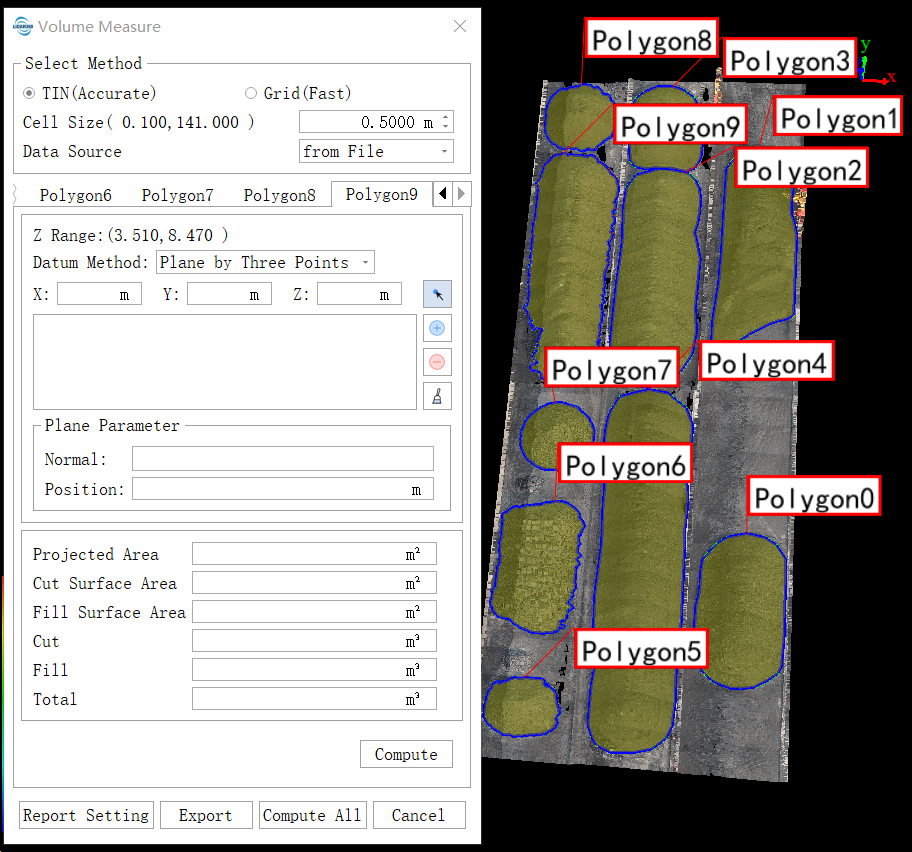
(Optional) Select the SHP file which defines the boundary of the measurement area (supporting defining the measurement area with polygon or closed polyline)
- Set the cell size.
- Set the reference plane of volume measurement. The options include minimum value, polygonal plane, customizing, three-point plane and plane fitting. And the plane parameters will be displayed after the reference plane is determined.
- Set the data source for volume measurement. The data source type includes the loaded point and all points.
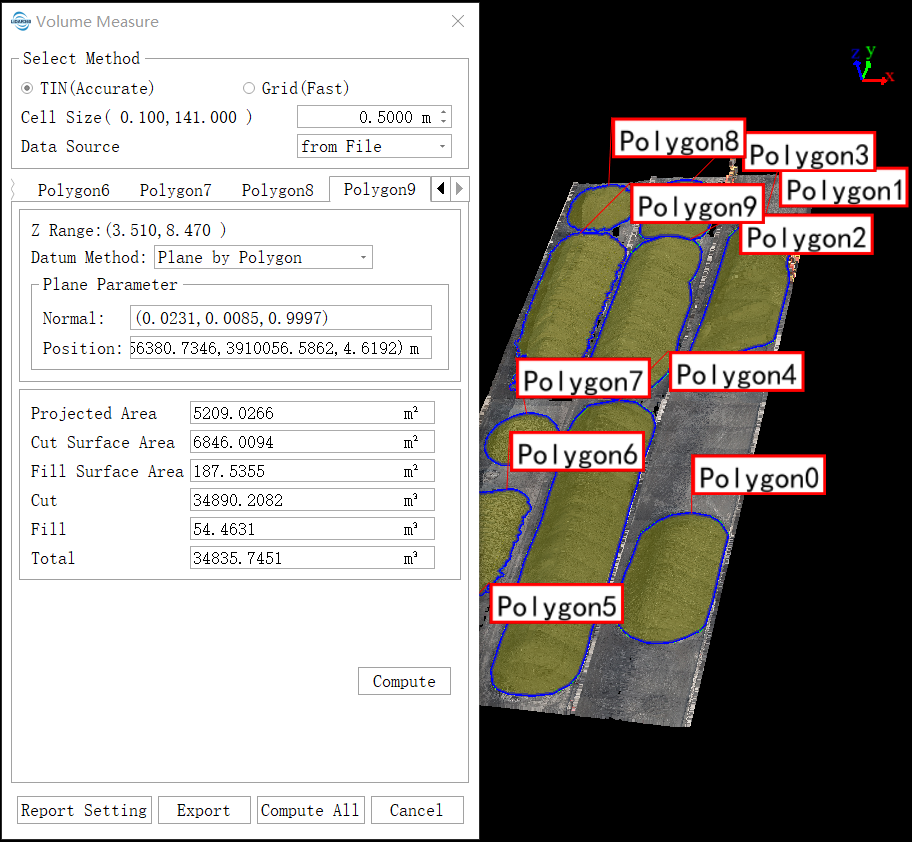
- Click the "Compute" button to generate the measurement result, including Projected area, surface area, cut volume, and fill volume. The corresponding volume will be rendered in the scene, as shown below.
- Click the "Export" button to export the result in *.pdf format.
Parameters Settings
- Select Method: Two volume measurement methods, TIN method and grid method, are currently supported. The TIN method is superior to the grid method in computational accuracy, but not as efficient as the grid method.
- Cell Size: The grid size affects the size of the final displayed cylinder, and also affects the accuracy of the grid method, but not the accuracy of the TIN method. It defines the smallest unit size for calculation. The smaller the value is, the more accurate the calculation is.
- Datum Method: It defines the reference plane to calculate filling and cutting.
- Minimum (Default): Use the minimum Z height of the selected points as the height of the reference plane.
- Plane by polygon: Fit the best plane according to the selected area boundary points.
- Custom: This value is entered or clicked by the user as the datum height value for volume measurement.
- Plane by Three Points: Click on three points to determine a plane.
- Point Cloud Fitting: Fit the best plane according to the selected points and the radius of the fitting area.
- Data Source: Specify the points used to calculate the volume. The efficiency is high while the accuracy is low.
- from Loaded (Default): Use the points in the loaded into the scene in the specified area. The speed is relatively fast, and the change of data loading in the scene has an impact on the calculation results.
- from File: Use the points in all the point cloud files in the specified area. The efficiency is low while the accuracy is high.
Note: This tool only works with point cloud data and model data in 3D view.