Image-based Distress Detection
Description: Performs deep learning detection on images and maps the results back into 3D space to achieve automatic detection of Longitudinal Cracking. Supports both panoramic and planar cameras.
Steps
Click the Image-based Distress Detection
 button to open the following dialog box: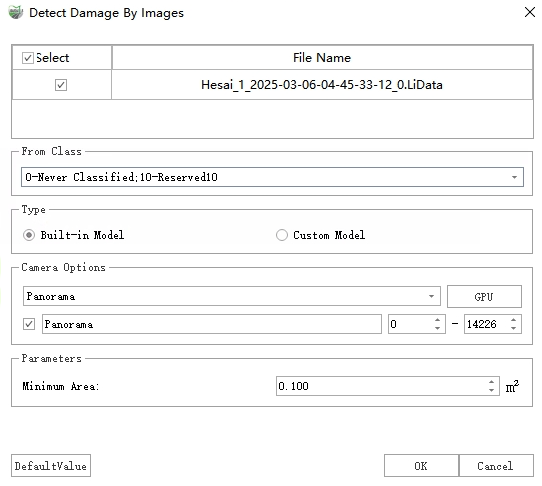
Image-based Distress Detection
After completing the settings, click Detect to perform distress detection.
Once the detection is complete, two types of results are output: vector polygons and point cloud extra attributes:
Vector Polygons: Vector results are stored as polygons in the "Distress" layer, recording information such as distress type, severity, area, length, width, and height for each distress. Among them, the Longitudinal Cracking severity level is determined according to the ASTM D6433-07 standard:
Low Severity: Crack width is less than 10mm;
Medium Severity: Crack width is greater than or equal to 10mm and less than 75mm;
High Severity: Crack width is greater than or equal to 75mm.
Point Cloud Additional Attributes: The height value corresponding to each distress point in the point cloud is written into the extra attribute "DistressHeight", which can be displayed as follows:
Display: In the View Mode window, select "Intensity" from the Color By drop-down box and check With Pavement Distress. The settings and display effects are as follows:
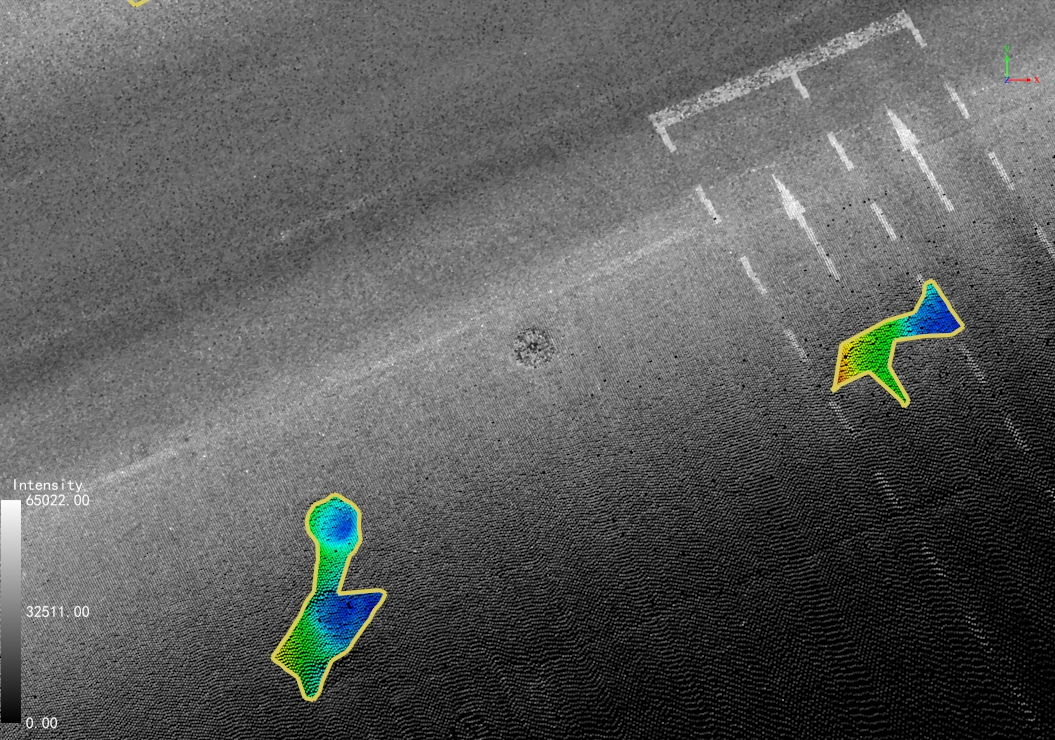
Pavement Distress Rendering
DistressHeight: Use the Pick Point function to view the "DistressHeight" extra attribute value for each point to check the specific height. Negative values indicate depression points, while positive values indicate upheaval points.
Parameter Settings
Point Cloud File: Select the point cloud files to be used for detection.
From Class: If point cloud classification has been performed, select the "Ground" class; otherwise, select all classes. (To obtain more accurate results, it is recommended to perform point cloud classification first).
Type: Includes two types: Built-in Model and Custom Model:
Built-in Model: Uses the software's built-in deep learning detection model to inspect images.
Custom Model: Used for scenarios with existing detection results (JSON files). Select the folder where the JSON files are located (each JSON file name must match the corresponding image name). This function reads existing results and re-projects them back into 3D space, obtaining final results after merging and fusion.
Camera Options: Select panoramic or planar cameras. Checking the box indicates the camera will be used. IDs can be used to more accurately control the photos participating in recognition. Additionally, if the device has an independent GPU, you can switch to the GPU for detection.
Parameters
Max Distance To Image: Distance threshold. Distress areas with a distance to the corresponding photo greater than this value will be filtered (re-projection errors are larger for distress areas that are too far away).
Mininum Area: Area threshold. Distress areas smaller than this value will be filtered out.