
▶What is LiDAR360?
LiDAR360 is an AI-powered LiDAR and photogrammetry data processing software independently developed by Beijing GreenValley Technology Co., Ltd. for industry applications. It is a comprehensive point cloud data processing and analysis platform capable of simultaneously loading terabyte-scale point cloud data and processing over 300G of point cloud data, with more than 10 advanced point cloud processing algorithms. It supports 8 data types and 60+ data formats, with full cross-platform point cloud data compatibility. With over ten years of industry experience, it has earned widespread acclaim from industry users.
The platform includes rich point cloud processing and editing tools, supporting terrain, forestry, mining, spectral, and digital twin industries. LiDAR360 provides a unified workflow from raw point cloud data to deliverable products including DEM, DSM, contours, 3D models, tree surveys, and volume reports.
▶Can LiDAR360 process large-scale point cloud data?
Yes. LiDAR360 is built for large-scale data processing:
- TB-scale data loading: Patented optimized format supports fast loading and rendering of terabyte-scale datasets
- 300G+ simultaneous processing: Process very large datasets without splitting
- Distributed computing: Scale processing across multiple machines with automatic local cluster node discovery
- Model Builder: Over 200 processing modules combinable into custom automated workflows
- Batch processing: Run operations automatically on multiple datasets
- Command-line operations: Script and automate distributed processing pipelines
▶What industries does LiDAR360 support? Who are its primary users?
LiDAR360 serves professionals across multiple industries through dedicated modules:
| Industry | Key Features | Typical Users |
|---|---|---|
| Terrain / GIS | DEM, DSM, contour generation, cross-section analysis, slope/aspect mapping | Survey engineers, GIS analysts |
| Forestry (ALS+TLS) | Individual tree segmentation, stand analysis, regression analysis, forest metrics | Forestry surveyors, carbon monitoring specialists |
| Mining | Stockpile volume, open-pit slope analysis, underground roadway modeling | Mine survey engineers |
| Building / Digital Twin | 3D building modeling (LOD2), model editing | Urban planners, BIM engineers |
| Spectral | 113 spectral indices, SAM classification, MNF/PCA, USGS Spectral Library | Remote sensing analysts, geological explorers |
| Geology | Terrain feature extraction, structural surface analysis | Geohazard assessment engineers |
| Photogrammetry | Image-based 3D reconstruction, orthoimage generation | UAV operators, surveyors |
| Scientific & Academic | Algorithm development, spatial data analysis | Researchers, university faculty and students |
▶What is the relationship between LiDAR360 and CAD / GIS / DJI Terra / Pix4D / BIM software?
LiDAR360 has a complementary and collaborative relationship with these specialized software tools, rather than a replacement:
- CAD (AutoCAD / Civil 3D): LiDAR360 performs point cloud classification and DEM/contour generation, exporting DXF to CAD for detailed engineering design
- GIS (ArcGIS / QGIS): LiDAR360 handles in-depth point cloud processing, exporting GeoTIFF/SHP to GIS for spatial analysis and thematic mapping
- DJI Terra / Pix4D: Photogrammetry software generates point clouds and orthoimages; LiDAR360 performs in-depth processing (classification, forestry analysis, mining calculations, etc.)
- BIM (Revit / SketchUp): LiDAR360 automatically generates LOD2 building models from point clouds, exporting OBJ to BIM software for detailed design
For detailed collaboration guidance, please refer to the "CAD / GIS / Photogrammetry / BIM Integration" module in this FAQ.
▶What are the hardware and system requirements for LiDAR360?
- Operating System: Microsoft Windows 7/8/10/11 (64-bit), Windows Server 2012 or later
- RAM: At least 32 GB
- CPU: Intel Core i5/i7 dual-core processor or higher
- GPU: NVIDIA graphics card GTX 970 or above, with at least 4 GB video memory
- OpenGL: Version 4.6 or higher (required for shader-based rendering, Mesh Editor, and Building Model Display)
- Display: High-performance graphics mode recommended. Ensure the latest NVIDIA driver is installed and enable high-performance mode in Windows graphics settings.
LiDAR360 supports Windows Server. Install and activate using an administrator account, and ensure the software is installed in a folder accessible to all users.
▶How to view the help manual?
Press the F1 key or click the Help button in the upper right corner of the software interface to access the built-in help manual.
▶Which languages does LiDAR360 support?
The software supports 12 languages for the following countries and regions:
| Language (Original Name) | Language Name | Primary Countries and Regions |
|---|---|---|
| 中文 | Simplified Chinese | China, Singapore |
| English | English | USA, UK, Australia, Canada, etc. |
| German | German | Germany, Austria, Switzerland |
| 繁體中文 | Traditional Chinese | Hong Kong, Taiwan, Macau |
| Italian | Italian | Italy, Switzerland |
| Русский Язык | Russian | Russia, Belarus, Kazakhstan, etc. |
| Polski | Polish | Poland |
| Francais | French | France, Canada (Quebec), Belgium, Switzerland |
| Turkce | Turkish | Turkey, Northern Cyprus |
| 日本語 | Japanese | Japan |
| 한국어 | Korean | South Korea, North Korea |
| Espanol | Spanish | Spain, Mexico, Argentina, Colombia, etc. |
▶How to check the software version?
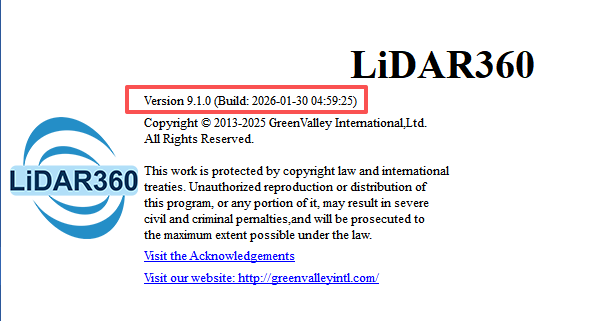
Go to File > About to view version information. The format is "Version.BuildDate" (e.g., 9.1.0 is the software version and "January 30, 2026" is the build date).
▶How to request a trial, download sample data, or apply for a demo?
Free Trial: Visit the GreenValley International website at www.greenvalleyintl.com, navigate to SOFTWARE > LiDAR360 > Trial Request, and fill out the trial application form. A staff member will send the software installation package and activation code to your email.
Sample Data: Visit the website at SOFTWARE > LiDAR360 > Sample Data to download sample datasets for testing.
Product Demo: Contact info@greenvalleyintl.com to request a product demo. An engineer will demonstrate LiDAR360 workflows relevant to your project needs.
▶1. What is the difference between LiDAR360 and AutoCAD/Civil 3D? Can they be used together?
LiDAR360 and AutoCAD/Civil 3D have a complementary relationship — each serves a different purpose. CAD software excels at 2D drafting, 3D solid modeling, and detailed engineering design, but has inherent limitations when handling massive LiDAR point cloud datasets. LiDAR360 focuses on intelligent point cloud processing and specialized analysis.
What LiDAR360 can do that CAD cannot:
| Capability | LiDAR360 | CAD Software (AutoCAD/Civil 3D) |
|---|---|---|
| Point cloud processing scale | 300G+ per file, TB-scale projects | Limited point cloud loading, degraded performance with large files |
| AI automatic classification | 26 AI classification categories, deep learning models, custom training | No AI classification; manual layer separation required |
| Ground point classification | IPTD algorithm for high-accuracy automatic classification in complex terrain | No automatic ground filtering; manual operation required |
| Forestry analysis | Individual tree segmentation, 18+ tree attributes, biomass estimation, regression analysis | Not supported |
| Mining analysis | Stockpile volume, open-pit slope analysis, tunnel modeling, deformation monitoring | Basic volume calculation only |
| Spectral analysis | 113 spectral indices, SAM classification, point cloud spectral mapping | Not supported |
| Automated workflows | Model Builder (200+ modules), batch processing, distributed computing | Limited scripting/macros |
Typical collaboration pattern:
1. Use LiDAR360 for point cloud classification, DEM generation, contour extraction, and 3D modeling
2. Export results as DXF for detailed engineering design, annotation, and plotting in AutoCAD/Civil 3D
3. LiDAR360 serves as the "point cloud to design deliverable" front-end processing engine; CAD handles final engineering delivery
Summary: LiDAR360 fills the gap in CAD software's point cloud processing capabilities. Used together, they form a complete "data acquisition → point cloud processing → engineering design" production pipeline.
▶2. What is the difference between LiDAR360 and ArcGIS/QGIS? Can they be used together?
LiDAR360 and ArcGIS/QGIS also share a complementary relationship. GIS platforms excel at spatial data management, cartography, network analysis, and geostatistics, while LiDAR360 focuses on in-depth 3D point cloud processing and AI-driven analysis. The two integrate seamlessly.
What LiDAR360 can do that GIS cannot:
| Capability | LiDAR360 | GIS Software (ArcGIS/QGIS) |
|---|---|---|
| Native 3D point cloud processing | Full 3D point cloud editing, profile editing, TIN editing | Point cloud as secondary format; limited editing |
| AI deep learning classification | 26 pre-trained categories, custom deep learning model training | Limited machine learning classification; no deep learning point cloud classifier |
| Forestry analysis (ALS+TLS) | CHM/point cloud segmentation, 18+ tree attributes, 70 tree species models, regression analysis | Basic raster analysis; no individual tree capability |
| Terrestrial LiDAR (TLS) | Batch DBH extraction, stem detection, TLS segmentation | Not supported |
| Strip alignment | Automatic/manual strip adjustment, boresight error correction | Not supported |
| 3D building modeling | Automatic LOD2 building models, texture mapping, model editing | 2D building footprints only |
| Tunnel modeling | Underground roadway 3D models, cross-section analysis | Not supported |
| Point cloud spectral fusion | Image spectra → point cloud mapping, joint spatial-spectral classification | Raster spectral analysis only |
| Model Builder | 200+ modules with visual drag-and-drop automation | Limited ModelBuilder/Graphical Modeler |
Typical collaboration pattern:
1. LiDAR360 processes raw point cloud data, generating DEM, DSM, contours, building models, and other products
2. Export GeoTIFF/SHP to ArcGIS/QGIS for spatial analysis, overlay analysis, and thematic mapping
3. In forestry: LiDAR360 performs individual tree segmentation and attribute extraction; export SHP to GIS for spatial distribution analysis and report mapping
Summary: LiDAR360 is a powerful "point cloud data processing engine," while GIS is a "spatial data management and analysis platform." Each serves its role, connected through open standard formats.
▶3. How does LiDAR360 integrate with CAD/GIS workflows?
LiDAR360 achieves seamless integration with CAD/GIS platforms through open industry-standard formats. A typical end-to-end workflow is described below:
Data flow overview:
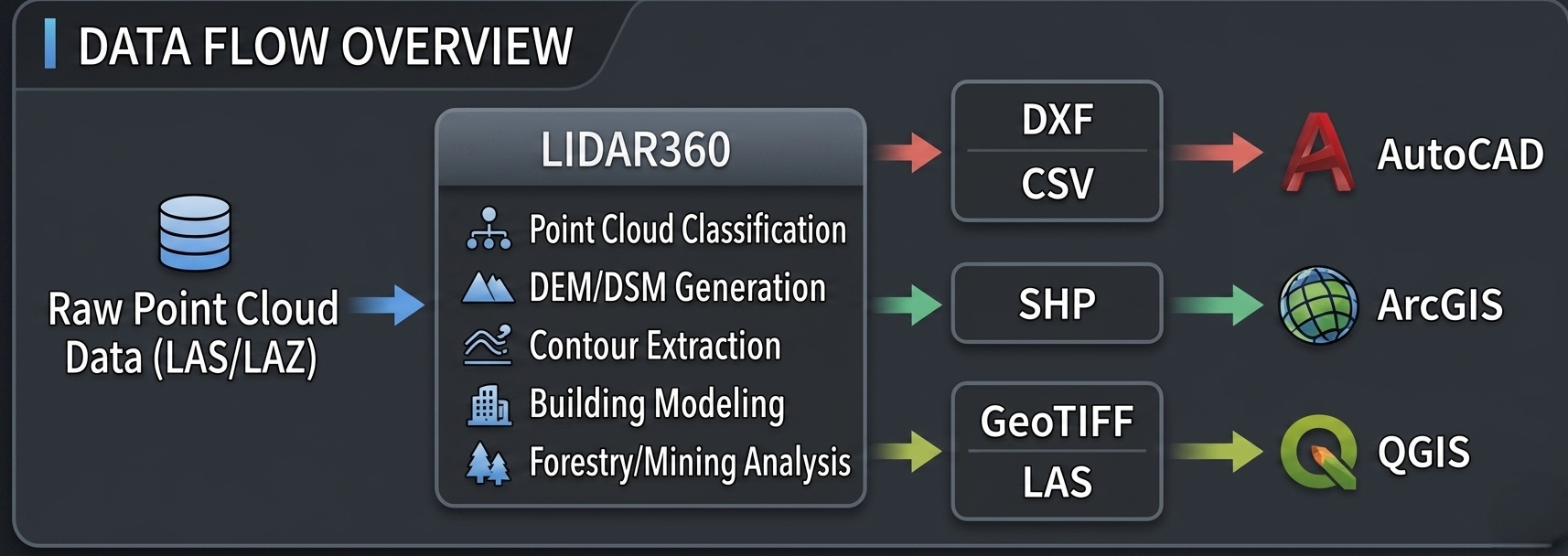
Format-to-platform mapping:
| Export Format | Data Type | Target Platform | Typical Use |
|---|---|---|---|
| DXF (*.dxf) | Vector (contours, building outlines) | AutoCAD, Civil 3D, MicroStation | Engineering detail and construction design |
| Shapefile (*.shp) | Vector (tree locations, building boundaries) | ArcGIS, QGIS | Spatial analysis, thematic mapping |
| GeoTIFF (*.tif) | Raster (DEM, DSM, orthoimage) | ArcGIS, QGIS, Civil 3D | Terrain analysis, surface modeling |
| CSV (*.csv) | Tabular (tree attributes, point coordinates) | Excel, ArcGIS, QGIS | Statistical analysis, attribute joins |
| LAS/LAZ (*.las) | Classified point cloud | ArcGIS Pro, CloudCompare | Further point cloud analysis |
Reverse data flow:
LiDAR360 also supports importing data from GIS:
- Import SHP as clipping boundaries, classification training samples, or analysis extents
- Import GeoTIFF as reference rasters or analysis basemaps
Summary: LiDAR360 enables bidirectional data exchange with CAD/GIS platforms through standardized formats, allowing users to flexibly compose processing pipelines according to project requirements.
▶4. How does LiDAR360 work with photogrammetry and drone data processing tools?
LiDAR360 and photogrammetry software share a front-end/back-end complementary relationship. Photogrammetry tools (e.g., DJI Terra, Pix4Dmapper, ContextCapture, Metashape) generate point clouds and orthoimages from imagery; LiDAR360 performs in-depth processing and specialized analysis of the point cloud data.
Collaborative workflow:
| Stage | Tool | Output |
|---|---|---|
| Data acquisition | Drone with LiDAR/camera payload | Raw point cloud, imagery |
| Image pre-processing | DJI Terra / Pix4Dmapper / Metashape | Dense point cloud, orthoimage, DSM |
| In-depth processing | LiDAR360 | Classified point cloud, DEM, contours, forestry/mining products |
| Specialized analysis | ArcGIS / QGIS | Spatial analysis, thematic mapping |
Specific collaboration scenarios:
Scenario 1 — DJI Zenmuse L1/L2/L3 data:
LiDAR360 includes a built-in DJI L1/L2 reconstruction tool for processing raw DJI LiDAR data directly without requiring DJI Terra. For simultaneously captured imagery, generate orthoimages through DJI Terra, then import into LiDAR360 for fusion with point cloud data for colorized display and classification.
Scenario 2 — Imagery + LiDAR fusion:
1. Use photogrammetry software (Pix4Dmapper/Metashape) to generate dense point clouds and orthoimages from imagery
2. Import the point cloud and orthoimage into LiDAR360
3. LiDAR360 fuses them for: joint classification, spectral-to-point-cloud mapping, and colorized point cloud enhancement
4. Generate final DEM/DSM/contour products
Scenario 3 — LiDAR360's built-in photogrammetry module:
The Photo module in LiDAR360 supports 3D reconstruction from nadir and oblique images, true orthoimage generation, and dense point cloud generation, enabling the complete "imagery + LiDAR" workflow within a single platform.
Summary: LiDAR360 can both independently perform photogrammetric processing and collaborate with third-party photogrammetry tools, forming flexible multi-source data processing solutions.
▶5. How does LiDAR360 complement 3D modeling and BIM tools?
LiDAR360 serves as a bridge between "reality capture and design models." 3D modeling/BIM software (Revit, SketchUp, 3ds Max, Rhino) excels at parametric modeling and design, but has limited capability for automatically extracting building geometry from massive point clouds.
Unique value LiDAR360 provides for BIM/modeling workflows:
| Capability | LiDAR360 | BIM/Modeling Software |
|---|---|---|
| Building point cloud auto-classification | AI + deep learning automatically identifies building points | Manual selection of building points; inefficient |
| LOD2 automatic modeling | One-click LOD2 model generation from airborne point clouds | Manual tracing required |
| Large-scale scene processing | Process entire city districts in one pass | Requires block-by-block processing; difficult to merge |
| Multi-source data fusion | Point cloud + imagery + vector fusion for modeling | Limited multi-source support |
| Terrain + building integration | Simultaneous DEM + building model generation in unified coordinates | Manual alignment required |
Typical BIM workflow:
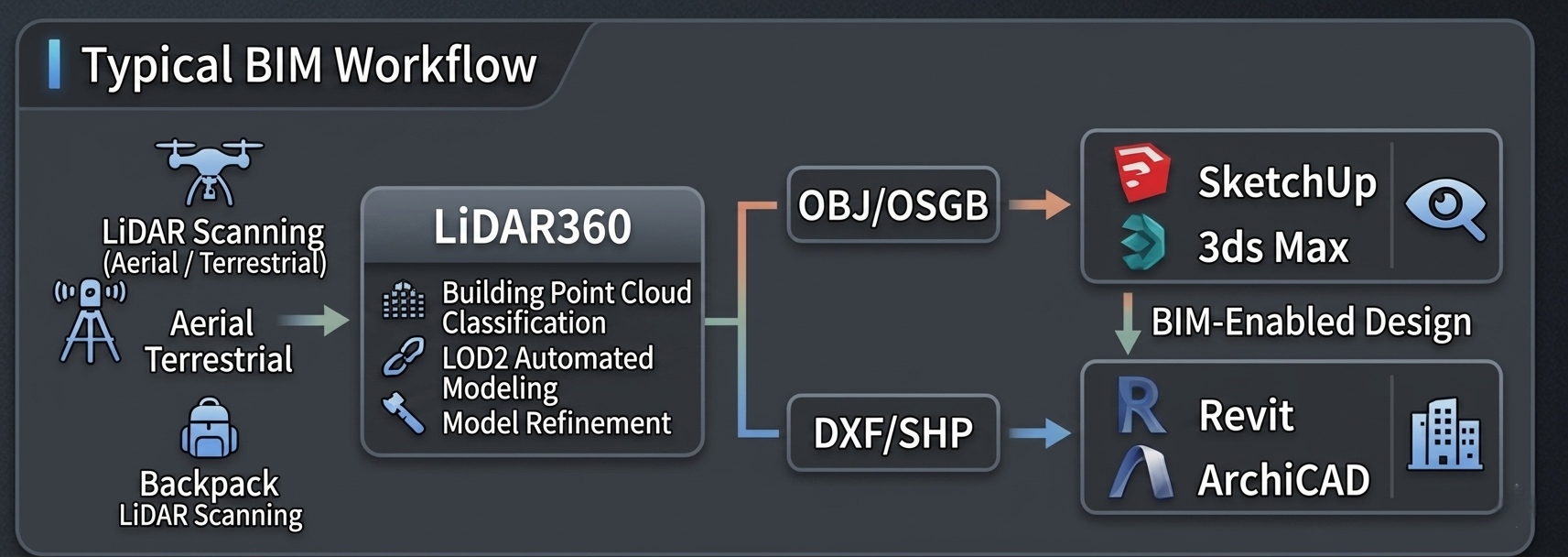
Summary: LiDAR360 automates the conversion from "point cloud → intelligent classification → automatic modeling," efficiently transferring building geometry information to BIM/modeling software for detailed design and rendering. It addresses the core bottleneck in BIM workflows: "how to rapidly obtain accurate 3D base models from the real world."
▶6. What data exchange formats does LiDAR360 support, and how does it achieve cross-platform interoperability?
LiDAR360 follows the principle that "all outputs can be exported in open standard formats," ensuring barrier-free interoperability with various professional software.
Export format overview:
| Category | Format | Purpose | Target Software |
|---|---|---|---|
| Point Cloud | LAS, LAZ | Industry-standard LiDAR exchange format | ArcGIS Pro, CloudCompare, Global Mapper |
| Point Cloud | E57 | ASTM 3D imaging standard | Recap, Cyclone, Scene |
| Point Cloud | PLY, PCD | General-purpose 3D point cloud formats | MeshLab, CloudCompare, Python (Open3D) |
| Point Cloud | ASCII (TXT, XYZ, CSV) | Plain-text point coordinates | Any software supporting text import |
| Raster | GeoTIFF (*.tif) | Georeferenced raster (DEM/DSM/orthoimage) | ArcGIS, QGIS, ENVI, Civil 3D |
| Raster | JPEG (*.jpg) | Orthoimage quick view | General purpose |
| Vector | Shapefile (*.shp) | GIS industry-standard vector format | ArcGIS, QGIS |
| Vector | DXF (*.dxf) | CAD industry-standard exchange format | AutoCAD, Civil 3D, MicroStation |
| Tabular | CSV (*.csv) | Attribute data and statistics | Excel, Python, R |
| 3D Model | LiModel (*.LiModel) | Proprietary editable model format | LiDAR360 internal |
| 3D Model | LiTin (*.LiTin) | Proprietary editable TIN format | LiDAR360 internal |
| 3D Model | OBJ (*.obj) | Universal 3D model format | SketchUp, 3ds Max, Revit, Blender |
| 3D Model | OSGB (*.osgb, *.ive) | Oblique photography model format | Cesium, SuperMap |
Input formats: LiDAR360 supports reading 60+ data formats, including LAS, LAZ, E57, PLY, PCD, ASCII point clouds, GeoTIFF/JPEG rasters, SHP vectors, OBJ/OSGB models, and more.
Interoperability design principles:
- All analysis results are exportable; data is never locked into a proprietary format
- Proprietary formats (LiData, LiModel, LiTin) optimize performance and editing, but open-format export is always available
- Geographic coordinate system and projection information is preserved and propagated throughout the workflow
Summary: As an open data processing platform, LiDAR360 fully supports industry-standard formats, ensuring users can freely choose their downstream toolchain without vendor lock-in.
▶7. What are typical end-to-end workflows for LiDAR360?
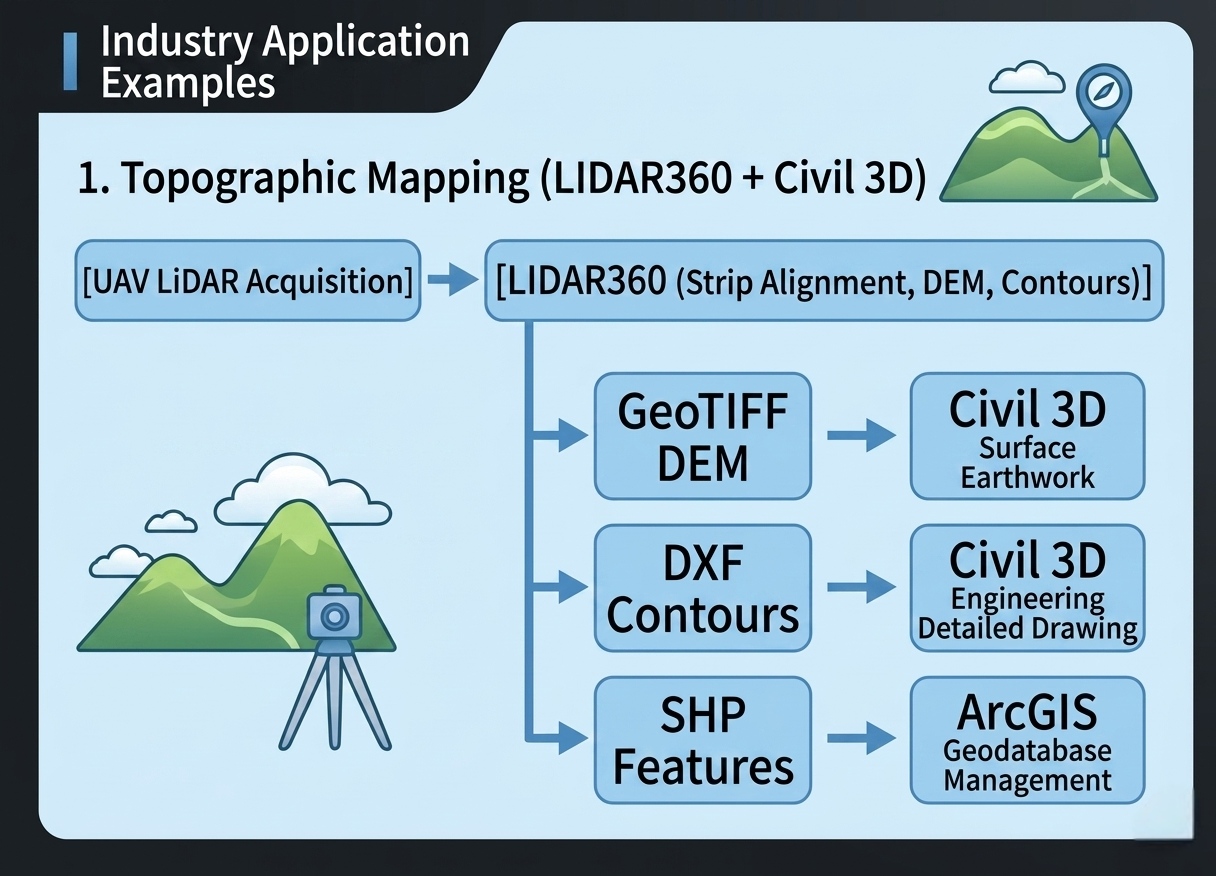
Example 1: Topographic Mapping (LiDAR360 + AutoCAD Civil 3D)
Example 2: Forest Resource Inventory (LiDAR360 + ArcGIS)
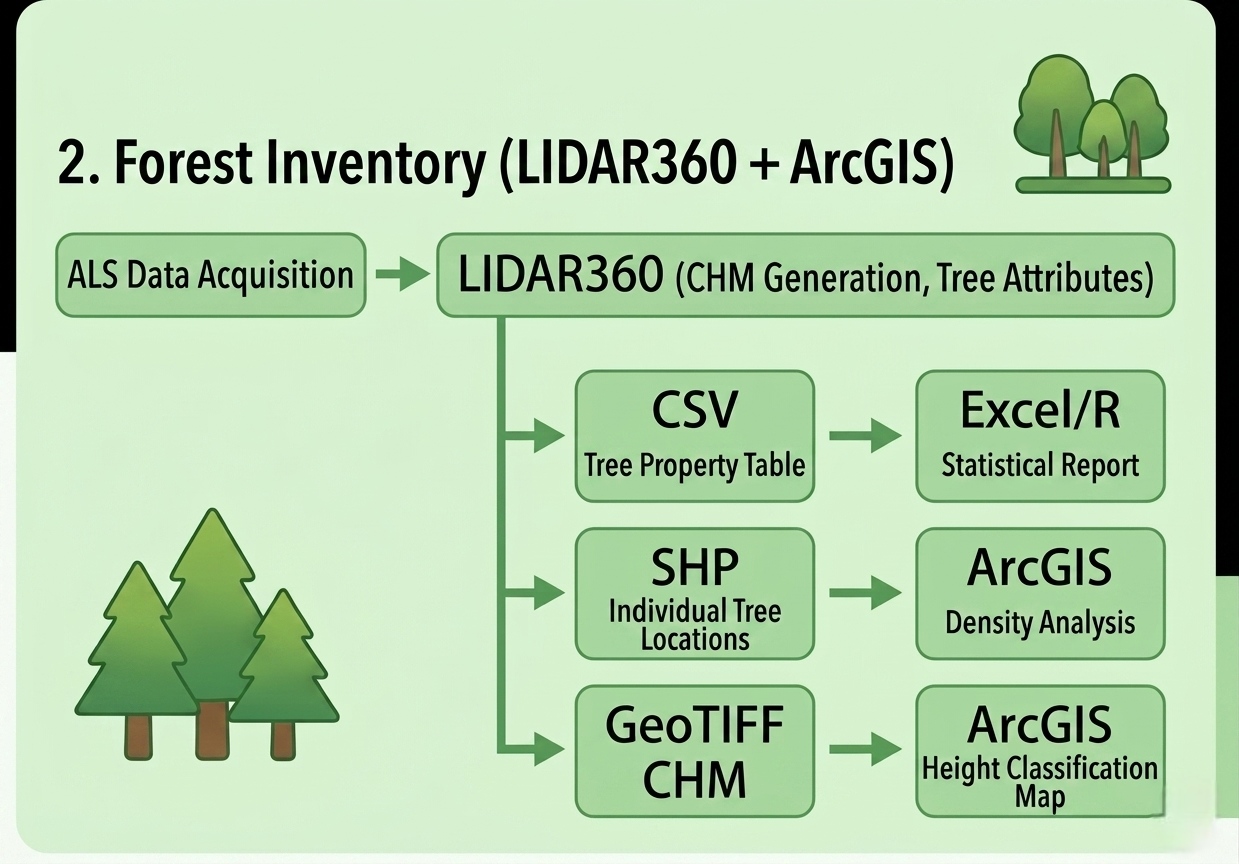
The following two typical application scenarios demonstrate LiDAR360's end-to-end workflow, illustrating how it serves as an "intelligent conversion hub from point cloud data to professional deliverables" and efficiently collaborates with downstream software.
▶8. How does LiDAR360 collaborate with AutoCAD, ArcGIS, Civil 3D, and QGIS?
LiDAR360 exports results in formats compatible with mainstream CAD and GIS platforms:
- AutoCAD / Civil 3D: Vector data exported as DXF (*.dxf) for CAD workflows. Contours, building outlines, and survey reports are delivered in CAD-compatible formats.
- ArcGIS / QGIS: Raster products exported as GeoTIFF (*.tif), including DEM, DSM, and orthoimages. Vector data exported as Shapefile (*.shp) for GIS integration. CSV tables are also supported for attribute data transfer.
- Cross-platform workflows: LiDAR360 can import SHP files as clipping boundaries or training data, and export results back to SHP for further GIS analysis.
▶1. What data formats does LiDAR360 support, and what outputs can it produce?
Point Cloud:
- LAS / LAZ (*.las, *.laz)
- E57 (*.e57)
- PLY (*.ply)
- PCD (*.pcd)
- LiData (proprietary optimized format)
- ASCII (*.txt, *.asc, *.neu, *.xyz, *.pts, *.csv)
Raster:
- GeoTIFF / Image (*.tif, *.tiff, *.jpeg, *.jpg, *.bmp, *.dat, *.img, *.hdr)
Vector:
- Shapefile (*.shp, *.dxf, *.kml, *.gpkg)
Model:
- LiModel (proprietary format)
- LiTin (proprietary format)
- LiBIM (proprietary format)
- LiTree (proprietary format)
- OSG (*.osgb, *.ive, *.desc)
- OBJ (*.obj)
- 3D Tiles (*.tileset.json*, *.2dtin.json, *.3dtin.json, *.json)
Trajectory:
- OSG (*.osgb, *.ive, *.desc)
- Trajectory (*.traj)
- OUT (*.out)
- POS (*.pos)
- TXT (*.txt)
Oblique Imagery:
- LiDAR360 Image Project File (*.liaep)
- LiGeoreference Project File (*.ligeo)
- Pix4D File (*.p4d)
- Block Exchange XML File (*.xml)
- Tabular: csv, treedb
- Panoramic Imagery: imglist, lipano
Exportable Deliverables:
| Output Type | Format | Typical Use |
|---|---|---|
| DEM / DSM / DOM / Hillshade / Flood Analysis (19 raster products) | GeoTIFF | Terrain analysis, orthoimage basemap |
| Contours and other vector products | DXF, SHP, etc. | CAD/GIS engineering delivery |
| Classified point cloud products | LAS, LAZ, LiData, etc. | Downstream analysis and archiving |
| 3D Models | LiModel, OBJ, OSG, etc. | Digital twin, BIM |
| Individual tree attributes | CSV, SHP, etc. | Forestry survey, carbon monitoring |
| Individual tree / volume / cross-section reports | CSV, HTML, PDF | Mine verification, engineering audit |
| Spectral index raster products | GeoTIFF | Vegetation, mineral, water body analysis |
All outputs can be exported in open standard formats, ensuring seamless integration with third-party platforms such as AutoCAD, ArcGIS, QGIS, and Civil 3D.
▶2. Can LiDAR360 process DJI Zenmuse L1/L2/L3 data?
Yes. LiDAR360 fully supports DJI Zenmuse L1, L2, and L3 data. The complete processing workflow is as follows:
Step 1 — DJI L1/L2 Reconstruction (Recommended for raw DJI data):
LiDAR360 provides a dedicated reconstruction tool for DJI Zenmuse L1 and L2 raw LiDAR data. This end-to-end function processes raw data into classified point clouds ready for downstream analysis.
1. Go to Preprocessing > DJI L1/L2 Reconstruction
2. Select the project directory containing raw L1/L2 LiDAR data
3. Configure point cloud processing options:
- Accuracy optimization: Refine point cloud accuracy using the ICP algorithm
- Smoothing: Apply point cloud smoothing
- Colorization: Assign color to point cloud data
- Filter points beyond distance: Set the maximum effective distance; points beyond this range are cropped
4. Select the output coordinate system (auto-determined by the algorithm if not specified)
5. Choose output point cloud formats: LAS, PLY, PNTS, PCD, S3MB
6. Optionally enable point cloud merging into a single file
7. Enter the DJI Terra authorized App Key and Secret Key in the authentication configuration
8. Set the output path and run
Step 2 — Manual Strip Alignment Workflow:
1. Trajectory loading and GPS time conversion: Load the trajectory file. The trajectory time reference may differ from the point cloud GPS time reference (e.g., GPS weeks/seconds vs. adjusted GPS time).
- Go to Preprocessing > Strip Alignment
- Input the trajectory file
- In the GPS time conversion and coordinate system dialog, check "GPS time conversion"
- Select the source GPS time format and the target format
- Select the data collection date to align trajectory time with point cloud time
- Select the appropriate coordinate system for the data
2. Strip alignment: After trajectory loading, use the strip alignment tools to correct boresight errors between the laser scanner and GPS/INS system. Both manual and automatic alignment methods are available with real-time result display.
3. Coordinate projection (if needed): If the data uses geographic coordinates, convert to projected coordinates:
- Go to Data Management > Point Cloud Tools > Convert GPS Time (for LiData format GPS time conversion between GPS standard time and GPS week-seconds)
- Use Data Management > Define Projection or Reprojection to set the correct coordinate system
▶3. Which LiDAR hardware devices does LiDAR360 support?
LiDAR360 can process point cloud data collected from UAV LiDAR, handheld LiDAR, vehicle-mounted mobile mapping, backpack scanning, terrestrial laser scanning, and other multi-platform systems. Supported devices fall into two categories: GreenValley's own hardware ecosystem and third-party LiDAR devices:
1. GreenValley Hardware Ecosystem
| Device Category | Series/System | Representative Models |
|---|---|---|
| UAV LiDAR Scanning System | LiAir Series | LiAir H600 Pro, LiAir H600, LiAir H800, LiAir X4 Plus, LiAir 250 Pro |
| Handheld Scanning System | LiGrip Series | LiGrip O2, LiGrip SE |
| Vehicle-Mounted Mobile Laser Scanning System | LiMobile Series | LiMobile M2 Series |
| Backpack LiDAR Scanning System | LiBackpack Series | LiBackpack DGC50H |
2. Third-Party LiDAR Devices
| Brand / Device | Processing Notes |
|---|---|
| DJI Zenmuse L1 / L2 | One-click processing supported in LiDAR360 with built-in DJI L1/L2 reconstruction tool |
| DJI Zenmuse L3 | Support planned after version 9.1.2 |
| RIEGL | Requires accompanying software (e.g., RiPROCESS) to generate standard point cloud before import |
| Leica | Requires Leica's own processing workflow to generate standard point cloud before import |
| Trimble | Requires Trimble software to generate standard point cloud before import |
| FARO | Requires FARO Scene or similar software to generate standard point cloud before import |
| Velodyne | Requires Velodyne drivers or third-party tools to generate standard point cloud |
| Ouster | Requires Ouster SDK to generate standard point cloud before import |
| Hesai | Requires Pandar series companion tools to generate standard point cloud |
| Livox | Requires Livox Viewer or similar tools to generate standard point cloud before import |
> Note: The table above lists only some commonly used third-party devices. Devices not listed are not necessarily unsupported. LiDAR360 maintains an open and compatible approach to data from all LiDAR hardware — as long as the device can output standard point cloud formats (LAS/LAZ/PLY/E57/ASCII, etc.), the data can be imported into LiDAR360 for subsequent processing and analysis. If you have a need for one-click processing of data from a specific manufacturer, please send the device model and sample data to info@greenvalleyintl.com. We will continue to expand device compatibility and data support.
▶4. How does LiDAR360 fuse point cloud, imagery, raster, vector, and 3D model data?
LiDAR360 possesses industry-leading multi-source data fusion capabilities, enabling simultaneous loading, fusion, and analysis of multiple types of geospatial data within a single platform. This "all-in-one" multi-source fusion architecture is one of LiDAR360's core differentiators from other point cloud processing software.
LiDAR + Imagery Fusion (Orthoimage / Multispectral / Hyperspectral):
| Fusion Method | Input Data | Fusion Result | Application |
|---|---|---|---|
| Point Cloud Colorization | LiDAR point cloud + RGB orthoimage | Point cloud acquires true color; enhanced visualization | 3D browsing, deliverable presentation |
| Point Cloud Spectral Mapping | LiDAR point cloud + multispectral/hyperspectral imagery | Each laser point carries spectral band values; spectral indices can be computed directly on the point cloud | Vegetation classification, tree species identification, mineral mapping |
| Joint Spatial-Spectral Classification | Classified point cloud + spectral imagery | Combines 3D geometric features with spectral features; significantly improved classification accuracy | Fine land cover classification, building extraction |
| Orthoimage Fusion | LiDAR point cloud + DOM | Overlay display and comparative analysis of point cloud and orthoimage | Change detection, accuracy validation |
LiDAR + Raster Fusion (DEM / DSM / Terrain Products):
- Import external DEM/DSM and overlay with point cloud for accuracy comparison and error assessment
- Overlay LiDAR360-generated DEM with external hydrological models, soil data, and other rasters for joint spatial analysis
- Support multi-temporal raster product comparison for monitoring surface deformation, erosion, and deposition
- Raster products serve as basemaps to assist reference interpretation during point cloud classification and editing
LiDAR + Vector Fusion (SHP / DXF / KML / GPKG):
- Import SHP vectors as clipping boundaries to precisely control processing and analysis extents
- Import labeled vector polygons as training samples for AI classification / machine learning
- Import existing building footprints, road centerlines, and other vector data to assist 3D modeling
- Export analysis results back to vector format, enabling seamless bidirectional flow with CAD/GIS platforms
LiDAR + 3D Model Fusion (OBJ / OSGB / BIM / 3D Tiles):
- Import oblique photography 3D models (OSGB/OBJ) and overlay with point cloud for comparison and modeling accuracy assessment
- Fuse LiDAR360-generated LOD2 building models with city-scale oblique models to construct complete digital twin scenes
- Import BIM design models and compare with measured point clouds for construction deviation analysis and as-built verification
- Import 3D Tiles format data for web-based large-scale 3D scene publishing
Unique Advantages of LiDAR360 Multi-Source Fusion:
- Single-platform full workflow: No need to switch between multiple software packages — from data loading to fusion analysis to deliverable output in one seamless process
- 60+ format native support: Directly load multiple data types without format conversion
- Automatic coordinate system detection: Automatically detect and align coordinate systems from different data sources, eliminating manual registration
- Deep spectral analysis integration: Multispectral/hyperspectral imagery can be directly fused with point clouds, supporting point-cloud-level computation of 113 spectral indices
- Multi-temporal data support: Load multi-temporal point clouds and rasters for comparative change trend analysis
▶1. What are point cloud density and point spacing? What are typical values for different platforms?
Point Density refers to the number of laser points per unit area, typically expressed in pts/m². Point Spacing refers to the average distance between adjacent laser points. Both are fundamental metrics for assessing point cloud data quality.
Typical point density by acquisition platform:
| Platform | Typical Density (pts/m²) | Typical Spacing (cm) | Application |
|---|---|---|---|
| UAV LiDAR | 50 – 500+ | 2 – 15 | High-precision topographic mapping, mining, powerline inspection |
| Airborne (ALS) | 1 – 50 | 15 – 100 | Large-area topographic mapping, forestry, urban planning |
| Terrestrial (TLS) | 1,000 – 10,000+ | 0.1 – 3 | Building scanning, tunnel surveying, heritage preservation |
| Backpack / Handheld | 500 – 5,000 | 1 – 5 | Indoor modeling, underground spaces, under-canopy scanning |
| Mobile Mapping (Vehicle) | 100 – 2,000 | 2 – 10 | Roads, streetscape, infrastructure |
Impact of point density on processing results:
- Ground classification: densities below 1 pt/m² make it difficult to distinguish low vegetation from ground
- DEM accuracy: higher density enables finer DEM, but increases computational load
- Individual tree segmentation: ≥4 pts/m² recommended for reliable crown delineation
- Building modeling: ≥10 pts/m² recommended to ensure building edge clarity
LiDAR360 supports thinning of excessively dense point clouds and interpolation for sparse areas.
▶2. What ground classification algorithms are available? How accurate are they?
LiDAR360 provides three ground classification algorithms suited for different terrain conditions:
IPTD (Improved Progressive TIN Densification):
- Core algorithm, proposed by Zhao et al. (2016)
- Principle: progressively constructs a TIN from local lowest points, iteratively densifying by adding qualifying points to the ground class
- Suitable terrain: performs well on flat, gentle slopes, steep slopes, and hilly terrain
- Advantages: high accuracy in forested and complex urban environments; LiDAR360's default recommended algorithm
CSF (Cloth Simulation Filter):
- Principle: inverts the point cloud and simulates a "cloth" draping over the terrain surface from above
- Suitable terrain: non-urban areas with distinct terrain undulation
- Advantages: few parameters, fast computation; advantageous for steep terrain
- Accuracy reference: slightly lower than IPTD; suitable for medium-precision applications
Deep Learning Ground Classification:
- Based on pre-trained neural network models for automatic ground point identification
- Advantages: unique recognition capability for complex scenes
Factors affecting classification accuracy:
- Point density: higher density improves ground/non-ground discrimination
- Terrain complexity: steep slopes, cliffs, and dense building areas increase misclassification probability
- Vegetation cover: dense forest canopies reduce ground laser penetration, resulting in sparse ground points
- Scan angle: edge areas at large scan angles have reduced density, affecting accuracy
Three approaches for sparse ground points:
1. When using the ground classification tool, uncheck "Stop constructing triangle when edge length <" to allow more points to be classified as ground.
2. For non-urban areas, try deep learning ground classification for better detection.
3. If high precision is not required, use CSF as an alternative ground filter.
▶3. What accuracy can DEM/DSM achieve? How to choose interpolation methods?
The accuracy of DEM/DSM products generated by LiDAR360 depends jointly on raw point cloud quality, ground classification accuracy, and the chosen interpolation method.
Note: elevation accuracy is closely related to factors such as flight altitude, scanner precision, and ground control point layout.
Interpolation method selection:
| Method | Principle | Suitable For | Characteristics |
|---|---|---|---|
| IDW (Inverse Distance Weighted) | Interpolation weighted by distance; near points have greater weight | Forested areas, vegetated cover | Smooth transitions, preserves natural terrain trends |
| TIN (Triangulated Irregular Network) | Linear interpolation based on triangular facets | Urban areas, areas with sharp terrain breaks | Preserves sharp terrain features such as curbs and building edges |
| Spike-Free TIN | Improved TIN variant; automatically suppresses outliers | Urban data with minor noise | Avoids isolated spike/depression artifacts |
Methods to improve DEM quality:
- Use LiDAR360's terrain profile editing tools to manually add breaklines and terrain patches
- Run the DEM accuracy analysis tool to verify elevation error against control points and generate accuracy reports
- For multi-temporal data processing, maintain consistent resolution and interpolation method for comparability
▶4. What individual tree segmentation methods are available?
LiDAR360 provides three main individual tree segmentation methods, suited to different forest types and data conditions:
Point-Cloud-Based Segmentation (Stem Detection — Deep Learning):
- Principle: uses deep learning models to directly identify stem positions in 3D point cloud data, then clusters canopy points around stem seed points
- Advantages: does not rely on CHM rasterization; preserves full 3D structural information; better generalization for multi-layer canopies and dense stands
- Suitable for: both TLS and ALS data; especially effective for complex stand structures and data with clearly visible stems
- Manual seed point addition is available to assist segmentation for small-area high-precision needs
CHM-Based Segmentation (Canopy Height Model method):
- Principle: detects local maxima in the CHM raster as treetops, then delineates crown boundaries through region growing
- Best results: coniferous forests and mixed conifer-broadleaf forests; moderate results in pure broadleaf forests
- Recommended CHM resolution: 0.3–1 m (typically 0.5–0.6 m optimal; should not exceed 1/3 of crown width)
- Gaussian Sigma parameter: default 1.0; decrease (e.g., 0.5) if under-segmented; increase (e.g., 1.5) if over-segmented
Image-Based Segmentation:
- Principle: uses high-resolution orthoimagery or multispectral imagery with deep learning models to identify individual tree crown outlines from 2D imagery
- Advantages: requires only 2D imagery for individual tree segmentation; cross-validation with LiDAR segmentation results improves accuracy
- Suitable for: areas with high-quality orthoimage or multispectral image coverage; can compensate for individual tree detection in areas with insufficient point density
▶5. What is the purpose of strip adjustment? What registration accuracy can be achieved?
Strip Adjustment aims to correct the boresight misalignment between the laser scanner and the GPS/IMU (Inertial Navigation System) in airborne/UAV LiDAR systems, ensuring precise alignment of multiple flight strips in overlap regions.
Why strip adjustment is needed:
- Even after high-precision GPS/IMU processing, small mounting angle errors between the laser scanner and IMU (typically 0.01°–0.1°) cause systematic offsets between strips
- These errors are more pronounced at higher flight altitudes
- Uncorrected strip misalignment directly affects subsequent DEM and classification accuracy
Strip adjustment methods:
| Method | Principle | Suitable For |
|---|---|---|
| Automatic Adjustment | Automatically extracts tie points in strip overlap areas and computes optimal transformation parameters | Areas with distinct terrain relief and features such as buildings |
| Manual Adjustment | User interactively selects tie points to guide the solution | Flat areas or when automatic adjustment yields suboptimal results |
- Accuracy is influenced by flight altitude, IMU precision, and feature richness in overlap areas
LiDAR360's strip adjustment module supports real-time result preview, allowing iterative parameter tuning until strip alignment is satisfactory.
▶6. How to select coordinate systems and vertical datums?
Geographic Coordinate Systems (GCS) vs. Projected Coordinate Systems (PCS):
- GCS: represents positions as latitude and longitude (angular units), suitable for large-area data management and publishing
- PCS: represents positions as planar coordinates (linear units, e.g., meters), suitable for precise measurement and analysis
- Recommendation: use projected coordinates in LiDAR360 for measurement and computation; note the EPSG code when exchanging data
Commonly used global and regional coordinate systems:
| Coordinate System | EPSG | Description |
|---|---|---|
| WGS84 | 4326 | Global GPS reference system; default for most GNSS data |
| WGS84 / Web Mercator | 3857 | Web mapping standard (Google Maps, Bing, OpenStreetMap) |
| UTM (Northern Hemisphere) | 32601–32660 | Universal Transverse Mercator; zone = floor((lon + 180) / 6) + 1 |
| UTM (Southern Hemisphere) | 32701–32760 | Universal Transverse Mercator; same zone numbering |
| NAD83 | 4269 | North American Datum 1983 (geographic); use with UTM or State Plane for projected variants |
| NAD83 / UTM zones | 26901–26923 | UTM on NAD83 for North America |
| ETRS89 | 4258 | European Terrestrial Reference System 1989 (geographic); use with UTM or LAEA for projected variants |
| ETRS89 / UTM zones | 25828–25837 | UTM on ETRS89 for Europe |
| GDA2020 | 7844 | Geocentric Datum of Australia 2020 (geographic) |
| GDA2020 / MGA zones | 7850–7859 | Map Grid of Australia 2020 |
| JGD2011 | 6668 | Japanese Geodetic Datum 2011 (geographic) |
| NZGD2000 | 4167 | New Zealand Geodetic Datum 2000 |
| WGS84 / UPS (Polar) | 5041 (North), 5042 (South) | Universal Polar Stereographic for latitudes > 84° |
UTM zone determination:
- For a given longitude λ, the UTM zone number = floor((λ + 180) / 6) + 1
- Northern hemisphere: EPSG 32600 + zone; Southern hemisphere: EPSG 32700 + zone
- Example: London (longitude ~0°) → UTM Zone 30N → EPSG:32630; Sydney (longitude ~151°E) → UTM Zone 56S → EPSG:32756
Vertical datums and height types:
| Height Type | Definition | Description |
|---|---|---|
| Ellipsoidal Height | Height relative to the reference ellipsoid (e.g., WGS84 ellipsoid) | Direct GNSS/RTK measurement output |
| Orthometric Height | Height relative to the geoid (mean sea level), commonly referred to as "elevation" | Requires geoid model for conversion from ellipsoidal height |
| Ellipsoidal Height = Orthometric Height + Geoid Undulation | The geoid model provides the conversion parameter (geoid undulation N) |
Common geoid models:
- EGM2008 (Earth Gravitational Model 2008): global coverage, ~2.4 km resolution; widely used internationally
- EGM96: older global model; still supported in many legacy workflows
- National geoid models: GEOID18 (USA), OSGM15 (UK), GCG2016 (Germany), RAF20 (France), GSIGEO2011 (Japan), AUSGeoid2020 (Australia)
- Undulation grid files (*.gtx, *.tif): custom geoid models may be imported for local projects
Note: DJI UAV LiDAR data outputs ellipsoidal height by default. Use an appropriate geoid model to convert to orthometric height for elevation-dependent applications.
▶7. What factors affect volume calculation accuracy?
The accuracy of stockpile/cut-and-fill volume calculations in LiDAR360's Mine module is affected by the following factors:
Key influencing factors:
| Factor | Effect | Optimization Recommendation |
|---|---|---|
| Point density | Lower density increases surface fitting error | Stockpile area point density ≥50 pts/m² |
| Ground classification accuracy | Ground reference surface error propagates directly to volume results | Manually inspect ground classification quality before calculation |
| Reference/base surface selection | Base surface elevation error causes systematic volume bias | Use DEM or stable areas from multi-temporal data to define the base surface |
| Stockpile boundary definition | Boundaries too small omit edges; too large include irrelevant areas | Accurately delineate or auto-extract stockpile boundaries |
| Occlusion and scan shadows | Data gaps may exist at pile bases, steep slopes, and beneath overhangs | Multi-angle scanning to supplement; fill gaps through interpolation |
| Registration error | Even a few centimeters of misregistration between multi-temporal datasets causes significant volume error | Ensure all datasets share a unified coordinate system and have undergone strip adjustment |
- Change detection (two-epoch differencing): highly sensitive to registration accuracy; registration better than 3 cm is recommended before volume change analysis
▶8. What are LOD levels for building models? Which level does LiDAR360 support?
LOD (Level of Detail/Development) is a classification standard for the geometric complexity of 3D building models:
| LOD Level | Geometric Complexity | Typical Content | Application |
|---|---|---|---|
| LOD0 | 2D footprint | Building base polygon | Regional master planning |
| LOD1 | Block model | Extruded block with flat roof | Urban massing analysis, solar analysis |
| LOD2 | Roof model | 3D model with roof structures (gable/hip/flat roofs) | Urban planning, noise simulation, 3D cadastre |
| LOD3 | Detailed architectural model | Includes windows, doors, facade details | Building permit review, detailed visualization |
| LOD4 | Interior model | Includes interior rooms, stairs, and internal structures | BIM, indoor navigation |
LiDAR360's building modeling capability:
- By the CityGML standard, LiDAR360 can automatically construct building models at LOD2.2 precision. LOD2.2 models express roof detail geometries, with walls as vertically extruded planes. This is the maximum precision achievable from airborne laser scanning.
- Supports automatic recognition and reconstruction of gable, hip, flat, and other roof types
- 2D footprint-driven modeling preserves topological structure; adjacent buildings connect seamlessly
- Provides surface editing and edge editing tools for model refinement
- Supports texture mapping and material editing for enhanced visualization
The geometric accuracy of automatic LOD2 modeling depends on point density: UAV data (50+ pts/m²) achieves a planimetric accuracy of 10–20 cm.
▶1. How does LiDAR360 support topographic mapping? What deliverables can it produce?
LiDAR360 supports the complete topographic mapping workflow end-to-end, generating a variety of standard terrain products and professional reports from raw point clouds. Key workflows and deliverables include:
1. Data preprocessing: Point cloud format conversion, coordinate projection, and noise removal
2. Ground classification: Multiple algorithms for ground point extraction in complex terrain
3. DEM generation: Multiple interpolation methods for digital elevation model generation
4. Contour generation: From DEM or directly from point cloud; contours are fully configurable
5. Cross-section analysis: Generate cross-sections and longitudinal sections with professional section reports
6. Hillshade, slope, aspect, roughness: Derived terrain products
7. Flood analysis, drainage line analysis, sink filling, flow direction: Derived hydrological products
8. Export: Rasters as GeoTIFF, vectors as DXF/SHP, points as CSV, reports as HTML/PDF
The Terrain module fuses point cloud and imagery to generate true orthoimages and other photogrammetric products.
▶2. What can LiDAR360 do for forestry survey and forest resource monitoring?
LiDAR360 supports full-chain analysis from individual tree to stand scale for forestry survey and forest resource monitoring:
- Tree attributes: Position, tree height, crown diameter, crown area, DBH, crown base height, etc.
- Forest metrics extraction: Height percentiles, leaf area index, canopy cover, gap fraction, intensity percentiles, etc.
- Regression analysis: Linear Regression, Support Vector Machine, Fast Artificial Neural Network, Random Forest
- Stand analysis: Automatically and rapidly customize forest resource inventory or thinning/tending plans
- Standing timber volume: Stem detection and crown base height extraction, with stem segmentation and stem volume calculation
- Individual tree editing: Tree attribute measurement by fitting, manual editing and modification, and species labeling
- Individual tree reports and stand reports: One-click generation of professional individual tree reports and stand analysis reports
Carbon monitoring: Combine field plot measurements with LiDAR-derived metrics via regression models to estimate biomass, stock volume, and carbon storage across the study area.
▶3. What individual tree attributes and stand parameters can LiDAR360 extract?
LiDAR360 can extract a rich set of individual tree attributes and stand-level parameters:
| Attribute | Attribute |
|---|---|
| Tree position (X, Y, Z) | North-South crown diameter |
| Tree height | East-West crown diameter |
| Crown diameter | Crown volume |
| Crown area | Elevation |
| Crown base height (CBH) | Stem volume |
| DBH (Diameter at Breast Height) | Stem curvature |
| Leaf area index (LAI) | Stem segments |
| Canopy cover | Stock volume |
| Gap fraction | Crown height |
| Biomass | Porosity |
| Height-diameter ratio | Azimuth, distance |
| Crown height ratio | Forked |
| Crown profile | Slope |
| Crown eccentricity | Intensity variables |
▶4. How does LiDAR360 support mining surveying, volume calculation, and slope analysis?
LiDAR360's Mine module provides a complete toolchain from volume calculation and slope analysis to tunnel modeling for mining surveying:
Volume calculation:
- Stockpile volume measurement
- Cut-and-fill analysis
- Closed model volume calculation
- Volume change analysis between two surveys
Slope analysis:
- Automatic toe and crest extraction
- Slope angle calculation
- Terrain stability assessment
- Slope compliance detection and report output
Tunnel modeling and analysis reports:
- 3D underground roadway model construction from point cloud data
- Cross-section analysis with professional report generation
- Deformation monitoring with deformation maps and reports
▶5. How does LiDAR360 support geohazard monitoring and risk assessment?
LiDAR360 provides key technical support for geohazard monitoring and risk assessment through high-precision terrain analysis and multi-temporal change detection:
- Terrain feature extraction: Identify geological structures including faults, joints, and bedding planes from high-resolution point clouds
- Structural surface analysis: Measure dip, dip direction, and orientation of geological surfaces
- Change detection: Monitor landslides, rockfalls, and erosion by comparing multi-temporal datasets
- DEM-based analysis: Generate slope, aspect, and roughness maps for landslide susceptibility assessment
▶6. Does LiDAR360 support 3D real scene reconstruction and digital twin applications?
Yes. LiDAR360 provides full-process support for 3D real scene reconstruction and digital twin applications, from 3D data acquisition and automatic modeling to multi-source fusion:
3D Building Modeling:
- Automatic construction of LOD2-level 3D building models from airborne point clouds
- 2D footprint-driven modeling preserves topological structure
- Surface editing and edge editing tools for model refinement
Multi-source fusion:
- Combine point cloud, imagery, and vector data for comprehensive 3D scene reconstruction
- Import and fuse multiple data types for visualization and analysis
Model export:
- Export 3D models in LiModel format
- Convert to other formats for use in digital twin platforms
Imagery (Photo module):
- 3D reconstruction from overlapping nadir and oblique images
- True orthoimage generation
- Dense point cloud generation from imagery
▶7. How does LiDAR360 perform multispectral and hyperspectral remote sensing analysis?
LiDAR360's Spectrum module integrates complete multispectral/hyperspectral analysis capabilities, from index calculation and image classification to point cloud spectral fusion:
Spectral Index Calculation:
- 113 built-in spectral indices for vegetation, water, geology, built-up areas, and burn assessment
- Custom band math for user-defined indices
- Batch index generation for large-area analysis
Spectral Classification:
- Spectral Angle Mapper (SAM) classification using USGS Spectral Library V7.0 reference spectra or custom spectral data
- Multi-category spectral classification for mineral mapping and land cover identification
Spectral Preprocessing:
- MNF (Minimum Noise Fraction) rotation for noise reduction in hyperspectral data
- PCA (Principal Component Analysis) for dimensionality reduction
- Savitzky-Golay filtering for spectral curve smoothing
Point Cloud Spectral Fusion:
- Map spectral information from multispectral imagery onto LiDAR point clouds
- Joint spatial-spectral analysis combining 3D structure with spectral features
- Colorized point cloud display using spectral band combinations
Common applications:
- Vegetation health and stress monitoring (NDVI, EVI, NDWI)
- Mineral and lithological mapping for geological exploration
- Burn severity assessment (NBR)
- Water body and wetland mapping
- Urban land cover classification
▶8. How does LiDAR360 efficiently process large-scale point cloud data?
LiDAR360 has designed a multi-level high-efficiency processing solution for large-scale point cloud data, covering three aspects: batch processing, distributed computing, and visual automated workflows:
Batch Processing:
- Batch processing tools: Automatically run the same operations on multiple datasets
- Batch processing is particularly suitable for large-area projects with multiple tiles or repetitive processing tasks
Distributed Computing:
- Distributed command-line operations: Script and execute processing across multiple machines
- Model Builder integration: Distributed execution of custom workflow models
- Concurrent licensing: Group authorization for multi-user, multi-machine environments
- This capability is particularly valuable for processing terabyte-scale LiDAR data or running computationally intensive AI models across multiple datasets
Model Builder Automated Workflows:
- 200+ modules: Access the full range of LiDAR360 processing functions as building blocks
- Visual workflow design: Drag-and-drop interface to link processing steps
- Parameter configuration: Pre-configure parameters for each step in the workflow
- Reusable workflows: Save and share workflows for consistent, repeatable processing
- Batch execution: Automatically apply workflows to multiple datasets
Model Builder is suitable for standardizing team production workflows, automating repetitive multi-step processing tasks, and building custom processing pipelines for specific industry applications.
▶9. How to perform data quality inspection, device accuracy calibration, and precision optimization?
LiDAR360 provides full-process quality control tools covering data acquisition acceptance, device calibration, and deliverable precision optimization. All inspection results can be exported as HTML reports or SHP vector files.
1. Data Quality Inspection
Density Quality Inspection:
- Statistics on the number of laser points per unit area in a grid for point cloud data, with 4 default density levels; users can customize density thresholds to identify data coverage gaps and sparse areas.
- Default grid size of 2m; density threshold intervals can be adjusted as needed; output HTML reports with differently colored markers for each level grid.
Overlap Inspection:
- Analyze overlap rates of point clouds between adjacent strips or blocks, suitable for coverage completeness verification of multi-strip or multi-flight data.
- Default qualification threshold of 25%; areas below the threshold are output as SHP files and HTML statistical reports.
Elevation Difference Quality Inspection:
- Analyze elevation differences between two point cloud datasets, suitable for multi-temporal data comparison or inter-strip elevation deviation detection.
- Default sampling interval of 0.5m; output elevation difference distribution HTML reports.
2. Device Accuracy Calibration
Flight Line Quality Inspection:
- Based on POS trajectory data (*.pos or *.out), conduct comprehensive analysis of flight line quality, including in-flight line quality inspection covering flight altitude analysis, speed analysis, and attitude analysis.
- Configurable deviation percentage threshold (e.g., 5%); flight lines exceeding the threshold are marked as unqualified; output flight line quality HTML reports.
Calibration Record:
- Record parameters, time, and results of each device calibration, establishing a complete calibration history archive.
- Support import and export of calibration parameter files for continuous device status tracking and comparative analysis.
- Calibration records can be used to assess long-term device stability and predict sensor performance degradation trends.
Accuracy Inspection:
- Compare point cloud data with control points in 3D space, calculating X/Y/Z directional deviations (Dx, Dy, Dz) and planar deviation (Dxy).
- Support import of ASCII format control point files (X, Y, Z) and KML/KMZ control point range files; interactively view deviation distributions in 3D view and profile view.
- Generate control point accuracy statistical reports, including RMSE (Root Mean Square Error) and maximum deviation in each direction, with accuracy assessment results summarized by area.
3. Device Accuracy Calibration and Optimization
Data Registration:
- Support precise registration between point cloud and point cloud, and between point cloud and model, unifying data from different sources and coordinate systems into the same reference frame.
- Provide ICP (Iterative Closest Point) fine registration algorithm, minimizing the distance error between two point sets through iterative optimization. Suitable for local fine registration where both datasets already have good initial positions.
- Provide manual registration based on control points or homologous features, with users interactively selecting corresponding point pairs to solve the spatial transformation matrix. Suitable for scenarios with large deviations lacking initial position information.
- Support custom User Coordinate Systems (UCS), with profile view assistance for selecting registration reference planes to improve registration accuracy and efficiency.
Boresight Calibration:
- Boresight misalignment refers to the mounting angle deviation between the laser scanner and the GPS/IMU inertial navigation system, and is the primary source of systematic error in LiDAR data.
- Even after high-precision GPS/IMU processing, small boresight angle errors (typically 0.01°-0.1° magnitude) cause systematic offsets in strip overlap areas, with the error magnified at higher flight altitudes.
- Boresight parameters include three rotation angles (Roll, Pitch, Heading) and three translations (X, Y, Z). Recommended initial values should be controlled within approximately 0.05m positional deviation and 5° angular deviation for optimal optimization results.
Strip Adjustment:
- Iteratively optimize boresight parameters (Roll/Pitch/Heading) by analyzing point cloud differences in strip overlap areas, enabling precise alignment of multiple strips in overlap regions.
- Based on the stepwise geometric method by Zhang et al. (2010) and the ICP variant and hybrid orientation algorithm theory by Glira et al. (2015, 2016, 2019), supporting both automatic and manual adjustment modes.
- Automatic adjustment: the algorithm automatically extracts feature points in strip overlap areas and computes optimal transformation parameters; Manual adjustment: the user interactively selects tie points to guide the solution, suitable for flat areas or scenarios where automatic adjustment yields suboptimal results.
- Real-time preview of adjustment results; parameters can be iteratively adjusted until inter-strip deviation is minimized; corrected point clouds can be directly used for subsequent DEM generation and classification processing.
Key Points for Precision Optimization:
- Control points should be evenly distributed across the survey area; a minimum of 3 control points per square kilometer is recommended.
- For survey areas with large elevation differences, a 7-parameter transformation model is recommended for coordinate projection optimization.
- DJI L1/L2 data can internally run ICP accuracy optimization algorithms, supporting point cloud smoothing, colorization, and distance filtering, with output in LAS/PLY/PNTS/PCD/S3MB and other formats.
▶10. What are the applications of LiDAR360 in engineering surveying?
LiDAR360 supports multiple engineering surveying scenarios, providing a complete chain from data acquisition to deliverable handover:
Earthwork and Cut-and-Fill Surveying:
- Accurate cut-and-fill volume calculation based on point clouds, supporting defined reference surfaces or multi-temporal data comparison
- Automatic generation of earthwork reports, outputting cut volume, fill volume, weight, and net volume
- Applicable to docks, stockpiles, site leveling, roadbed construction, foundation pit excavation, and other engineering scenarios
Cross-Section Surveying and Mapping:
- Generate cross-sections and longitudinal sections along any direction, automatically extracting detailed section information
- Batch export of section drawings for road design, river regulation, tunnel engineering, and powerline layout
- Section reports support custom templates and one-click export as HTML/PDF
Multi-Temporal Comparative Analysis and Construction Deviation Analysis:
- Overlay design models with measured point clouds for comparison and contrast report generation
- Detect surface subsidence, slope displacement, and structural deformation through multi-temporal point cloud comparison
- Generate construction deviation analysis reports with quantified deviation statistics by area
Control Survey Assistance:
- Import control point coordinates to assist point cloud absolute positioning and coordinate transformation
- Support automatic target recognition and center coordinate extraction
▶11. How does LiDAR360 perform orthophoto (DOM) production?
LiDAR360's Photo module supports the generation of high-quality Digital Orthophoto Maps (DOM) from aerial/UAV imagery:
Image Data Preparation:
- Supports import of UAV nadir and oblique imagery, compatible with JPEG, TIFF, and other common formats
- Supports import of POS data (*.pos, *.out) for initializing image exterior orientation parameters
- Supports import of ground control points to improve positioning accuracy
Aerial Triangulation and 3D Reconstruction:
- Automatic feature point extraction and matching for aerial triangulation computation
- Generation of sparse and dense point clouds to construct 3D scenes
- Support for control point adjustment optimization to improve aerial triangulation accuracy
Orthorectification and Mosaicking:
- Pixel-by-pixel orthorectification of imagery based on DEM/DSM, eliminating relief displacement
- Automatic color balancing and feathering mosaicking of multiple orthoimages, eliminating seam lines
- Support for True Ortho production in built-up areas, eliminating building lean and occlusion
Output Deliverables:
- Orthoimages exported as GeoTIFF format with complete georeferencing information
- Support for custom output resolution and clipping extent
- Orthoimages can be imported into LiDAR360 as basemaps for colorized display and classification with point cloud data
▶1. What can LiDAR360 AI Classification detect?
LiDAR360 AI Classification provides 26 classification categories, including:
| Category | Category |
|---|---|
| Noise | Road |
| Ground | Billboard |
| Low Vegetation | Guardrail |
| High Vegetation | Static Vehicle |
| Building | Moving Vehicle |
| Low Point | Trunk |
| Model Key Point | Branch and Leaf |
| Water | Roof |
| Vehicle | Wall |
| Street Light | Pole |
| Overlap | Powerline |
| Cable | Tower |
| Tunnel Wall | Clutter |
The AI models are pre-trained on diverse LiDAR datasets and can be applied directly to new data without additional training. Users can train custom models for domain-specific needs (see Question 2).
▶2. Can users train custom AI models in LiDAR360?
Yes. LiDAR360 supports custom deep learning model training:
1. Classify > Deep Learning Classification: Use built-in deep learning models for common category classification (ground, vegetation, buildings, etc.)
2. Classify > Custom Deep Learning Classification: Train models on your own labeled data for domain-specific classification tasks
3. Machine Learning Classification: Use classical ML methods (Random Forest, SVM, etc.) with user-defined training samples for classification
Deep learning classification requires a GPU and up-to-date drivers. Ensure the latest NVIDIA driver is installed and the system is configured to use the dedicated GPU.
If machine learning classification does not produce the expected results, try:
- Ensuring training sample labels are accurate
- Increasing overlap between training samples and test data
- Testing multiple algorithm options to find the best fit for your data
▶3. What can LiDAR360 AI Assistant help with?
The AI Assistant provides natural language interaction within LiDAR360, enabling users to:
- Navigate functions: Ask "How do I generate a DEM?" and the assistant will guide you to the correct tool
- Troubleshoot issues: Describe a problem (e.g., "Why are my contours broken?") and receive diagnostic guidance
- Best practices: Get workflow recommendations for specific project types
- Access documentation: Query the knowledge base directly through conversation
▶1. What spectral analysis capabilities does LiDAR360 provide?
LiDAR360's Spectrum module provides comprehensive spectral analysis tools for multispectral and hyperspectral imagery, including:
- 113 built-in spectral indices covering vegetation, water, geology, built-up areas, burn assessment, and mineral identification
- Custom index calculation using band math expressions
- Spectral Angle Mapper (SAM) classification for spectral signature-based feature identification
- MNF (Minimum Noise Fraction) and PCA (Principal Component Analysis) dimensionality reduction
- Savitzky-Golay filtering for spectral curve smoothing
- Point cloud spectral mapping, fusing image spectral information onto LiDAR point clouds
- USGS Spectral Library V7.0 integration for mineral and material identification
- Custom spectral data import for domain-specific reference spectra
- ROI-based spectral extraction for targeted analysis of regions of interest
The Spectrum module enables joint spatial-spectral analysis by fusing LiDAR 3D structure with spectral information from multispectral/hyperspectral sensors.
▶2. What spectral indices does LiDAR360 support?
LiDAR360 supports 113 built-in spectral indices, organized by the following categories:
Vegetation Indices:
NDVI, NDWI, SAVI, EVI, ARVI, GNDVI, GCI, GDVI, GLI, GRVI, GSAVI, GVI, GARI, GEMI, IPVI, LAI, LCI, MCARI, MCARI2, MNLI, MRENDVI, MRESR, MSR, MSAVI2, MTVI, MTVI2, MONI, NLI, DVI, RDVI, RVI, TVI, VARI, and more
Water and Moisture Indices:
NDWI, MNDWI, DWSI, LWVI1, LWVI2, MSI, WBI (Water Band Index), NDII, NDLI
Built-Up and Burn Indices:
NDBI, NBR, NBRT1, BAI (Burn Area Index), IOR
Geology and Mineral Indices:
Alunite Index (ALUI), Calcite Index (CALI), Carbonate Index (CARI), Clay Alteration Index, Clay Mineral Ratio, Dolomite Index (DOLI), Epidote/Chlorite/Amphibole Index (ECAI), Ferric Iron Alteration Index (FEAI), Ferrous Iron Index (FEI, FESI), Ferrous Mineral Ratio (FMR), Ferric Silicate Index, Hydroxyl Mineral Index (OHI1, OHI2, OHI3), Iron Oxide Ratio, Kaolinite Index (KAI1, KAI2, KAI3), Laterite Index (LATI), Magnesite Index (MAGI), MgOH-Carbonate Abundance Index (MGAI)
Other Indices:
Anthocyanin Reflectance Index (ARI1, ARI2), Carotenoid Reflectance Index (CRI1, CRI2), Cellulose Absorption Index (CAI), Disease Water Stress Index, Forest Cover Index (FCI1, FCI2), Leaf Chlorophyll Index (LCI), Lignin-Cellulose Absorption Index (LCAI), Red Edge Index (RENDVI, RESI), WorldView-specific indices (WV-SI, WV-WI), and more
The complete index library supports multiple sensor types, including Landsat TM/ETM+, Sentinel-2, WorldView-2/3, and generic multispectral sensors with user-defined wavelength bands.
▶3. How to calculate spectral indices from multispectral imagery?
To calculate spectral indices in LiDAR360:
1. Go to Spectrum > Spectral Index Calculation
2. Select the input multispectral image file (*.tif format)
3. Choose the desired spectral index from the built-in library (e.g., NDVI, NDWI, SAVI)
4. Configure band assignments to match image wavelengths
5. Optionally define an ROI (Region of Interest) to limit the calculation extent
6. Set the output path and run the calculation
7. Results are exported as single-band GeoTIFF rasters
For custom indices not available in the built-in library, use the band math expression editor to define formulas (e.g., ("Band4@" - "Band3@") / ("Band4@" + "Band3@")).
Common index workflows:
| Index | Formula | Typical Application |
|---|---|---|
| NDVI | (NIR - Red) / (NIR + Red) | Vegetation health and coverage |
| NDWI | (Green - NIR) / (Green + NIR) | Water body detection |
| NDBI | (SWIR - NIR) / (SWIR + NIR) | Built-up area mapping |
| NBR | (NIR - SWIR) / (NIR + SWIR) | Burn severity assessment |
| SAVI | ((NIR - Red) / (NIR + Red + L)) * (1 + L) | Vegetation in sparse canopy areas |
▶4. How to map spectral information onto point cloud data?
Point cloud spectral mapping fuses spectral information from multispectral imagery with LiDAR point cloud data, assigning spectral values to each 3D point:
1. Go to Spectrum > Point Cloud Spectral Mapping
2. Load the target point cloud data
3. Load the multispectral imagery covering the same area
4. Configure mapping parameters
5. Run the mapping process
After mapping, each point carries spectral band values as scalar fields, supporting:
- Colorized point cloud display using spectral band combinations
- Spectral index computation directly on the point cloud
- Joint spatial-spectral classification combining 3D structure with spectral features
- Enhanced vegetation analysis linking LiDAR canopy structure with spectral vegetation indices
▶5. What dimensionality reduction methods are available for hyperspectral data?
LiDAR360 provides two dimensionality reduction methods for hyperspectral imagery:
MNF (Minimum Noise Fraction)
- Spectrum > MNF Rotation
- Separates noise from signal in hyperspectral data through two cascaded PCA transformations
- Output bands are ordered by decreasing signal-to-noise ratio, with noise concentrated in higher-order bands
- Parameters include output dimensionality and processing extent
PCA (Principal Component Analysis)
- Spectrum > Principal Component Analysis
- Transforms correlated spectral bands into a set of linearly uncorrelated principal components
- The first few components typically capture most of the data variance
- Parameters include X/Y component range and output band selection
Both methods are suitable for:
- Reducing data volume while preserving critical spectral information
- Preprocessing before classification or index computation
- Visualizing dominant spectral patterns in the data
▶6. Can LiDAR360 use the USGS Spectral Library?
Yes. LiDAR360 integrates the USGS Spectral Library V7.0 (USGS V7.0), containing laboratory-measured reflectance spectra for hundreds of minerals, rocks, soils, vegetation, and man-made materials across the visible to shortwave infrared wavelength range.
Reference: Kokaly, R.F., Clark, R.N., Swayze, G.A., Livo, K.E., Hoefen, T.M., Pearson, N.C., Wise, R.A., Benzel, W.M., Lowers, H.A., Driscoll, R.L., and Klein, A.J., 2017, USGS Spectral Library Version 7: U.S. Geological Survey Data Series 1035, 61 p.
Applications include:
- Mineral identification: Matching image spectra with known mineral reference spectra
- SAM classification: Using USGS spectra as reference endmembers
- Lithological mapping: Identifying surface mineral composition from hyperspectral imagery
▶7. Can users import custom spectral data?
Yes. LiDAR360 supports importing custom spectral data for domain-specific analysis:
1. Go to Spectrum > Custom Spectral Data
2. Import spectral curves from external sources (laboratory measurements, field spectrometer data, or published spectral databases)
3. Use custom spectra as reference endmembers in SAM classification
4. Compare field-measured spectra with image-derived spectra for validation
This enables users to build application-specific spectral libraries targeting their study area and materials of interest.
▶8. What data formats are supported for spectral analysis?
Input formats:
- Multispectral/Hyperspectral imagery: GeoTIFF (*.tif)
- ENVI format: ENVI header and data files (*.hdr, *.dat)
- ROI definition: Shapefile (*.shp), GeoPackage (*.gpkg), ENVI XML (*.xml)
Output formats:
- Spectral index rasters: GeoTIFF (*.tif)
- Classification results: GeoTIFF (*.tif)
- Transformed imagery (MNF, PCA): GeoTIFF (*.tif)
- Spectral profiles: CSV (*.csv)
▶9. What are typical applications of the LiDAR360 Spectrum module?
The Spectrum module supports a wide range of remote sensing applications:
Agriculture and Forestry:
- Crop health monitoring using NDVI, EVI, and other vegetation indices
- Forest stress detection and tree species differentiation
- Canopy water content estimation
Water Resources:
- Water body detection and mapping using NDWI and MNDWI
- Wetland delineation and monitoring
- Water quality indicator mapping
Geology and Mining:
- Mineral mapping and lithological classification
- Hydrothermal alteration zone identification
- Mineral exploration using spectral signatures
Urban and Built Environment:
- Built-up area extraction using NDBI
- Urban heat island analysis
- Impervious surface mapping
Environmental Monitoring:
- Burn severity assessment using NBR
- Drought monitoring using multi-band drought indices
- Land cover and land use classification
LiDAR-Spectral Joint Analysis:
- Tree-species-level forest classification leveraging canopy structure + spectral features
- Geological feature mapping integrated with 3D terrain context
- Enhanced land cover classification fusing 3D structural information with spectral signatures
▶1. How to apply for a LiDAR360 trial?
LiDAR360 offers a 7-day free trial for each major version.
1. To apply for a trial, visit the GreenValley International website at www.greenvalleyintl.com, navigate to SOFTWARE > LiDAR360 > Trial Request, and fill out the trial application form. A staff member will send the software installation package and activation code to your email.
2. Follow the "GreenValley International" official account, click the bottom toolbar "Online Interaction", then click "Software Trial", and fill out the trial application form. A staff member will send the software installation package and activation code to your email.
▶2. What features are available during the LiDAR360 trial period?
| Module | Free Version | Full Version |
|---|---|---|
| Data Visualization | √ | √ |
| Massive Data Support | √ | √ |
| Data Management | Apply for 7-day free trial | √ |
| Preprocessing | Apply for 7-day free trial | √ |
| UAV Accuracy QA/QC | × | √ |
| Distributed | × | √ |
| Statistics | Apply for 7-day free trial | √ |
| Classification | Apply for 7-day free trial | √ |
| Terrain | Apply for 7-day free trial | √ |
| Vector Editing | Apply for 7-day free trial | √ |
| ALS Forest | Apply for 7-day free trial | √ |
| TLS Forest | Apply for 7-day free trial | √ |
| Mine | Apply for 7-day free trial | √ |
| Building Modeling | Apply for 7-day free trial | √ |
| Photo | Apply for 7-day free trial | √ |
| Spectrum | Apply for 7-day free trial | √ |
| Geology | Apply for 7-day free trial | √ |
▶3. What happens after the LiDAR360 trial expires?
When the trial period ends, LiDAR360 enters Lite mode. The core visualization features remain available, including:
- Data viewing and navigation
- Measurement tools
- Selection tools
Full module functionality (Terrain, Forestry, Classification, Mining, etc.) requires a purchased license. Contact info@greenvalleyintl.com for purchasing information.
▶4. How to activate LiDAR360?
There are two licensing approaches: license dongle (hardware USB key) and license code (soft license).
License Dongle
Insert the license dongle into a USB port. The software activates automatically. Do not format, delete, or copy files on the dongle.
License Code (Soft License)
Step 1 — Send Activation Information:
Go to File > Activate License, or double-click License Manager.exe in the installation directory.
- Fill in Name (mandatory)
- Fill in Company (mandatory)
- Select the modules to activate
- Click Copy
- Email the copied content to info@greenvalleyintl.com
Step 2 — Activate License:
After receiving the license code:
- Online activation: Enter the authorization key, select "Online", and click "Activate"
- Offline activation: Enter the authorization key, select "Offline", generate a request file (.req), upload it at the licensing portal, download the upgrade file (.upd), and apply it in License Manager
Group Authorization (Concurrent Use)
Install the Group Authorization Service on a LAN server. Users on the network enter the server IP address (default port 8273) in the license activation page to obtain a floating license.
▶5. How to transfer a license to another computer?
To move a license key from one computer to another:
1. Revoke the license on the current computer first (online or offline via License Manager)
2. Activate the same key on the new computer
If the original computer is damaged and cannot revoke, email the authorization code to info@greenvalleyintl.com. The license will be revoked from the server side so it can be used on another computer.
▶6. Can a license activated in a newer version be used in an older version?
No. Newer major versions (e.g., V9.x) use an updated license manager that older versions cannot automatically recognize.
No matching questions found.
Try a different search term.