## Vector Context Menu ##
### Functional Overview ###
The right-click menu of vector data in the layer management tree mainly includes import and removal of vector data, as well as information display for a single vector data, opening the attribute sheet, scaling to layers, display by elevation, display by selected color, and remove.
### Data Type Context Menu ###
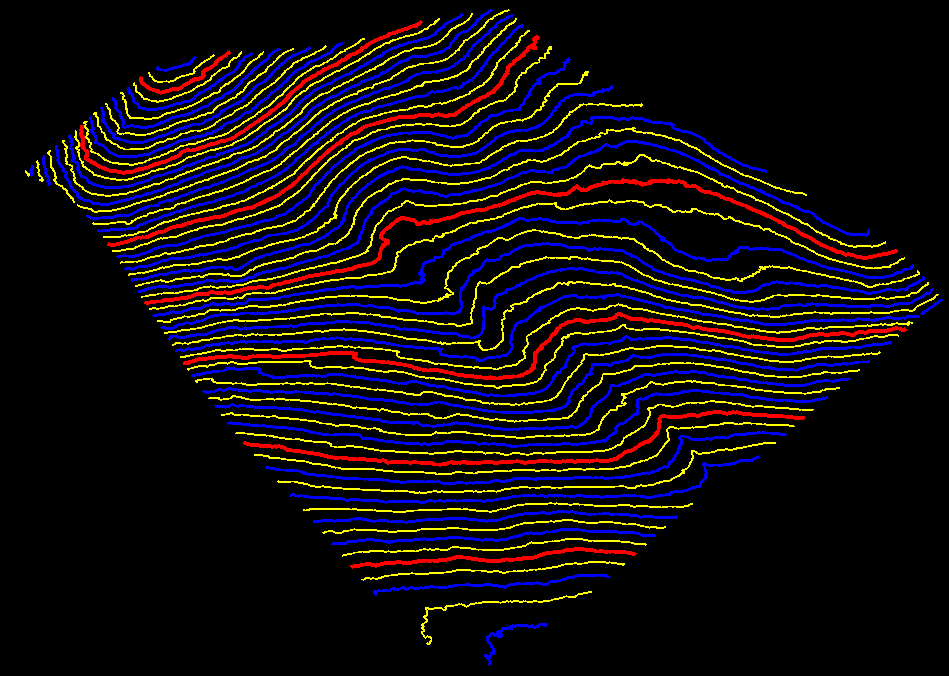
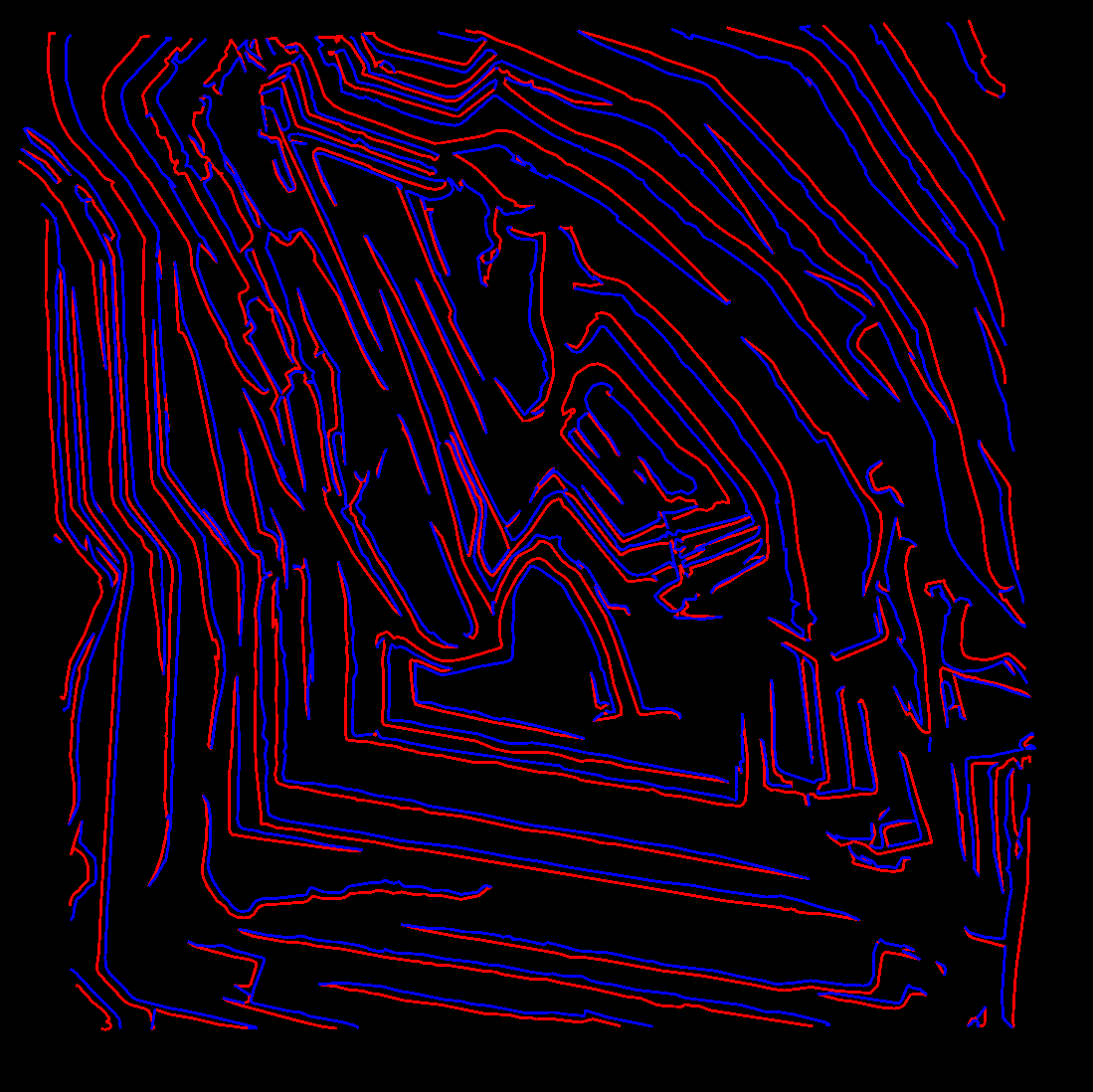
- **Input Data**: Import data format of vector data should be .gbkg, .shp or .dxf format. This function is basically the same with the function  , see [Add Data](../ProjectTools/AddData.md). Import LiDAR360 from [contour generated by point cloud](../../ToolReference/Terrain/PointCloudtoContour.md) as shown in the figure:
- **Unit Conversion**: When importing DXF format files, unit conversion is supported. The current unit (unit recorded in the file) can be converted to the target unit for import.
- **Remove All**: Remove all vector data from the software.
### Data Context Menu ###
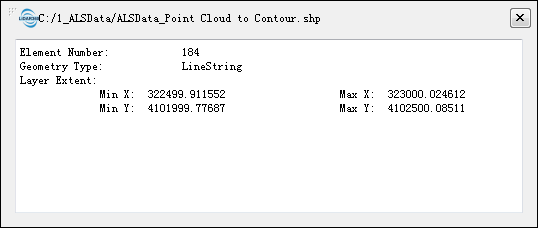
- **Info**: View the basic information of vector file, including file path, elements count and bounding box.
- **Open Containing Folder**:Open the folder.
- **Rename**: Rename the file.
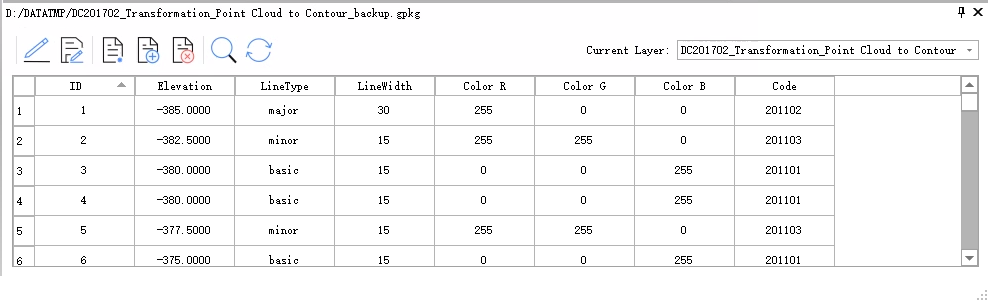
- **Open Attribute Table**: This function displays the attribute table information of vector data, and the result is shown as follows:
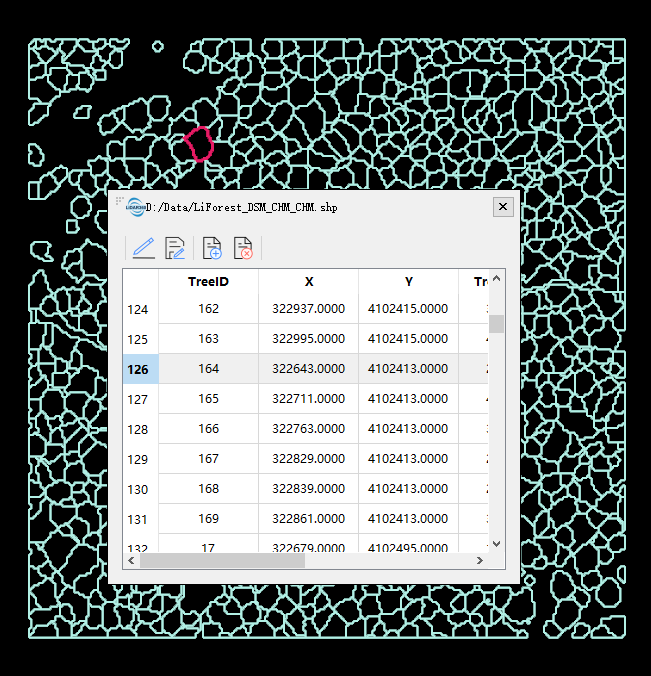
+ Single-click the row or the cell in the attribute table, the corresponding data will be highlighted as shown in the following picture.
+ Double-click the header of a row in the attribute table, and the view will locate the location of the double-clicked data.
- **Zoom to Layer**: Calculates the bounding box of current vector data and displays all windows opened for this data globally within this bounding box range.
- **Line Width Setting**: The line width of an individual vector file can be set separately or using global line width settings as shown below.
- **Display by Elevation**: Maps elevation attributes of vector data to uniformly changing color intervals.
- **Display by Selected Color**: Displays vector data with fixed colors.
- **Remove**: Removes the selected vector data from the software.
- **Save**: Provides a save function for files in vector editing.
> Note: Except "Import Data” and “Remove”, other functions in context menu work on all windows that contains this vector file.
, see [Add Data](../ProjectTools/AddData.md). Import LiDAR360 from [contour generated by point cloud](../../ToolReference/Terrain/PointCloudtoContour.md) as shown in the figure:
- **Unit Conversion**: When importing DXF format files, unit conversion is supported. The current unit (unit recorded in the file) can be converted to the target unit for import.
- **Remove All**: Remove all vector data from the software.
### Data Context Menu ###
- **Info**: View the basic information of vector file, including file path, elements count and bounding box.
- **Open Containing Folder**:Open the folder.
- **Rename**: Rename the file.
- **Open Attribute Table**: This function displays the attribute table information of vector data, and the result is shown as follows:
+ Single-click the row or the cell in the attribute table, the corresponding data will be highlighted as shown in the following picture.
+ Double-click the header of a row in the attribute table, and the view will locate the location of the double-clicked data.
- **Zoom to Layer**: Calculates the bounding box of current vector data and displays all windows opened for this data globally within this bounding box range.
- **Line Width Setting**: The line width of an individual vector file can be set separately or using global line width settings as shown below.
- **Display by Elevation**: Maps elevation attributes of vector data to uniformly changing color intervals.
- **Display by Selected Color**: Displays vector data with fixed colors.
- **Remove**: Removes the selected vector data from the software.
- **Save**: Provides a save function for files in vector editing.
> Note: Except "Import Data” and “Remove”, other functions in context menu work on all windows that contains this vector file.