
 Rectangle Select
 Lasso Select
 Polygon Select
#### Selection Mode ####
Two modes can be switched between:
Polygon Select
#### Selection Mode ####
Two modes can be switched between:
 Select Visible: In this mode only triangles visible in the window can be selected using the chosen tool.
 Select Through: In this mode all triangles within a selected area can be selected using the chosen tool.
The difference is shown below:
Select Through: In this mode all triangles within a selected area can be selected using the chosen tool.
The difference is shown below:
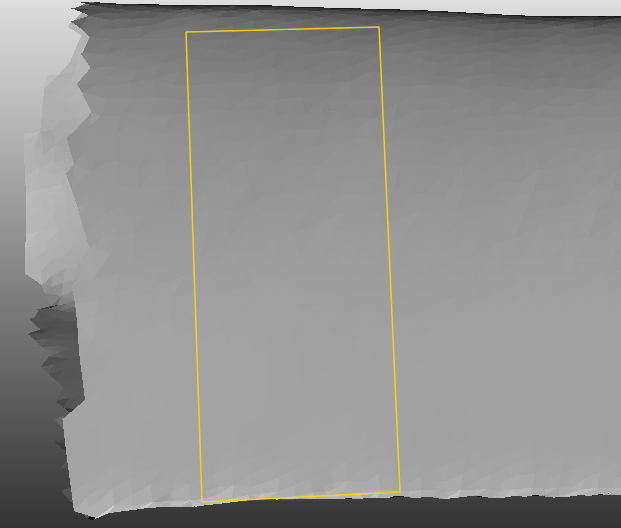
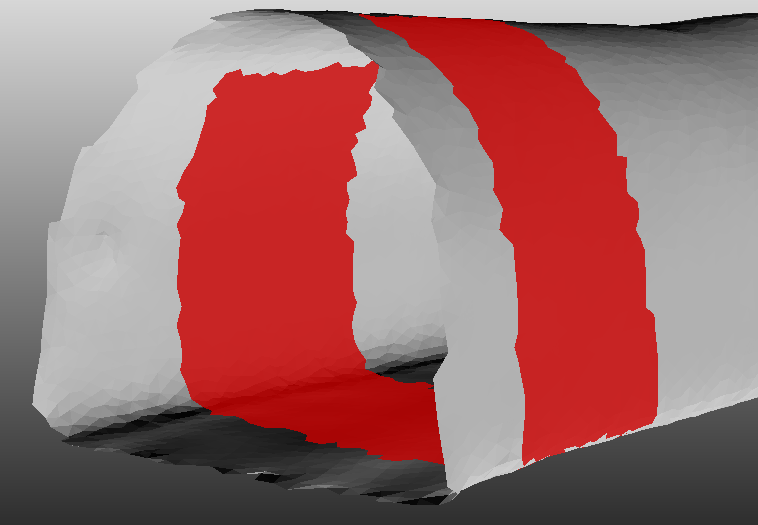
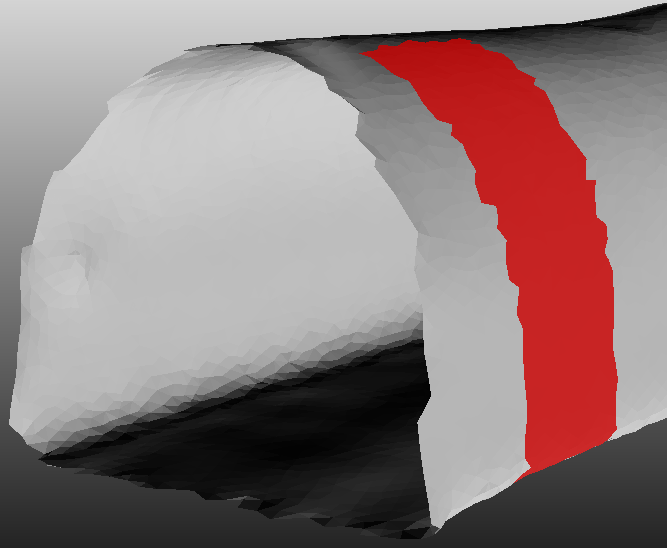
From left to right: selected area, select through, visible selection
 Select back faces. Whether or not to enable back face selection is enabled by default.
#### Substract ####
Select back faces. Whether or not to enable back face selection is enabled by default.
#### Substract ####
 Substract: When this mode is enabled, selecting a region with the chosen tool will deselect any previously selected triangles within that region.
#### Select Component ####
Substract: When this mode is enabled, selecting a region with the chosen tool will deselect any previously selected triangles within that region.
#### Select Component ####
 Select component: This function selects all triangles belonging to the same component as the currently selected triangle face. For example, if one triangle of a floating object is selected and this function is executed, then all triangles of that floating object will be selected.
#### Expand ####
Select component: This function selects all triangles belonging to the same component as the currently selected triangle face. For example, if one triangle of a floating object is selected and this function is executed, then all triangles of that floating object will be selected.
#### Expand ####
 Expand: This expands the range of currently-selected triangle faces outward from their current position.
#### Shrink ####
Shrink: This shrinks the range of currently-selected triangle faces inward from their current position.
#### Flood Fill Select ####
Expand: This expands the range of currently-selected triangle faces outward from their current position.
#### Shrink ####
Shrink: This shrinks the range of currently-selected triangle faces inward from their current position.
#### Flood Fill Select ####
 Flood fill selections: This selects all connected triangles in an approximately flat plane relative to the currently-selected face(s).
#### Hide Selection ####
Flood fill selections: This selects all connected triangles in an approximately flat plane relative to the currently-selected face(s).
#### Hide Selection ####
 Hide selected items: This function makes the currently-selected triangle faces invisible, making it easier to select obscured or internal triangles.
#### Unhide Selection ####
Hide selected items: This function makes the currently-selected triangle faces invisible, making it easier to select obscured or internal triangles.
#### Unhide Selection ####
 Cancel hiding: This function restores visibility to all previously-hidden triangle faces.
#### Select All ####
Cancel hiding: This function restores visibility to all previously-hidden triangle faces.
#### Select All ####
 Select all: This selects all faces of the currently-edited object.
#### Unselect All ####
Select all: This selects all faces of the currently-edited object.
#### Unselect All ####
 Deselect all: This deselects all faces of the currently-edited object.
#### Invert Selection ####
Deselect all: This deselects all faces of the currently-edited object.
#### Invert Selection ####
 Invert selection: This function inverts the current selection. Currently-selected items will be deselected and vice versa.