### Editing Tools ###
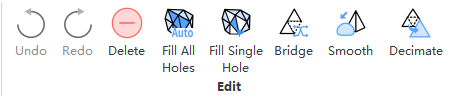
Editing operations for the currently edited model, from left to right include undo, redo, delete, fill all holes, fill single hole, bridge, smooth and decimate.
#### Undo ####
 Undo - undo the last edit operation.
#### Redo ####
Undo - undo the last edit operation.
#### Redo ####
 Redo - re-execute the last edit operation.
#### Delete ####
Redo - re-execute the last edit operation.
#### Delete ####
 Delete - delete the currently selected triangle face.
#### Fill All Holes ####
Delete - delete the currently selected triangle face.
#### Fill All Holes ####
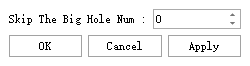
 Fill all holes. Click on the function button to pop up a parameter interface:
- **Skip The Big Hole Num**: Skip the number of holes with more edges. The skipped holes will be displayed in green and those being filled will be displayed in red.
Click apply to execute filling all holes. After filling is complete, click OK to exit and save the current patching result or click cancel to exit without saving it.
#### Fill Single Hole ####
Fill all holes. Click on the function button to pop up a parameter interface:
- **Skip The Big Hole Num**: Skip the number of holes with more edges. The skipped holes will be displayed in green and those being filled will be displayed in red.
Click apply to execute filling all holes. After filling is complete, click OK to exit and save the current patching result or click cancel to exit without saving it.
#### Fill Single Hole ####
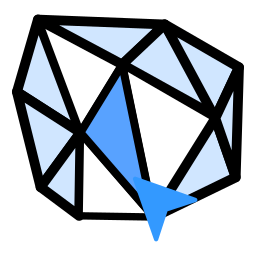 Fill a single hole. Enter single-hole filling mode and select a hole by moving your mouse over it. The selected hole will turn red. Confirm by clicking on the left mouse button to fill the selected hole.
#### Bridge ####
Fill a single hole. Enter single-hole filling mode and select a hole by moving your mouse over it. The selected hole will turn red. Confirm by clicking on the left mouse button to fill the selected hole.
#### Bridge ####
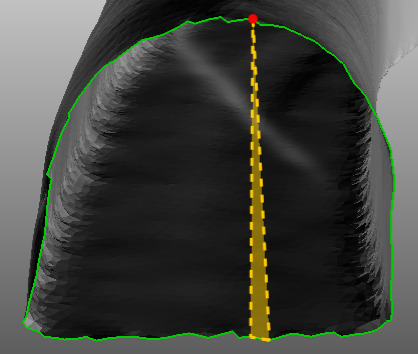
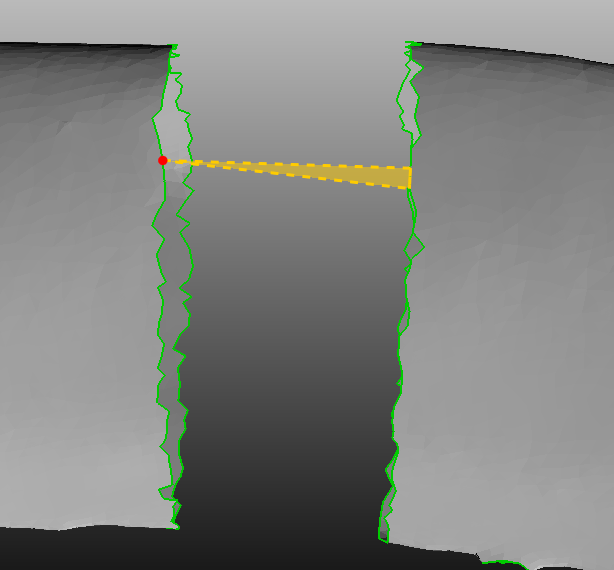
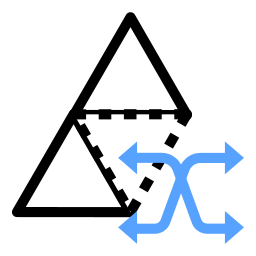 Bridge. Click on bridge to enter bridging mode. Use the left mouse button to select a point on the hole and then select an edge of the hole to generate a single triangle face. The selected points and edges can come from either the same or different holes, as shown below:
#### Smooth ####
Bridge. Click on bridge to enter bridging mode. Use the left mouse button to select a point on the hole and then select an edge of the hole to generate a single triangle face. The selected points and edges can come from either the same or different holes, as shown below:
#### Smooth ####
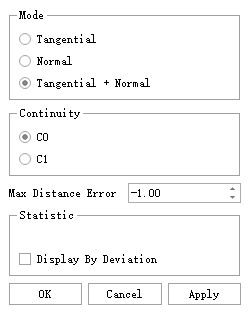
 Smooth - click on this function button to pop up a parameter interface:
- **Mode**
**Tangential**: smooth towards local triangle tangent direction.
**Normal**: smooth towards local triangle normal direction.
**Tangential+Normal**: smooth in both directions.
- **Continuity**
**C0**: maintain continuity of local point position smoothing.
**C1**: maintain continuity of local point normal smoothing.
- **Max Distance Error** : maximum allowable displacement between smoothed and original vertex positions. If exceeded, corresponding vertices will not be changed. Default is -1, with no limit on vertex movement distance.
- **Statistic** : source category for processing broken lines corresponding point cloud, generally mesh category.
Display by deviation: whether or not model displays according to size of post-smoothing vertex displacement amount; valid only when not displaying double-sided models.
#### Decimate ####
Smooth - click on this function button to pop up a parameter interface:
- **Mode**
**Tangential**: smooth towards local triangle tangent direction.
**Normal**: smooth towards local triangle normal direction.
**Tangential+Normal**: smooth in both directions.
- **Continuity**
**C0**: maintain continuity of local point position smoothing.
**C1**: maintain continuity of local point normal smoothing.
- **Max Distance Error** : maximum allowable displacement between smoothed and original vertex positions. If exceeded, corresponding vertices will not be changed. Default is -1, with no limit on vertex movement distance.
- **Statistic** : source category for processing broken lines corresponding point cloud, generally mesh category.
Display by deviation: whether or not model displays according to size of post-smoothing vertex displacement amount; valid only when not displaying double-sided models.
#### Decimate ####
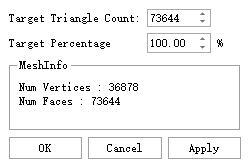
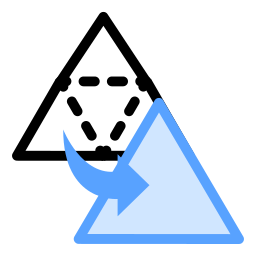 Decimate - click on this function button to pop up a parameter interface:
- **Target Triangle Count**: simplify the number of triangles to the set value.
- **Target Percentage**: control the target number of triangles as a percentage.
Decimate - click on this function button to pop up a parameter interface:
- **Target Triangle Count**: simplify the number of triangles to the set value.
- **Target Percentage**: control the target number of triangles as a percentage.