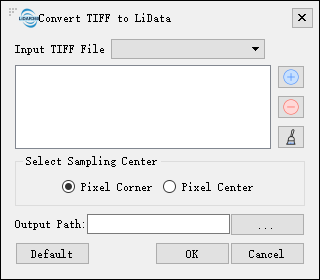
## Convert TIFF to LiData ##
### Summary ###
Convert TIFF to LiData tool can convert single-band raster data ([DEM](../../Terrain/DEM.md), [DSM](../../Terrain/DSM.md), [CHM](../../Terrain/CHM.md), etc.) to LiData. This tool is particular useful when the users can harldy acuquire point clouds in a certain area but have accurate raster products.Tthis function can help to simulate the point cloud data in that region missing LiDAR points.
### Usage ###
Click *Data Management > Conversion > Convert TIFF to LiData*.
### Settings ###
- **Input TIFF File**: Users can select the files need to be processed from the drop-down list. The files will be added to the list of files to be processed.
- ** **: Users can insert external files to be processed.
- **
**: Users can insert external files to be processed.
- ** **: Users can select one file in the list of files to be processed, and click this button to remove this file from that list.
- **
**: Users can select one file in the list of files to be processed, and click this button to remove this file from that list.
- ** **: Click this button to clear the list of files to be processed.
- **Select Sampling Center**: Users can choose either the corner (default) or the center points of the pixels as the sampling center.
- **Output Path**: Path of output folder. After the function is executed, the converted new file is generated.
**: Click this button to clear the list of files to be processed.
- **Select Sampling Center**: Users can choose either the corner (default) or the center points of the pixels as the sampling center.
- **Output Path**: Path of output folder. After the function is executed, the converted new file is generated.